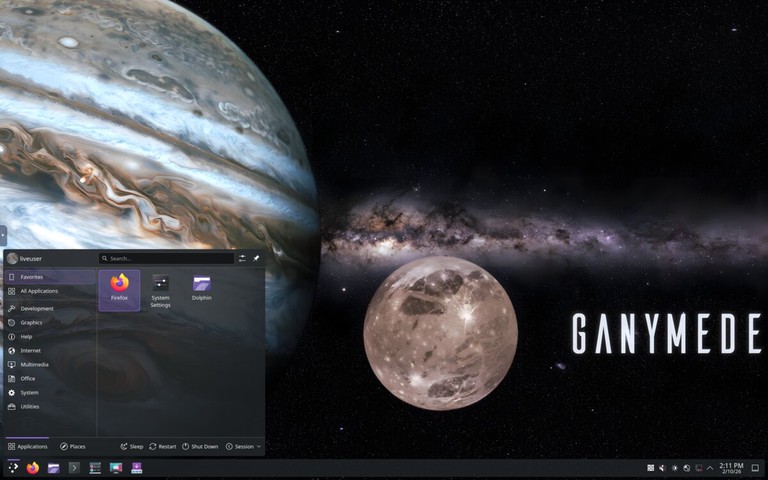
阅读视图

发现新文章,点击刷新页面。

Debian vs Ubuntu Server: Which One Should You Use?

If you are setting up a new Linux server, Debian and Ubuntu are usually the two options that come up first. Both are mature, well-supported, and used across everything from small VPS deployments to large production environments. They also share the same package format and package manager, so the day-to-day administration feels familiar on both.

The decision usually comes down to tradeoffs: Debian gives you a leaner and more conservative base, while Ubuntu gives you newer defaults, a broader support ecosystem, and easier onboarding. This guide shows where those differences matter in practice.

Shared Foundation

Ubuntu is built on top of Debian. Canonical (the company behind Ubuntu) takes a snapshot of Debian’s unstable branch every six months, applies its own patches and defaults, and publishes a new Ubuntu release.

Because of this shared lineage, the two distributions have a lot in common:

  • Both use apt and dpkg for package management.
  • Both use systemd as the init system.
  • Both use .deb packages, and many third-party vendors ship a single .deb that works on either distribution.
  • Configuration file locations, service management commands, and filesystem layout follow the same conventions.

If you already know one, you can work comfortably on the other with very little adjustment.

Release Cycle and Support

The biggest practical difference between Debian and Ubuntu is how often they release and how long each release is supported.

Debian does not follow a fixed release schedule. A new stable version ships roughly every two years, but only when the release team considers it ready. Each stable release receives approximately three years of full security support from the Debian Security Team, followed by about two more years of extended support through the Debian LTS project. Debian 13 (Trixie), released in August 2025, is the current stable version as of this writing. Debian 12 (Bookworm), released in June 2023, is now oldstable.

Ubuntu follows a predictable time-based schedule. A new version ships every six months (April and October), and every two years the April release is designated a Long-Term Support (LTS) version. LTS releases receive five years of free security updates, extendable to ten years through Ubuntu Pro (free for up to five machines for personal use). Ubuntu 24.04 LTS (Noble Numbat) is the current LTS release.

Debian Stable Ubuntu LTS
Release cadence ~2 years, when ready Every 2 years (April of even years)
Free security support ~3 years 5 years
Extended support ~2 years (Debian LTS) Up to 10 years (Ubuntu Pro)
Current release 13 Trixie (August 2025) 24.04 Noble (April 2024)

If you want a release calendar you can plan around years in advance, Ubuntu is easier to work with. If you prefer a slower release model that puts stability first, Debian is usually the better choice.

Package Freshness vs Stability

Debian Stable freezes all package versions at release time. Once Bookworm shipped, its packages only receive security patches and critical bug fixes, never feature updates. This means you will not encounter unexpected behavior changes after a routine apt upgrade, but it also means you may be running older versions of languages, databases, or runtimes for the life of the release.

Ubuntu LTS takes a similar approach to stability, but because it pulls from a more recent Debian snapshot and applies its own patches, LTS packages tend to be slightly newer at release time. Ubuntu also offers PPAs (Personal Package Archives) as an official mechanism for installing newer software outside the main repository, though mixing PPAs with production servers carries its own risks.

Both distributions offer backports repositories for users who need specific newer packages without upgrading the entire system.

For server workloads where you install most software through containers or version managers (for example, nvm for Node.js or pyenv for Python), base package age matters less. The distribution becomes a stable foundation, and you manage application-level versions separately.

Default Installation and Setup

Ubuntu Server ships with a guided installer (Subiquity) that walks you through disk layout, networking, user creation, and optional snap-based packages like Docker. It installs a small but functional set of tools by default and can import your SSH keys from GitHub or Launchpad during setup.

Debian’s installer is more traditional. It offers the same configuration options, but the interface is text-based and expects you to make more decisions yourself. The resulting system is leaner; Debian installs very little beyond the base system unless you explicitly select additional task groups during installation.

If you provision servers with tools like Ansible, Terraform, or cloud-init, the installer matters less because you will not spend much time in it after the first boot. It matters more for quick manual deployments and local VMs, where Ubuntu usually gets you to a usable system faster.

Commercial Support and Cloud Ecosystem

Canonical offers paid support contracts, compliance certifications (FIPS, CIS benchmarks), and a managed services tier for Ubuntu. Ubuntu Pro extends security patching beyond the main repository and adds kernel livepatch for rebootless security updates. That matters most for teams with uptime targets, compliance requirements, or formal support needs.

Debian is entirely community-driven. There is no single company behind it, and there is no commercial support offering from the project itself. Third-party consultancies provide Debian support, but the ecosystem around it is smaller.

In the cloud, Ubuntu has a strong lead in first-party image availability. Every major provider (AWS, Google Cloud, Azure, DigitalOcean, Hetzner) offers official Ubuntu images, and many default to Ubuntu when launching a new instance. Debian images are also available on all major platforms, but Ubuntu tends to receive new platform features and optimized images first.

For container base images, both are widely used. Debian slim images are a popular choice for minimal Docker containers, while Ubuntu images are common when teams want closer parity between their server OS and their container environment.

Security

Both distributions have strong security track records. The Debian Security Team and the Ubuntu Security Team publish advisories and patches regularly, and both maintain clear processes for reporting and fixing vulnerabilities.

The key difference is scope. Ubuntu LTS includes five years of standard security maintenance for packages in the Main repository. Ubuntu Pro extends coverage to Main and Universe, effectively the full Ubuntu archive. Debian’s security team focuses on the main repository, and Debian’s LTS team covers only a subset of packages during the extended support period.

For kernel security, Ubuntu offers kernel livepatch through Ubuntu Pro, which applies critical kernel fixes without a reboot. Debian does not have an equivalent service built into the project, though third-party solutions exist.

In practice, both distributions are secure when properly maintained. The difference is in how much of the maintenance is handled for you and for how long.

When to Choose Debian

Choose Debian when you want:

  • Maximum stability with few surprises after upgrades. Debian Stable is one of the most conservative general-purpose distributions available.
  • A minimal base system that you build up yourself. Debian installs very little by default, which keeps the system lean and gives you tighter control over what runs on the server.
  • No vendor dependency. Debian is maintained by a community of volunteers and governed by a social contract. There is no single company setting the direction of the project.
  • A lightweight container base. Debian slim images are a common choice when image size matters.

Debian is often the better fit for long-running infrastructure, self-managed servers, and setups where predictability matters more than convenience.

When to Choose Ubuntu

Choose Ubuntu when you want:

  • Faster time to a working server. The installer and default configuration get you to a usable system quickly, especially on cloud platforms where Ubuntu images are often the default.
  • Longer official support. Five years of free LTS support (ten with Ubuntu Pro) gives you a wider upgrade window than Debian’s default support period.
  • Commercial backing. If your organization requires vendor support contracts, compliance certifications, or managed services, Canonical provides them.
  • Broader documentation and community. Ubuntu’s larger user base means you will usually find more tutorials, examples, and third-party guides written for it.
  • Cloud-heavy workflows. First-party cloud images and strong cloud-init support make Ubuntu an easy default for many hosted deployments.

Ubuntu is often the easier choice for cloud deployments, teams that need commercial support, and environments where onboarding speed matters.

Side-by-Side Summary

Debian Stable Ubuntu LTS
Based on Independent Debian (unstable branch)
Governance Community (Debian Project) Corporate (Canonical) + community
Release schedule When ready (~2 years) Fixed (every 2 years)
Free support period ~5 years (3 + 2 LTS) 5 years (10 with Pro)
Package freshness Conservative (frozen at release) Slightly newer at release
Default install Minimal Functional with guided setup
Cloud image availability Good Excellent (often the default)
Commercial support Third-party only Canonical (Ubuntu Pro)
Kernel livepatch Not built in Available via Ubuntu Pro
Container base image Popular (especially slim) Popular
Package manager apt / dpkg apt / dpkg
Init system systemd systemd

FAQ

Can I migrate a server from Ubuntu to Debian or vice versa?
It is technically possible but not straightforward. The distributions share the same package format, but they differ in package versions, configuration defaults, and init scripts. A clean reinstall with configuration management (Ansible, Puppet, or similar) is the safer path. Plan the migration as a new deployment rather than an in-place conversion.

Do Debian and Ubuntu run the same software?
For the most part, yes. Most common server software is available on both Debian and Ubuntu, whether through the official repositories, vendor-provided .deb packages, containers, or upstream binaries. That said, package versions, repository availability, and vendor support can differ between the two distributions and between releases.

Which is better for Docker and containers?
Both work well as Docker hosts. Installing Docker follows nearly the same steps on either distribution. For base images inside containers, Debian slim images are slightly smaller, while Ubuntu images offer closer parity with Ubuntu-based host systems. The difference is marginal for most workloads.

Which is more secure?
Neither is inherently more secure than the other. Both have dedicated security teams and fast patch turnaround. Ubuntu Pro extends patching to a wider package set and adds kernel livepatch, which can matter in environments with strict uptime or compliance requirements. On a properly maintained server, both are equally secure.

Conclusion

Debian and Ubuntu are close enough that you can run the same kinds of workloads on either one. If you want the more conservative and self-managed option, pick Debian. If you want faster onboarding, broader vendor support, and a smoother cloud path, pick Ubuntu.
Best Linux Distributions for Every Use Case

A Linux distribution (or “distro”) is an operating system built on the Linux kernel, combined with GNU tools, libraries, and software packages. Each distro includes a desktop environment, package manager, and preinstalled applications tailored to specific use cases.

With hundreds of Linux distributions available, choosing the right one can be overwhelming. This guide covers the best Linux distributions for different types of users, from complete beginners to security professionals.

How to Choose a Linux Distro

When selecting a Linux distribution, consider these factors:

  • Experience level — Some distros are beginner-friendly, while others require technical knowledge
  • Hardware — Older computers benefit from lightweight distros like Xubuntu and other Xfce-based systems
  • Purpose — Desktop use, gaming, server deployment, or security testing all have ideal distros
  • Software availability — Check if your required applications are available in the distro’s repositories
  • Community support — Larger communities mean more documentation and help

Linux Distros for Beginners

These distributions are designed with user-friendliness in mind, featuring intuitive interfaces and easy installation.

Ubuntu

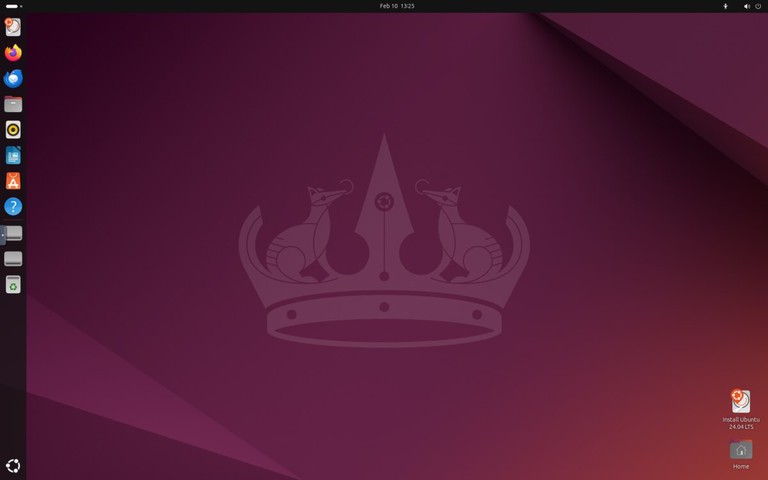
Ubuntu is the most popular Linux distribution and an excellent starting point for newcomers. Developed by Canonical, it offers a polished desktop experience with the GNOME environment and extensive hardware support.

Ubuntu desktop screenshot

Ubuntu comes in several editions:

  • Ubuntu Desktop — Standard desktop with GNOME
  • Ubuntu Server — For server deployments
  • Kubuntu, Lubuntu, Xubuntu — Alternative desktop environments

Ubuntu releases new versions every six months, with Long Term Support (LTS) versions every two years receiving five years of security updates.

Website: https://ubuntu.com/

Linux Mint

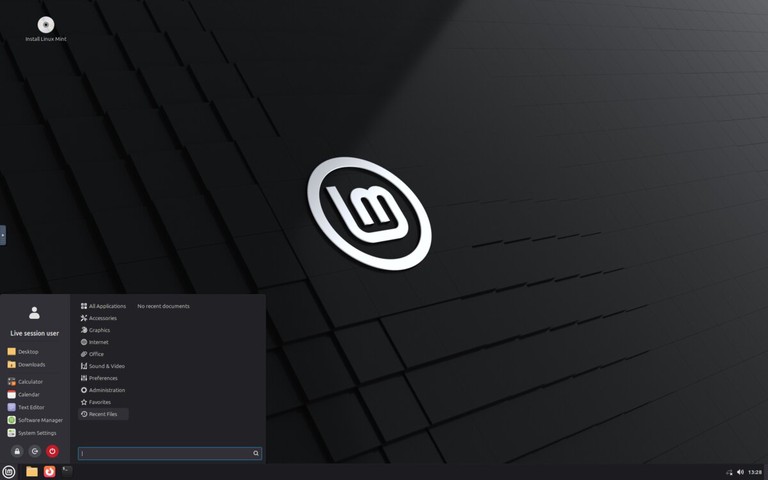
Linux Mint is an excellent choice for users coming from Windows. Its Cinnamon desktop environment provides a familiar layout with a taskbar, start menu, and system tray.

Linux Mint desktop screenshot

Key features:

  • Comes with multimedia codecs preinstalled
  • LibreOffice productivity suite included
  • Update Manager for easy system maintenance
  • Available with Cinnamon, MATE, or Xfce desktops

Website: https://linuxmint.com/

Pop!_OS

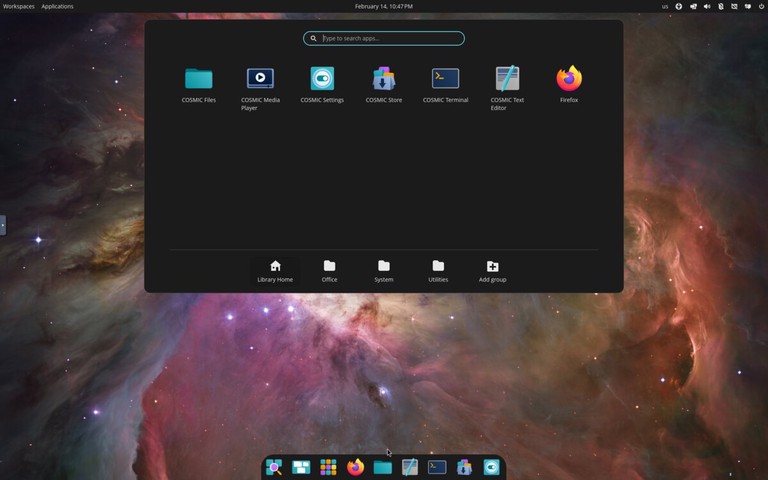
Developed by System76, Pop!_OS is based on Ubuntu but optimized for productivity and gaming. It ships with the COSMIC desktop environment (built in Rust by System76), featuring built-in window tiling, a launcher for quick app access, and excellent NVIDIA driver support out of the box.

Pop!_OS desktop screenshot

Pop!_OS is particularly popular among:

  • Gamers (thanks to Steam and Proton integration)
  • Developers (includes many development tools)
  • Users with NVIDIA graphics cards

Website: https://pop.system76.com/

Zorin OS

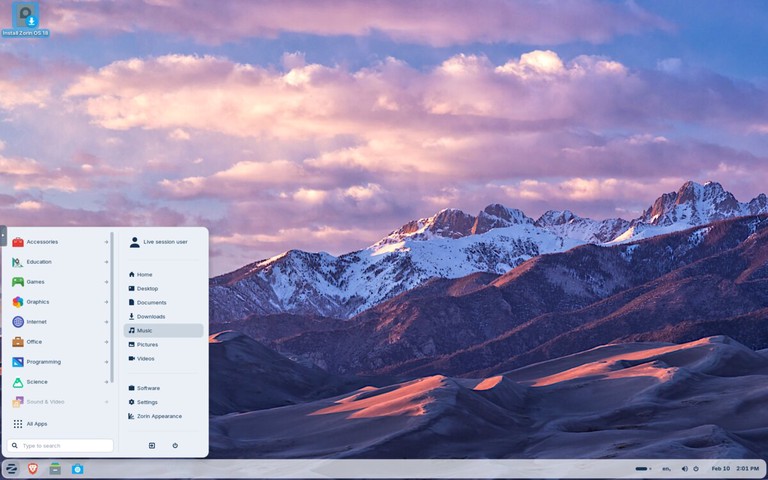
Zorin OS is a beginner-focused distribution designed to make the move from Windows or macOS easier. It includes polished desktop layouts, strong hardware compatibility, and a simple settings experience for new users.

Zorin OS is a strong option when you want:

  • A familiar desktop layout with minimal setup
  • Stable Ubuntu-based package compatibility
  • Good out-of-the-box support for everyday desktop tasks
Zorin OS desktop screenshot

Website: https://zorin.com/os/

elementary OS

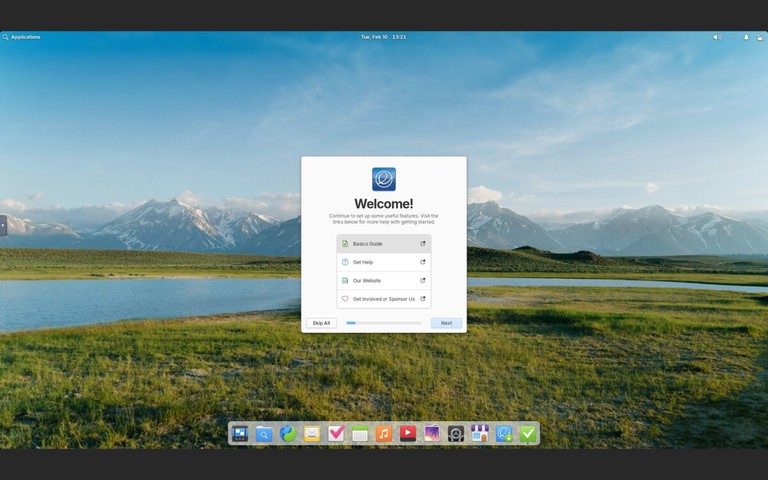
elementary OS is a design-focused distribution with a macOS-like interface called Pantheon. It emphasizes simplicity, consistency, and a curated app experience through its AppCenter.

elementary OS desktop screenshot

elementary OS is a good fit when you want:

  • A clean, visually polished desktop out of the box
  • A curated app store with native applications
  • A macOS-like workflow on Linux

Website: https://elementary.io/

Lightweight Linux Distros

These distributions are designed for older hardware or users who prefer a minimal, fast system.

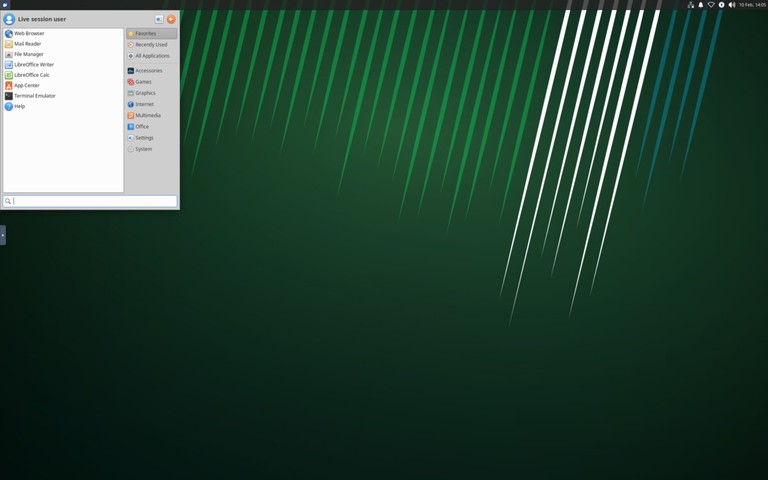
Xubuntu

Xubuntu combines Ubuntu’s reliability with the Xfce desktop environment, offering a good balance between performance and features. It is lighter than standard Ubuntu while remaining full-featured for daily desktop use.

Xubuntu is a practical choice when you need:

  • Better performance on older hardware
  • A traditional desktop workflow
  • Ubuntu repositories and long-term support options
Xubuntu desktop screenshot

Website: https://xubuntu.org/

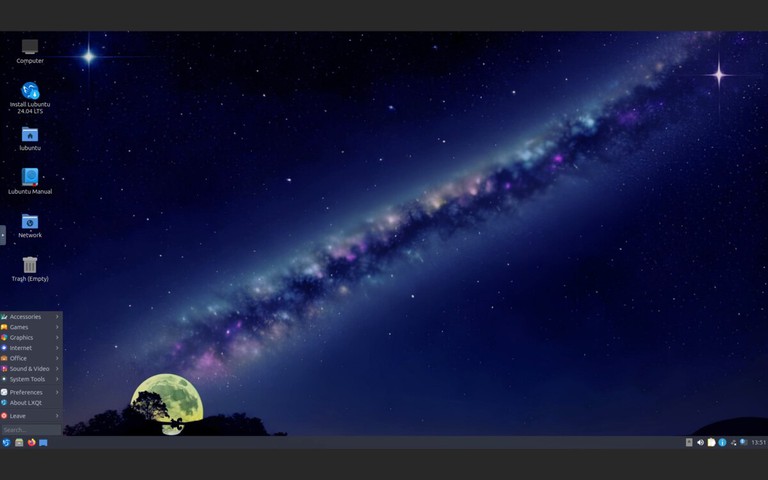
Lubuntu

Lubuntu uses the LXQt desktop environment, making it one of the lightest Ubuntu-based distributions available. It is designed for very old or resource-constrained hardware where even Xfce feels heavy.

Lubuntu desktop screenshot

Lubuntu works well when you need:

  • Minimal memory and CPU usage
  • A functional desktop on very old hardware
  • Access to Ubuntu repositories and LTS support

Website: https://lubuntu.me/

Linux Distros for Advanced Users

These distributions offer more control and customization but require technical knowledge to set up and maintain.

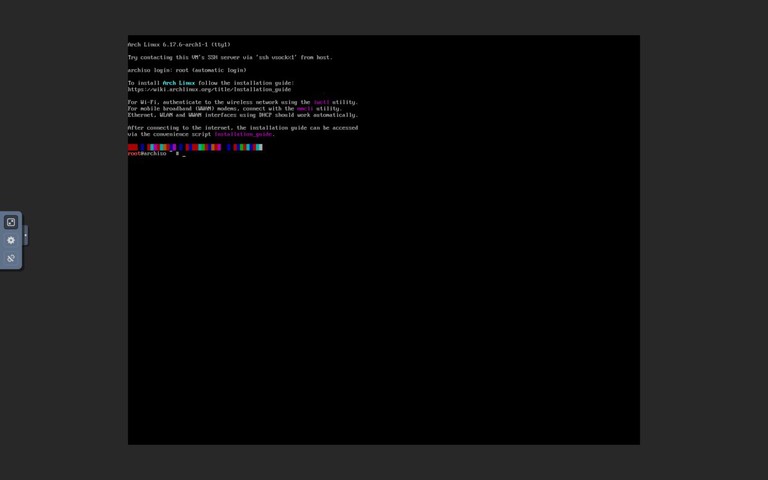
Arch Linux

Arch Linux follows a “do-it-yourself” philosophy, providing a minimal base system that users build according to their needs. It uses a rolling release model, meaning you always have the latest software without major version upgrades.

Key features:

  • Pacman package manager with access to vast repositories
  • Arch User Repository (AUR) for community packages
  • Excellent documentation in the Arch Wiki
  • Complete control over every aspect of the system
Arch Linux desktop screenshot
Tip
Arch Linux requires manual installation via the command line. If you want the Arch experience with an easier setup, consider Manjaro or EndeavourOS.

Website: https://archlinux.org/

EndeavourOS

EndeavourOS is an Arch-based distribution that keeps the Arch philosophy while simplifying installation and initial setup. It is popular among users who want a near-Arch experience without doing a fully manual install.

EndeavourOS gives you:

  • Rolling release updates
  • Access to Arch repositories and AUR packages
  • A cleaner onboarding path than a base Arch install
EndeavourOS desktop screenshot

Website: https://endeavouros.com/

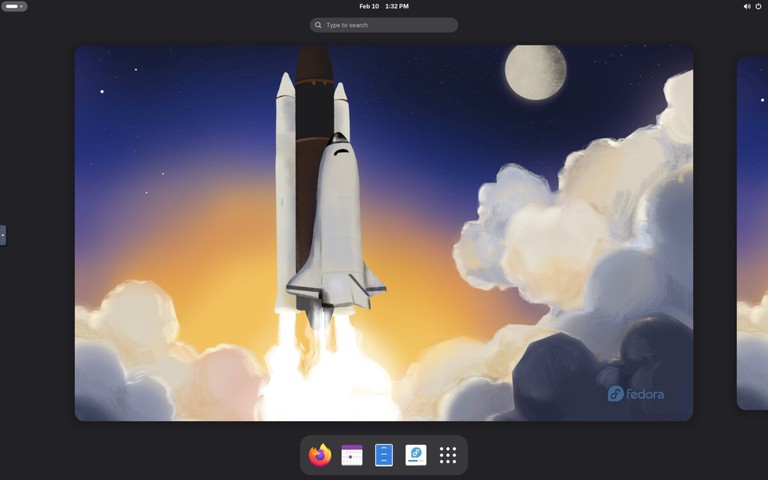
Fedora

Fedora is a cutting-edge distribution sponsored by Red Hat. It showcases the latest open-source technologies while maintaining stability, making it popular among developers and system administrators.

Fedora desktop screenshot

Fedora editions include:

  • Fedora Workstation — Desktop with GNOME
  • Fedora Server — For server deployments
  • Fedora Silverblue — Immutable desktop OS
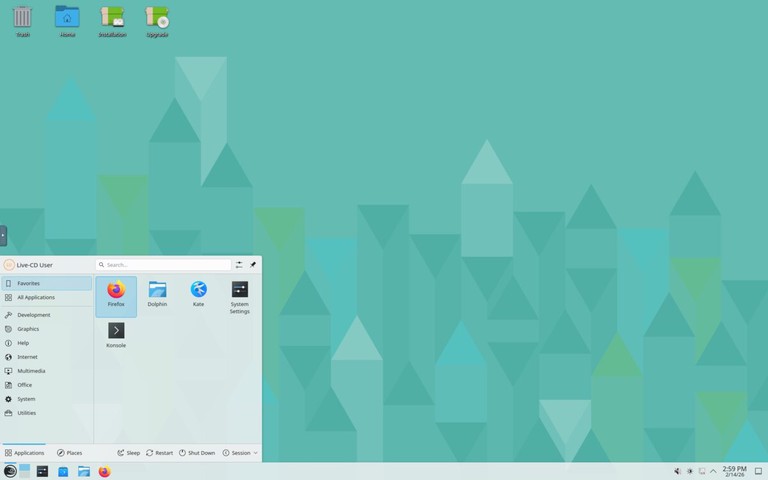
  • Fedora Spins — Alternative desktops (KDE, Xfce, etc.)

Many Red Hat technologies debut in Fedora before reaching RHEL, making it ideal for learning enterprise Linux.

Website: https://fedoraproject.org/

openSUSE

openSUSE is a community-driven distribution known for its stability and powerful administration tools. It offers two main variants:

  • openSUSE Leap — Regular releases based on SUSE Linux Enterprise
  • openSUSE Tumbleweed — Rolling release with the latest packages

The YaST (Yet another Setup Tool) configuration utility makes system administration straightforward, handling everything from software installation to network configuration.

openSUSE desktop screenshot

Website: https://www.opensuse.org/

Linux Distros for Gaming

Gaming-focused distributions prioritize current graphics stacks, controller support, and compatibility with modern Steam and Proton workflows.

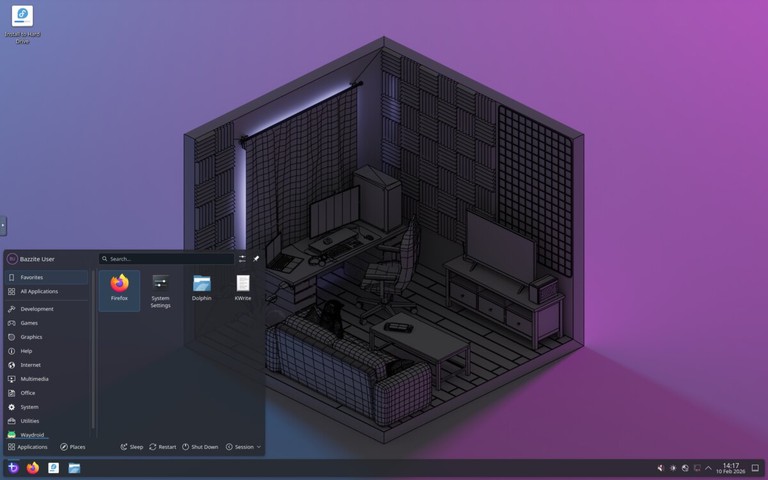
Bazzite

Bazzite is an immutable Fedora-based desktop optimized for gaming and handheld devices. It ships with gaming-focused defaults and integrates well with Steam, Proton, and modern GPU drivers.

Bazzite is ideal when you want:

  • A Steam-first gaming setup
  • Reliable rollback and update behavior from an immutable base
  • A distro tuned for gaming PCs and handheld hardware
Bazzite desktop screenshot

Website: https://bazzite.gg/

Linux Distros for Servers

These distributions are optimized for stability, security, and long-term support in server environments.

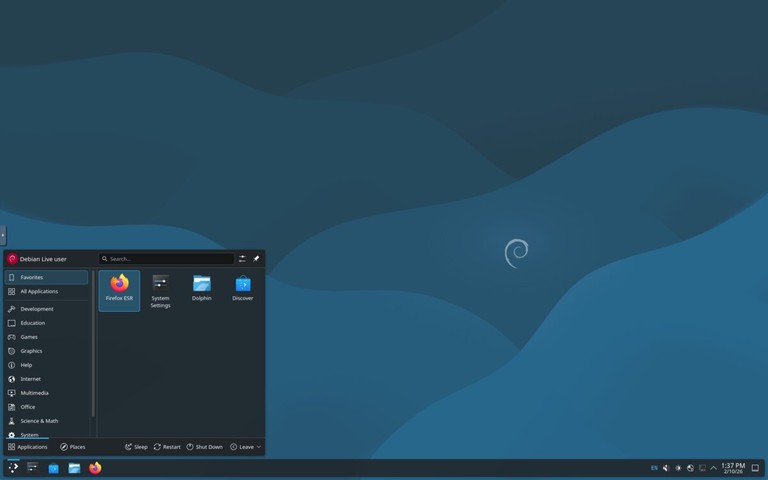
Debian

Debian is one of the oldest and most influential Linux distributions. Known for its rock-solid stability and rigorous testing process, it serves as the foundation for Ubuntu, Linux Mint, Kali Linux, and many other distributions.

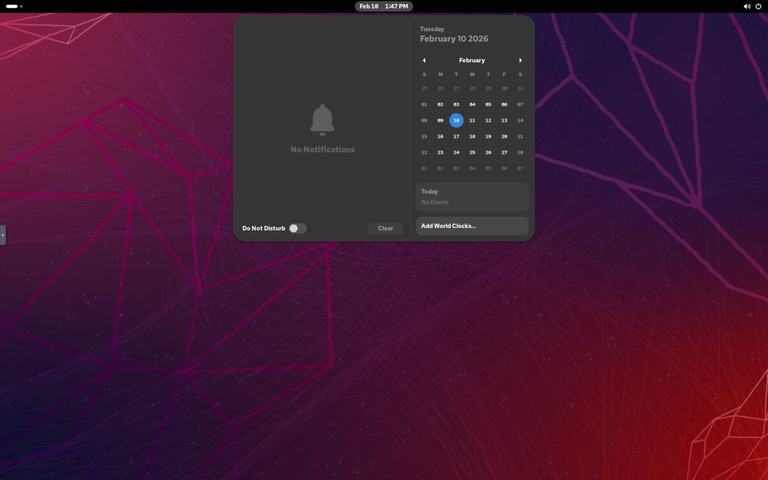
Debian desktop screenshot

Debian offers three release channels:

  • Stable — Thoroughly tested, ideal for production servers
  • Testing — Upcoming stable release with newer packages
  • Unstable (Sid) — Rolling release with the latest software

With over 59,000 packages in its repositories, Debian supports more hardware architectures than any other Linux distribution.

Website: https://www.debian.org/

Red Hat Enterprise Linux (RHEL)

RHEL is the industry standard for enterprise Linux deployments. It offers:

  • 10-year support lifecycle
  • Certified hardware and software compatibility
  • Red Hat Insights for predictive analytics
  • Professional support from Red Hat

RHEL runs on multiple architectures including x86_64, ARM64, IBM Power, and IBM Z.

Website: https://www.redhat.com/

Rocky Linux

After CentOS shifted to CentOS Stream, Rocky Linux emerged as a community-driven RHEL-compatible distribution. Founded by one of the original CentOS creators, it provides 1:1 binary compatibility with RHEL.

Rocky Linux desktop screenshot

Rocky Linux is ideal for:

  • Organizations previously using CentOS
  • Production servers requiring stability
  • Anyone needing RHEL compatibility without the cost

Website: https://rockylinux.org/

Ubuntu Server

Ubuntu Server is widely used for cloud deployments and containerized workloads. It powers a significant portion of public cloud instances on AWS, Google Cloud, and Azure.

Features include:

  • Regular and LTS releases
  • Excellent container and Kubernetes support
  • Ubuntu Pro for extended security maintenance
  • Snap packages for easy application deployment

Website: https://ubuntu.com/server

SUSE Linux Enterprise Server (SLES)

SUSE Linux Enterprise Server is designed for mission-critical workloads. It excels in:

  • SAP HANA deployments
  • High-performance computing
  • Mainframe environments
  • Edge computing

SLES offers a common codebase across different environments, simplifying workload migration.

Website: https://www.suse.com/products/server/

Linux Distros for Security and Privacy

These distributions focus on security testing, anonymity, and privacy protection.

Kali Linux

Kali Linux is the industry-standard platform for penetration testing and security research. Maintained by Offensive Security, it includes hundreds of security tools preinstalled.

Common use cases:

  • Penetration testing
  • Security auditing
  • Digital forensics
  • Reverse engineering
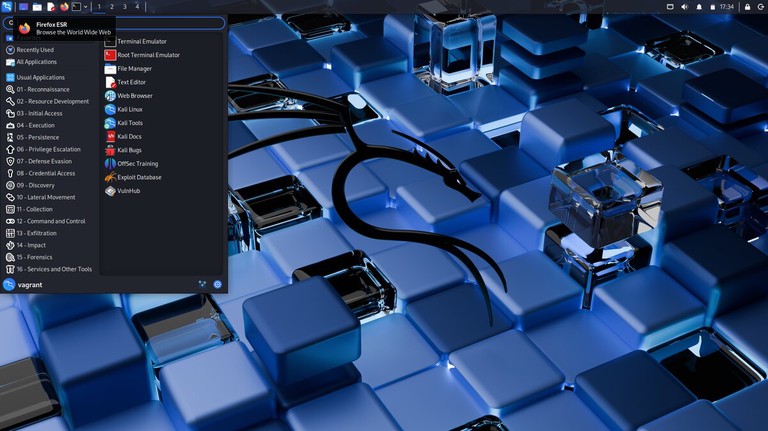
Kali Linux desktop screenshot
Warning
Kali Linux is designed for security professionals. It should not be used as a daily driver operating system.

Website: https://www.kali.org/

Tails

Tails (The Amnesic Incognito Live System) is a portable operating system designed for privacy and anonymity. It runs from a USB drive and routes all traffic through the Tor network.

Key features:

  • Leaves no trace on the host computer
  • All connections go through Tor
  • Built-in encryption tools
  • Amnesic by design (forgets everything on shutdown)
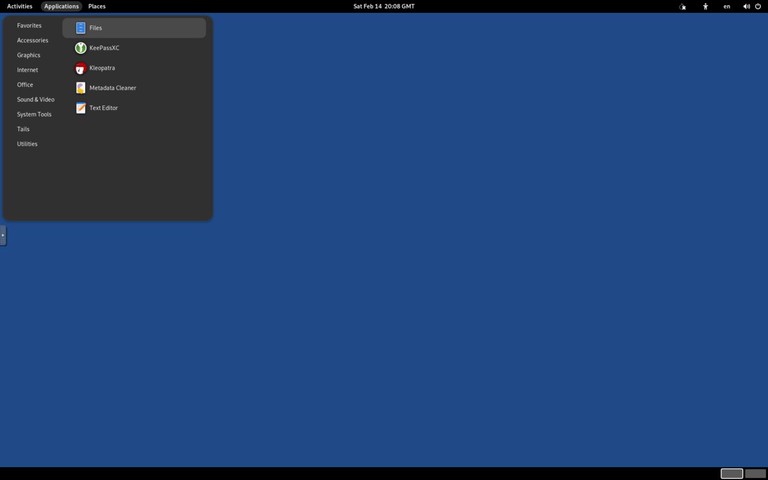
Tails desktop screenshot

Website: https://tails.net/

Qubes OS

Qubes OS takes a unique approach to security by isolating different activities in separate virtual machines called “qubes.” If one qube is compromised, others remain protected.

The Xen hypervisor runs directly on hardware, providing strong isolation between:

  • Work applications
  • Personal browsing
  • Untrusted software
  • Sensitive data

Website: https://www.qubes-os.org/

Parrot Security OS

Parrot Security is a Debian-based distribution for security testing, development, and privacy. It is lighter than Kali Linux and can serve as a daily driver.

Parrot offers several editions:

  • Security Edition — Full security toolkit
  • Home Edition — Privacy-focused daily use
  • Cloud Edition — For cloud deployments

Website: https://parrotsec.org/

Getting Started

Once you have chosen a distro, the next steps are:

  1. Download the ISO from the official website
  2. Create a bootable USB drive — See our guide on creating a bootable Linux USB
  3. Try it live before installing (most distros support this)
  4. Install following the distro’s installation wizard

Quick Comparison

Distro Best For Desktop Package Manager Based On
Ubuntu Beginners GNOME APT Debian
Linux Mint Windows users Cinnamon APT Ubuntu
Zorin OS New Linux users GNOME (Zorin desktop) APT Ubuntu
elementary OS macOS-like experience Pantheon APT Ubuntu
Fedora Developers GNOME DNF Independent
Debian Stability/Servers GNOME APT Independent
Arch Linux Advanced users Any Pacman Independent
EndeavourOS Arch with easier setup Xfce (default) Pacman Arch Linux
Pop!_OS Gaming/Developers COSMIC APT Ubuntu
Bazzite Gaming KDE/GNOME variants RPM-OSTree Fedora
Rocky Linux Enterprise servers None DNF RHEL
Xubuntu Older hardware Xfce APT Ubuntu
Lubuntu Very old hardware LXQt APT Ubuntu
Kali Linux Security testing Xfce APT Debian

FAQ

Which Linux distro is best for beginners?
Ubuntu, Linux Mint, and Zorin OS are the best choices for beginners. Ubuntu has the largest community and most documentation, while Linux Mint and Zorin OS provide a familiar desktop experience.

Can I try a Linux distro without installing it?
Yes. Most distributions support “live booting” from a USB drive, allowing you to test the system without making any changes to your computer.

Is Linux free?
Most Linux distributions are completely free to download and use. Some enterprise distros like RHEL offer paid support subscriptions.

Can I run Windows software on Linux?
Many Windows applications run on Linux through Wine or Proton (for games via Steam). Native alternatives like LibreOffice, GIMP, and Firefox are also available.

What is a rolling release distro?
A rolling release distro (like Arch Linux or openSUSE Tumbleweed) delivers continuous updates instead of major version upgrades. You always have the latest software, but updates require more attention.

Conclusion

The best Linux distribution depends entirely on your needs and experience level. If you are new to Linux, start with Ubuntu, Linux Mint, or Zorin OS. If you want full control over your system, try Arch Linux, EndeavourOS, or Fedora. For gaming, Pop!_OS and Bazzite are strong options. For servers, Debian, Rocky Linux, Ubuntu Server, and RHEL are all solid choices. For security testing, Kali Linux and Parrot Security are the industry standards.

Most distributions are free to download and try. Create a bootable USB, test a few options, and find the one that fits your workflow.

If you have any questions, feel free to leave a comment below.

❌