阅读视图

发现新文章,点击刷新页面。

🦞别在 OpenClaw 上花冤枉钱了,这份小白指南手把手教你 1 分钟搞定

火出圈的小龙虾 OpenClaw 不仅能帮人开发软件,还能自动定时总结邮件、设置 To-Do List。
巨大的热度让人靠「上门安装」的业务年入百万,而今天我们教你如何自己动手,不用畏惧黑底白字的终端窗口和代码,一分钟就能搞定。

在电脑上部署之后,它能直接接管你的键盘鼠标和文件。你只要在聊天软件里给它下需求,它就能自己动手干活。甚至有网友直接让它去邮件里找航班信息,顺手把选座值机也办了,一波操作看愣了不少人。

想让这么好用的 AI 助理 24 小时待命,本地部署确实是最好的选择。结果谁也没想到,它凭一己之力带火了 Mac mini。

但问题来了,为了一个免费开源的框架,特意花大几千买台新电脑,是不是有点 “为一碟醋包一顿饺子”?有没有更低成本的体验方式?

今天我们就来聊聊一个极简方案:通过 MiniMax 和 Kimi 这样的国内大模型平台,一键云端部署,直接把它拉进你的飞书聊天框。

过程不到一分钟

以 MiniMax 为例,整个过程不到一分钟。全程不需要你自己写代码、改配置文件,也不需要捣鼓什么端口反向代理,更不需要专门弄台电脑来维护。

具体怎么操作?

打开 MiniMax Agent 官网,点击侧边栏的「MaxClaw」,直接对它说 “我想接入到飞书”,它就会给你发步骤指引。跟着做就行:

第一步: 在飞书开放平台创建应用(建议用个人账号或新建企业号,省去审批),把 AppID 和 Secret 复制发回给 Claw。

第二步: 在飞书的权限管理页点击「批量导入」,把 MaxClaw 发来的代码整个替换进去。系统会提示你开启机器人能力,点确认。

第三步: 进入事件配置,把订阅方式改成「长连接」,勾选接收消息。接着去版本管理里随便填个版本号(比如 0.0.1)和更新日志,点保存发布。

最后,在飞书里给机器人发个消息,它会返回一串匹配码,把这串代码发回给网页端的 MaxClaw。

搞定,你的专属小龙虾就活过来了。是不是比想象中简单得多?

Kimi 的配置过程也大同小异。你只要负责搞定飞书里的应用和权限,Kimi 自己就能修改配置文件,遇到不懂的还能直接问它。

现在 Kimi 的手机 App 也上线了 Kimi Claw,你甚至可以直接在社区里玩网友用龙虾做的小游戏,或者一键制作同款。

普通牛马的赛博打工人

我搞定之后的第一件事,就是让它帮我整理当天的热点资讯。你在飞书发的消息,网页端会同步显示处理过程。对于我们科技编辑来说,这就相当于有了一个定制版的早报助手;

同样的,你也可以用它来追踪自己感兴趣的领域。

那如果是处理繁杂的工作呢?发个月度工作文档链接给它,或者直接开通云文档的访问权限,定好时间、标题和格式,它就能每个月自动帮你整理出一份详尽的工作月报。

至于开会,飞书妙记确实好用,但需要额外付费。

现在,你只需要把会议录音链接发给小龙虾,它马上就能把早会的每个要点给你列得清清楚楚。
除了我们体验过的用法,你还可以参考网友们的用例获取更多灵感,打造出更契合自己需求的龙虾助手。

OpenClaw 官网案例汇总:
https://openclaw.ai/showcase
网友整理的用例集合:
https://github.com/hesamsheikh/awesome-openclaw-usecases

对比本地部署,云端部署的版本确实没办法直接读取电脑里的本地文件,少了一些 “看着鼠标自己动” 的极客感。

但换个角度想,它不需要你折腾硬件,还能极其方便地接入飞书、钉钉等各种通讯软件。

每个月花一杯咖啡的订阅费,就能给自己雇一个随时待命的全能助理,帮你分担工作、节省大把时间。

这笔账算下来,难道不划算吗?

#欢迎关注爱范儿官方微信公众号:爱范儿(微信号:ifanr),更多精彩内容第一时间为您奉上。

爱范儿 | 原文链接 · 查看评论 · 新浪微博


How to Install TeamViewer on Ubuntu 24.04

TeamViewer is a cross-platform remote access and support solution that allows you to connect to and control remote computers over the internet. It supports remote control, file transfer, desktop sharing, and online meetings across Windows, macOS, and Linux.

This guide explains how to install TeamViewer on Ubuntu 24.04.

Quick Reference

Task Command
Download package wget https://download.teamviewer.com/download/linux/teamviewer_amd64.deb
Install sudo apt install ./teamviewer_amd64.deb
Launch teamviewer
Update sudo apt update && sudo apt upgrade teamviewer
Remove sudo apt remove teamviewer

Prerequisites

You need to be logged in as root or as a user with sudo privileges .

Installing TeamViewer on Ubuntu 24.04

TeamViewer is proprietary software and is not available in the standard Ubuntu repositories. You will download and install the official .deb package directly from TeamViewer.

Open your terminal and download the latest TeamViewer .deb package using wget :

Terminal
wget https://download.teamviewer.com/download/linux/teamviewer_amd64.deb

Once the download is complete, update the package index and install the package:

Terminal
sudo apt update
sudo apt install ./teamviewer_amd64.deb

When prompted Do you want to continue? [Y/n], type Y to confirm.

Info
TeamViewer depends on Qt libraries. The installation pulls in several Qt packages automatically. During the process, the official TeamViewer APT repository is also added to your system, which keeps TeamViewer up to date through the standard package manager.

TeamViewer is now installed on your Ubuntu 24.04 system.

Starting TeamViewer

You can launch TeamViewer from the command line:

Terminal
teamviewer

Alternatively, open the Activities menu, search for “TeamViewer”, and click its icon.

When TeamViewer starts for the first time, it will prompt you to accept the license agreement. Click “Accept License Agreement” to continue.

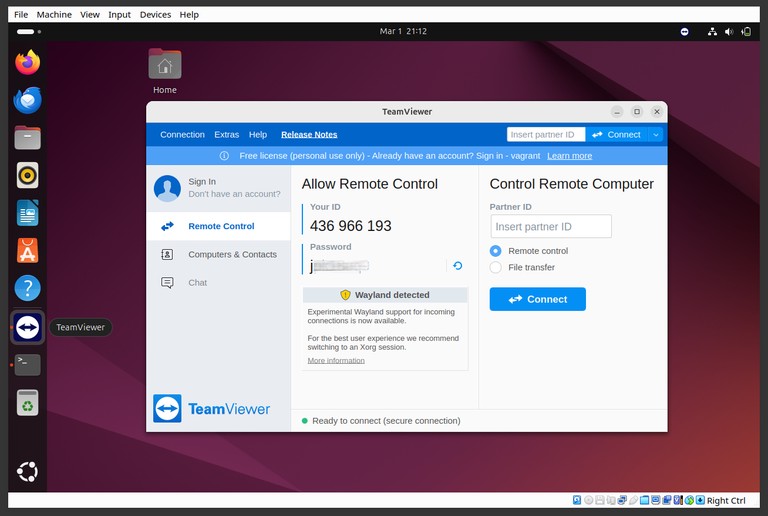
After accepting, the main TeamViewer window opens and displays your ID and Password. Share these with anyone who needs to connect to your machine, or enter a remote computer’s ID to initiate a connection yourself.

TeamViewer main window showing ID and password on Ubuntu 24.04

Updating TeamViewer

During installation, the official TeamViewer repository is added to your system. You can verify it with the cat command :

Terminal
cat /etc/apt/sources.list.d/teamviewer.list
output
deb https://linux.teamviewer.com/deb stable main

Because the repository is configured, you can update TeamViewer the same way you update any other package:

Terminal
sudo apt update
sudo apt upgrade teamviewer

You can also update through the Software Updater application in the GNOME desktop.

Uninstalling TeamViewer

To remove TeamViewer while keeping its configuration files:

Terminal
sudo apt remove teamviewer

To remove TeamViewer along with all its configuration files:

Terminal
sudo apt purge teamviewer

To also remove the TeamViewer APT repository so it no longer appears in your package sources:

Terminal
sudo rm /etc/apt/sources.list.d/teamviewer.list
sudo apt update

Troubleshooting

teamviewer: command not found after installation Close and reopen your terminal, or log out and back in so the new binary is picked up by your shell’s PATH. If the issue persists, verify the installation with which teamviewer or dpkg -l teamviewer.

Qt library errors during installation Run sudo apt install -f to resolve broken or missing dependencies, then retry the installation.

dpkg error when installing the .deb file Run sudo dpkg --configure -a to fix any interrupted package operations, then run sudo apt install ./teamviewer_amd64.deb again.

TeamViewer shows “Not ready. Please check your connection.” This usually means the TeamViewer daemon is not running or cannot reach the internet. Try restarting the service:

Terminal
sudo systemctl restart teamviewerd

Verify the service is active:

Terminal
sudo systemctl status teamviewerd

Wrong architecture — running an ARM system The teamviewer_amd64.deb package is for 64-bit x86 systems. For ARM-based systems such as a Raspberry Pi running Ubuntu, download the ARM package from the TeamViewer Linux downloads page .

FAQ

Is TeamViewer free on Linux? TeamViewer is free for personal and non-commercial use. Commercial use requires a paid license. See the TeamViewer pricing page for details.

Does the same installation method work on Ubuntu 22.04 and Debian? Yes. The same .deb package and apt install steps work on Ubuntu 22.04 and other Debian-based distributions. For Ubuntu 22.04 specific instructions, see How to Install TeamViewer on Ubuntu 22.04 .

How do I connect to a remote computer? Open TeamViewer, enter the remote computer’s ID in the “Partner ID” field, and click “Connect”. Enter the password when prompted. The remote session starts immediately if the correct credentials are provided.

How do I allow unattended access? In the TeamViewer main window, go to Extras → Options → Security and set a personal password. This allows connections to your machine without requiring someone to be present to share the one-time password.

Conclusion

TeamViewer can be installed on Ubuntu 24.04 in two commands — download the .deb package and install it with apt. The TeamViewer repository added during installation keeps the application up to date through the standard Ubuntu update process.

If you have any questions, feel free to leave a comment below.

gzip Cheatsheet

Basic Syntax

Core command forms for gzip and gunzip.

Command Description
gzip FILE Compress a file and replace it with FILE.gz
gzip -k FILE Compress and keep original file
gzip -d FILE.gz Decompress a .gz file
gunzip FILE.gz Decompress a .gz file
zcat FILE.gz Print decompressed content to stdout

Compression Levels

Control speed versus compression ratio.

Command Description
gzip -1 FILE Fastest compression, larger output
gzip -6 FILE Default compression level
gzip -9 FILE Maximum compression, slower
gzip -k -9 FILE Max compression while keeping original

Compress Multiple Files

Apply gzip to groups of files.

Command Description
gzip *.log Compress all matching log files
gzip -r logs/ Recursively compress files in a directory
find . -name '*.txt' -print0 | xargs -0 gzip Compress matching files safely
for f in *.csv; do gzip -k "$f"; done Compress files and keep originals
gzip -- *.txt Compress files, safe for dash-prefixed names

Decompress and Inspect

Restore and verify compressed files.

Command Description
gunzip archive.gz Decompress and remove .gz file
gzip -dk archive.gz Decompress and keep .gz file
gzip -l archive.gz Show compressed/uncompressed sizes
gzip -v FILE Show compression ratio and details
gzip -t archive.gz Test integrity without extracting
zcat archive.gz | less View content without writing files

Streams and Pipelines

Use gzip without intermediate files.

Command Description
mysqldump mydb | gzip > mydb.sql.gz Compress command output directly
gzip -c file.txt > file.txt.gz Write compressed output to stdout
gunzip -c backup.sql.gz > backup.sql Decompress to a chosen file
tar -cf - project/ | gzip > project.tar.gz Create compressed tar stream
gzip -dc access.log.gz | grep ERROR Search content in compressed logs

Troubleshooting

Quick checks for common gzip issues.

Issue Check
gzip: command not found Install gzip package and verify with gzip --version
Original file disappeared after compression Use -k to keep source files
not in gzip format Confirm file type with file filename before decompression
Corrupt archive errors Run gzip -t file.gz to validate integrity
Unexpected overwrite behavior Use -k or output redirection with -c to control file writes

Related Guides

Use these guides for full workflows and archive handling.

Guide Description
gzip Command in Linux Full gzip tutorial with examples
gunzip Command in Linux Decompress .gz files in detail
How to Create Tar Gz File Build compressed tar archives
Tar Command in Linux Create and extract tar archives
Find Large Files in Linux Locate files before compression cleanup

tee Cheatsheet

Basic Syntax

Core tee command forms.

Command Description
command | tee file.txt Show output and write to a file
command | tee -a file.txt Show output and append to a file
command | tee file1.txt file2.txt Write output to multiple files
command | tee Pass output through unchanged
command | tee /tmp/out.log >/dev/null Write to file without terminal output

Common Options

Frequently used flags for tee.

Option Description
-a, --append Append to files instead of overwriting
-i, --ignore-interrupts Ignore interrupt signals
--help Show help text
--version Show version information

Logging Command Output

Capture output while still seeing it live.

Command Description
ping -c 4 linuxize.com | tee ping.log Save ping output to a log file
journalctl -u nginx -n 50 | tee nginx.log Save recent service logs
ls -la | tee listing.txt Save directory listing
df -h | tee disk-usage.txt Save filesystem usage report
free -h | tee memory.txt Save memory snapshot

Append Mode

Keep history in log files with -a.

Command Description
date | tee -a run.log Append current date to log
echo "deploy started" | tee -a deploy.log Append status line
./backup.sh 2>&1 | tee -a backup.log Append stdout and stderr
tail -n 20 app.log | tee -a diagnostics.log Append recent log excerpt
curl -I https://linuxize.com | tee -a headers.log Append response headers

Pipelines and Filters

Combine tee with text-processing commands.

Command Description
cat app.log | tee copy.log | grep ERROR Copy stream and filter errors
ps aux | tee processes.txt | grep nginx Save process list and filter
sort users.txt | tee sorted-users.txt | uniq Save sorted output and deduplicate
dmesg | tee dmesg.txt | tail -n 30 Save kernel messages and inspect recent lines
find /etc -maxdepth 1 -type f | tee etc-files.txt | wc -l Save file list and count lines

Privileged Writes

Write to root-owned files safely.

Command Description
echo "127.0.0.1 app.local" | sudo tee -a /etc/hosts Append host mapping as root
printf "key=value\n" | sudo tee /etc/myapp.conf >/dev/null Overwrite config file as root
cat config.conf | sudo tee /etc/myapp/config.conf >/dev/null Copy config into protected path
echo "net.ipv4.ip_forward=1" | sudo tee -a /etc/sysctl.conf Append kernel setting
sudo sysctl -p | tee sysctl-apply.log Save reload output

Troubleshooting

Quick checks for common tee issues.

Issue Check
Permission denied Use sudo tee for root-owned targets instead of sudo echo ... > file
File content replaced unexpectedly Use -a when you need append mode
No output on terminal Remove >/dev/null if you want to see output
Missing errors in logs Redirect stderr too: 2>&1 | tee file.log
Command hangs in pipeline Check whether the upstream command runs continuously and needs manual stop

Related Guides

Use these guides for deeper command coverage and workflow patterns.

Guide Description
tee Command in Linux Full tee command tutorial
grep Command in Linux Filter matching lines
sort Command in Linux Sort text output
tail Command in Linux Inspect and follow recent lines
head Command in Linux Show first lines quickly
journalctl Command in Linux Query and filter systemd logs
Bash Append to File Append redirection patterns

top Command in Linux: Monitor Processes in Real Time

top is a command-line utility that displays running processes and system resource usage in real time. It helps you inspect CPU usage, memory consumption, load averages, and process activity from a single interactive view.

This guide explains how to use top to monitor your system and quickly identify resource-heavy processes.

top Command Syntax

The syntax for the top command is as follows:

txt
top [OPTIONS]

Run top without arguments to open the interactive monitor:

Terminal
top

Understanding the top Output

The screen is split into two areas:

  • Summary area — system-wide metrics displayed in the header lines
  • Task area — per-process metrics listed below the header

A typical top header looks like this:

output
top - 14:32:01 up 3 days, 4:12, 2 users, load average: 0.45, 0.31, 0.28
Tasks: 213 total, 1 running, 212 sleeping, 0 stopped, 0 zombie
%Cpu(s): 3.2 us, 1.1 sy, 0.0 ni, 95.3 id, 0.2 wa, 0.0 hi, 0.1 si, 0.0 st
MiB Mem : 15886.7 total, 8231.4 free, 4912.5 used, 2742.8 buff/cache
MiB Swap: 2048.0 total, 2048.0 free, 0.0 used. 10374.2 avail Mem
PID USER PR NI VIRT RES SHR S %CPU %MEM TIME+ COMMAND
1234 www-data 20 0 123456 45678 9012 S 4.3 0.3 0:42.31 nginx
987 mysql 20 0 987654 321098 12345 S 1.7 2.0 3:12.04 mysqld
5678 root 20 0 65432 5678 3456 S 0.0 0.0 0:00.12 sshd

CPU State Percentages

The %Cpu(s) line breaks CPU time into the following states:

  • us — time running user-space (non-kernel) processes
  • sy — time running kernel processes
  • ni — time running user processes with a manually adjusted nice value
  • id — idle time
  • wa — time waiting for I/O to complete
  • hi — time handling hardware interrupt requests
  • si — time handling software interrupt requests
  • st — time stolen from this virtual machine by the hypervisor (relevant on VMs)

High wa typically points to a disk or network I/O bottleneck. High us or sy points to CPU pressure. For memory details, see the free command. For load average context, see uptime .

Task Area Columns

Column Description
PID Process ID
USER Owner of the process
PR Scheduling priority assigned by the kernel
NI Nice value (-20 = highest priority, 19 = lowest)
VIRT Total virtual memory the process has mapped
RES Resident set size — physical RAM currently in use
SHR Shared memory with other processes
S Process state: R running, S sleeping, D uninterruptible, Z zombie
%CPU CPU usage since the last refresh
%MEM Percentage of physical RAM in use
TIME+ Total CPU time consumed since the process started
COMMAND Process name or full command line (toggle with c)

Common Interactive Controls

Press these keys while top is running:

Key Action
q Quit top
h Show help
k Kill a process by PID
r Renice a process
P Sort by CPU usage
M Sort by memory usage
N Sort by PID
T Sort by running time
1 Toggle per-CPU core display
c Toggle full command line
u Filter by user

Refresh Interval and Batch Mode

To change the refresh interval (seconds), use -d:

Terminal
top -d 2

To run top in batch mode (non-interactive), use -b. This is useful for scripts and logs:

Terminal
top -b -n 1

To capture multiple snapshots:

Terminal
top -b -n 5 -d 1 > top-snapshot.txt

Filtering and Sorting

Start top with a user filter:

Terminal
top -u root

To monitor a specific process by PID, use -p:

Terminal
top -p 1234

Pass a comma-separated list to monitor multiple PIDs at once:

Terminal
top -p 1234,5678

To show individual threads instead of processes, use -H:

Terminal
top -H

Thread view is useful when profiling multi-threaded applications — each thread appears as a separate row with its own CPU and memory usage.

Inside top, use:

  • P to sort by CPU
  • M to sort by memory
  • u to show a specific user

For deeper process filtering, combine top with ps , pgrep , and kill .

Quick Reference

Command Description
top Start interactive process monitor
top -d 2 Refresh every 2 seconds
top -u user Show only a specific user’s processes
top -p PID Monitor a specific process by PID
top -H Show individual threads
top -b -n 1 Single non-interactive snapshot
top -b -n 5 -d 1 Collect 5 snapshots at 1-second intervals

Troubleshooting

top is not installed Install the procps package (procps-ng on some distributions), then run top again.

Display refresh is too fast or too slow Use -d to tune the refresh rate, for example top -d 2.

Cannot kill or renice a process You may not own the process. Use sudo or run as a user with sufficient privileges.

FAQ

What is the difference between top and htop? top is available by default on most Linux systems and is lightweight. htop provides a richer interactive UI with color coding, mouse support, and easier navigation, but requires a separate installation.

What does load average mean? Load average shows the average number of runnable or uninterruptible tasks over the last 1, 5, and 15 minutes. A value above the number of CPU cores indicates the system is under pressure. See uptime for more detail.

What is a zombie process? A zombie process has finished execution but its entry remains in the process table because the parent process has not yet read its exit status. A small number of zombie processes is harmless; a growing count may indicate a bug in the parent application.

What do VIRT, RES, and SHR mean? VIRT is the total virtual address space the process has reserved. RES is the actual physical RAM currently in use. SHR is the portion of RES that is shared with other processes (for example, shared libraries). RES minus SHR gives the memory used exclusively by that process.

Can I save top output to a file? Yes. Use batch mode, for example: top -b -n 1 > top.txt.

Conclusion

The top command is one of the fastest ways to inspect process activity and system load in real time. Learn the interactive keys and sort options to diagnose performance issues quickly.

If you have any questions, feel free to leave a comment below.

sort Cheatsheet

Basic Syntax

Core sort command forms.

Command Description
sort file.txt Sort lines alphabetically (ascending)
sort -r file.txt Sort lines in reverse order
sort -n file.txt Sort numerically
sort -nr file.txt Sort numerically, largest first
sort file1 file2 Merge and sort multiple files

Sort by Field

Sort lines by one column or key.

Command Description
sort -k2 file.txt Sort by second field
sort -k2,2 file.txt Sort using only field 2 as key
sort -t: -k3,3n /etc/passwd Sort by UID field in /etc/passwd
sort -t, -k1,1 data.csv Sort CSV by first column
sort -k3,3 -k1,1 file.txt Secondary sort: key 3, then key 1

Numeric and Human Sizes

Handle numbers and size suffixes correctly.

Command Description
sort -n numbers.txt Numeric sort
sort -g values.txt General numeric sort (floats/scientific notation)
sort -h sizes.txt Sort human-readable sizes (K, M, G)
du -sh /var/* | sort -h Sort du output by size
sort -V versions.txt Natural version sort (1.9 before 1.10)

Unique and Check

Detect duplicates and verify sorted input.

Command Description
sort -u file.txt Sort and remove duplicate lines
sort file.txt | uniq Equivalent two-step unique output
sort file.txt | uniq -c Count duplicate occurrences
sort -c file.txt Check if file is sorted
sort -C file.txt Quiet sorted-check (status code only)

In-Place and Output

Safe ways to write sorted results.

Command Description
sort file.txt > sorted.txt Write output to a new file
sort -o file.txt file.txt Sort in place safely
sort -o out.txt in.txt Write sorted output with -o
sort -T /tmp bigfile.txt Use temp directory for large sorts
LC_ALL=C sort file.txt Byte-order sort for predictable locale behavior

Common Pipelines

Practical combinations with other commands.

Command Description
grep -Eo '[[:alnum:]_]+' file.txt | sort | uniq -c | sort -rn Top repeated words
cut -d',' -f2 data.csv | sort Sort one CSV column
sort access.log | uniq -c | sort -rn | head Most common log lines
ps -eo user= | sort | uniq -c | sort -rn Process count by user
find . -type f | sort Sorted file listing

Troubleshooting

Quick checks for common sort issues.

Issue Check
Numbers sorted as text Add -n (or -g for floats)
Size values ordered incorrectly Use -h for human-readable sizes
Unexpected uppercase/lowercase order Use -f or set locale with LC_ALL=C
File was emptied after sorting Do not use sort file > file; use sort -o file file
Different results across systems Verify locale and use explicit key options (-k)

Related Guides

Use these guides for full sorting and text-processing workflows.

Guide Description
sort Command in Linux Full sort guide with examples
uniq Remove and count duplicate lines after sorting
head Command in Linux Show the first lines of output
wc Command in Linux Count lines, words, and bytes
cut Command in Linux Extract fields from text
grep Command in Linux Search and filter matching lines

汉堡王给员工戴上 AI 耳机:你的每一句「谢谢」,都在被 AI 打分

企业级 AI 硬件来了,来自汉堡王:这家连锁快餐店,开始尝试在员工耳机里装一个 AI。

它叫 Patty,由 OpenAI 驱动,是汉堡王 BK Assistant 平台的语音助手。员工可以随时问它:枫糖波旁烧烤皇堡放几片培根?奶昔机怎么清洁?它都能答。设备故障或食材缺货时,系统会在 15 分钟内自动同步所有渠道——自助点餐机、得来速、电子菜单板——全部更新,不需要人工干预。

这套系统整合了得来速对话、厨房设备、库存等多个数据源,形成了一个完整的门店运营中台。汉堡王的首席数字官蒂博·鲁克斯在接受 The Verge 采访时,把 Patty 定义为「辅助管理」的工具。

到这里为止,这是一个不错的后厨效率工具。甚至可以说,在快餐业长期面对的高流动率、短培训周期的背景下,让新员工随时查询操作标准、让系统自动处理缺货信息流,是真正在解决痛点。

但 Patty 还有另一个功能:它会监听员工与顾客的对话。

具体来说,汉堡王收集了加盟商和顾客关于「如何衡量服务友好度」的信息,用这些数据训练 AI 识别某些词语和短语——「欢迎光临汉堡王」「请」「谢谢」。系统据此给每家门店的「服务友好度」打分。经理可以随时向 AI 查询自己门店的友好度表现。鲁克斯还补充说,他们正在改进系统,希望更好地捕捉「对话的语气」。

换句话说:你对顾客笑没笑、语气够不够热情,现在由一个算法来判定。

Patty 已经在 500 家门店试点,计划 2026 年底覆盖全美所有餐厅。与此同时,麦当劳刚刚砍掉了和 IBM 合作的 AI 点餐项目,塔可钟的语音 AI 在得来速窗口频繁翻车、被顾客恶搞成了社交媒体段子。汉堡王选了一条不同的路:不用 AI 面对顾客,而是用 AI 面对员工。

这个选择很聪明。面对顾客的 AI 失败了会变成公关事故,面对员工的 AI 失败了,能有什么大事?

当管理变成监控

汉堡王不是第一个走上这条路的公司,甚至不是最激进的。

最著名的案例是亚马逊。它的仓库系统 ADAPT(Associate Development and Performance Tracker)追踪每一个拣货员的扫描速度,精确到秒。员工拿起扫描枪扫描包裹的间隔时间会被记录——如果扫描枪闲置超过一定时长,系统会自动记录为「非生产性时间」。

达不到速率要求的员工会收到系统自动生成的警告,累计六次警告后,系统会自动解雇该员工,全程不需要任何人类经理的参与。亚马逊说人类主管可以覆盖这些决定,但这是一个「事后补救」的设计,而不是「事前判断」的设计。

2024 年初,法国数据保护机构 CNIL 对亚马逊法国物流处以 3200 万欧元罚款,理由是其监控系统「过度侵入」。CNIL 特别指出,精确测量员工扫描枪闲置时间的做法意味着员工需要为每一次哪怕几分钟的休息做出解释——上厕所、喝水、伸个懒腰,都变成了需要被系统记录和审视的「异常」

一位亚马逊配送站的工会成员在美国劳工部的听证会上说:「你感觉自己像在监狱里。」她说亚马逊定期根据电子追踪工具收集的数据执行纪律处分,这种监控制造的是「恐惧和焦虑,而恐惧和焦虑制造的是危险的工作环境」。

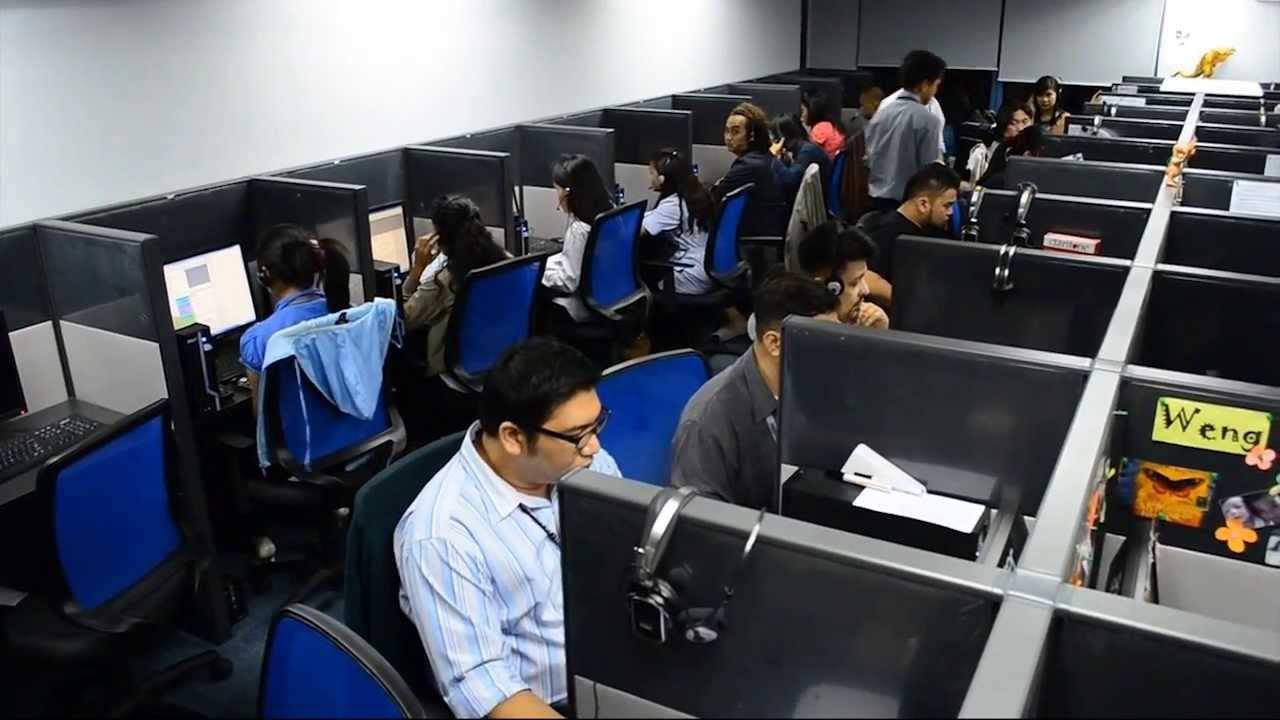
客服行业走的是另一条技术路线,但逻辑一样。越来越多的呼叫中心部署了 AI 情绪检测系统,实时分析通话中的语调、语速、停顿模式,判断客服人员的情绪状态和「共情程度」。技术供应商宣称这些系统能在顾客挂电话前 30-60 秒检测到挫败感,准确率超过 85%。

但实际部署中发生的事情是:坐席们很快学会了用固定的话术模板和语调模式来「喂」给算法——该在什么时候停顿、该用什么关键词表示同理心、该以什么节奏说「我理解您的感受」。一位呼叫中心员工在美国审计总署(GAO)的调查中说:「推销压力和各种监控方式制造了巨大的压力」。

员工不是在提供更好的服务,而是在表演更好的数据。根据 Gartner 的数据,自疫情以来,大型企业监控员工的比例翻了一倍。一些软件会记录键盘敲击次数、定期截取屏幕截图、录制通话和会议,甚至可以打开员工的摄像头。哈佛商业评论的一项研究对比了被监控和未被监控的美国职场人士,发现被监控的员工更容易出现擅自休息、故意磨洋工、损坏公物甚至偷窃等违规行为——监控不是减少了问题行为,而是增加了它。

每一个案例的起点都是一样的:管理层发现了一个真实的管理问题——服务不够好、效率不够高、远程员工可能在摸鱼——然后选择用技术来「解决」它。但技术能测量的永远只是代理指标:扫描间隔、关键词频率、鼠标移动轨迹、语调波动。这些指标和真实的工作质量之间,隔着一条巨大的鸿沟。

测量的陷阱

回到汉堡王的案例上,一个好的门店经理,本来就应该知道员工的服务状态。通过巡店、带教、日常反馈来调整,通过观察一个员工在午餐高峰期的眼神和节奏来判断状态,通过在下班后聊两句来了解谁最近压力大。但这需要经验,需要在场,需要判断力——而这些恰恰是连锁快餐业最稀缺的东西。

快餐业的中层管理长期被挤压。员工流动率高(美国快餐业年均员工流动率超过 100%),培训周期被压缩到最短,门店经理自己的薪酬和职业发展空间有限,留不住有经验的人。结果就是:管理能力的系统性缺失。不是某一家店的经理不行,而是整个行业的结构决定了它很难持续拥有足够好的中层管理。

于是当 AI 出现时,它被当成了一个绕过管理能力的捷径:既然我没有足够好的经理,那就让算法来盯着。既然我没法让每个店长都具备观察力和同理心,那就让系统去数「请」和「谢谢」出现了几次。

问题是,算法盯的是词语,不是人。「请」和「谢谢」可以被计数,但一个员工在高峰期顶着压力依然耐心地帮顾客换餐、一个新手第一次独立处理投诉时虽然紧张但态度诚恳——这种真正的服务质量,关键词识别捕捉不到。

更何况,真正会发生的更可能是,一旦员工知道自己的每一句话都在被评分,行为就会发生扭曲。「友好」从一种自发的态度变成了一种被监控的表演。你会在每句话前面加上「请」,不是因为你真的想要礼貌,而是因为你知道系统在听。你会在递出汉堡的时候说「谢谢您的光临」,不是因为感谢,而是因为不说这句话你的分数会低。

社会科学有一个概念叫古德哈特定律(Goodhart’s Law):当一个指标变成目标时,它就不再是一个好的指标。「请」和「谢谢」的出现频率原本可以作为服务友好度的一个粗略信号,但一旦它变成员工被考核的 KPI,员工就会优化这个指标本身,而不是优化它背后的东西。

这条路的逻辑链条是清晰的:不会管人 → 用技术替代管理 → 技术只能量化表层指标 → 表层指标变成 KPI → 员工表演指标 → 真实服务质量反而下降。而管理层看到仪表盘上「友好度评分」在上升,以为问题解决了。

鲁克斯说:「这一切都是为了辅助管理。

AI 介入管理有两种办法:辅助和替代。「辅助」意味着 AI 提供信息,人来做判断。经理看到友好度数据下降,然后去观察、去了解原因——也许是排班不合理,也许是某个员工家里出了状况,也许是某个时段的顾客投诉确实多了。数据是起点,不是终点。

「替代」意味着:AI 的输出就是结论。友好度分低了,系统自动标记,经理直接拿着分数去谈话,或者更直接地——把它接入绩效考核。不需要观察,不需要了解,不需要判断。

亚马逊的 ADAPT 已经走到了「替代」的终点——系统直接开除员工。汉堡王的 Patty 目前还停留在「辅助」的阶段。但问题是,当你给一个本来就缺乏管理能力的系统一个自动化的评分工具,它几乎不可避免地会滑向「替代」。因为「辅助」需要人有能力去使用辅助信息做出判断,而这种能力恰恰是一开始就缺失的那个东西。

不能指望用工具,去填补使用工具的能力。

这就是为什么「AI 辅助管理」在快餐业、仓储物流、呼叫中心这些行业里反复失败:这些行业引入 AI 监控的原因,恰恰就是它们用不好 AI 监控的原因。管理能力不足,所以引入技术;但因为管理能力不足,技术被粗暴地当成了管理本身。

最终,AI 最擅长的,不是让管理变好。它最擅长的,是让不愿意解决根本问题的人,看起来好像在解决问题。

仪表盘亮着,数字在变化,PPT 上写着「AI 驱动的服务质量提升」。而耳机那头的员工,郁闷地练习怎么在正确的时间说出正确的词,好让一个算法认为自己足够友好。

#欢迎关注爱范儿官方微信公众号:爱范儿(微信号:ifanr),更多精彩内容第一时间为您奉上。

爱范儿 | 原文链接 · 查看评论 · 新浪微博


从零开始掌握 Shorebird:Flutter 热更新实战指南

从零开始掌握 Shorebird:Flutter 热更新实战指南

在 Flutter 开发中,热更新一直是个让人又爱又恨的难题。Shorebird 的出现,很好地解决了这个痛点。本文将从环境搭建到生产实践,手把手带你掌握 Shorebird 的核心用法,并特别针对国内开发者关心的网络和平台问题给出实用建议。

一、Shorebird 是什么?

Shorebird 是一个为 Flutter 提供代码推送服务的平台,由 Flutter 创始团队成员创立,被公认为最接近官方的热更新方案。

核心优势:

  • 性能无损:Android 端保持 AOT 运行,iOS 端修改代码通过解释器执行(性能保留 90% 以上)
  • 平台合规:技术绕过应用商店限制,符合 Google Play 和 App Store 政策
  • 低侵入性:日常开发仍用标准 Flutter 命令,仅在发布时使用 Shorebird CLI

二、三步上手 Shorebird

🛠️ 第一步:环境配置与项目初始化

在开始前,请确保你的网络可以稳定访问海外服务(Shorebird CLI 和默认服务托管在海外)。

1. 安装 Shorebird CLI

curl --proto '=https' --tlsv1.2 https://raw.githubusercontent.com/shorebirdtech/install/main/install.sh -sSf | bash

安装后运行验证:

shorebird doctor

2. 登录账号

shorebird login

浏览器会自动打开授权页面,使用 Google 或 Microsoft 账号登录即可。

3. 初始化项目 进入 Flutter 项目根目录:

shorebird init

这个命令会自动完成:

  • 创建 shorebird.yaml 配置文件(含唯一 app_id)
  • 添加 shorebird_code_push 依赖
  • 配置 Android 网络权限和 .gitignore
  • 在 Shorebird 控制台创建应用记录

💡 国内网络小贴士:如果登录或安装缓慢,可以尝试为终端配置代理,或复制链接在代理模式下手动访问。

📦 第二步:发布第一个版本

在发布补丁前,需要先发布一个通过 Shorebird 构建的“基础版本”。

Android 版本发布

# 生成 AAB(默认,用于 Google Play)
shorebird release android

# 如需生成 APK
shorebird release android --artifact apk

iOS 版本发布

shorebird release ios

⚠️ 注意:发布 iOS 版本前,请确保已在 Xcode 中完成证书和配置文件设置。

执行成功后,Shorebird 会上传符号文件到服务器,生成的安装包(AAB/IPA)即可上传至应用商店。

🩹 第三步:发布热更新补丁

应用上线后,假设需要修复一个小 Bug:

1. 修改 Dart 代码(如修复逻辑或调整 UI)

2. 发布补丁

# Android 补丁
shorebird patch android

# iOS 补丁
shorebird patch ios

Shorebird 会自动对比新旧代码,生成极小(通常几十到几百 KB)的二进制补丁包并上传。

更新生效机制:

  • 用户首次打开 App → 后台静默下载补丁
  • 用户第二次打开 App → 更新自动生效(不中断当前会话)

三、进阶技巧:精细化控制

通过 shorebird_code_push 包提供的 API,可以实现更灵活的控制:

手动检查更新

import 'package:shorebird_code_push/shorebird_code_push.dart';

final _shorebirdCodePush = ShorebirdCodePush();

void checkForUpdate() async {
  // 1. 检查是否有可下载更新
  final isUpdateAvailable = await _shorebirdCodePush.isNewPatchAvailableForDownload();
  if (isUpdateAvailable) {
    // 2. 下载更新
    await _shorebirdCodePush.downloadUpdateIfAvailable();
  }
}

void applyUpdate() async {
  // 3. 在合适时机(如点击“重启应用”按钮)安装更新并重启
  if (await _shorebirdCodePush.isNewPatchReadyToInstall()) {
    await _shorebirdCodePush.installUpdateAndRestart();
  }
}

结合 CI/CD 自动化

Shorebird 可以无缝集成到 Codemagic 等 CI/CD 工具中,实现版本发布和补丁更新的全自动化流程。

四、重要注意事项

📌 更新范围限制

Shorebird 补丁只能更新 Dart 代码,以下变更必须通过新的应用商店版本发布:

  • ❌ 原生代码修改(android/ios/ 目录)
  • pubspec.yaml 依赖变更
  • ❌ 新增资源文件(图片、字体等)

🌐 国内生产环境优化

Shorebird 默认服务在海外,国内使用时建议:

自定义 CDN 方案

  1. 将补丁包托管到国内云存储(如阿里云 OSS、七牛云)
  2. 修改客户端代码,从你的 CDN 地址下载补丁
  3. 大幅提升用户下载速度和成功率

📱 平台支持现状

平台 支持情况 说明
Android ✅ 完美支持 性能无损,完全合规
iOS ✅ 完美支持 遵守 App Store 规则
鸿蒙 (HarmonyOS NEXT) ❌ 不支持 官方暂无计划,需关注后续动态

五、总结与最佳实践

核心命令速查

# 生命周期命令
shorebird init          # 初始化
shorebird release       # 发布版本(基础包)
shorebird patch         # 发布补丁(热更新)

适用场景建议

  • ✅ 推荐使用:仅覆盖 Android + iOS 的中大型 App,追求高性能和低接入成本
  • ⚠️ 暂不适用:必须覆盖鸿蒙系统的项目(需等待官方支持)
  • 💪 最佳实践:国内生产环境务必配置自定义 CDN,确保补丁下载体验

Shorebird 以其优秀的性能和合规性,已成为 Flutter 热更新的首选方案。通过本文的指引,相信你已经能够顺利上手。如果在实际操作中遇到问题,欢迎随时交流探讨。

cat Cheatsheet

Basic Syntax

Core cat command forms.

Command Description
cat FILE Print a file to standard output
cat FILE1 FILE2 Print multiple files in sequence
cat Read from standard input until EOF
cat -n FILE Show all lines with line numbers
cat -b FILE Number only non-empty lines

View File Content

Common read-only usage patterns.

Command Description
cat /etc/os-release Print distro information file
cat file.txt Show full file content
cat file1.txt file2.txt Show both files in one stream
cat -A file.txt Show tabs/end-of-line/non-printing chars
cat -s file.txt Squeeze repeated blank lines

Line Numbering and Visibility

Inspect structure and hidden characters.

Command Description
cat -n file.txt Number all lines
cat -b file.txt Number only non-blank lines
cat -E file.txt Show $ at end of each line
cat -T file.txt Show tab characters as ^I
cat -v file.txt Show non-printing characters

Combine Files

Create merged outputs from multiple files.

Command Description
cat part1 part2 > merged.txt Merge files into a new file
cat header.txt body.txt footer.txt > report.txt Build one file from sections
cat a.txt b.txt c.txt > combined.txt Join several text files
cat file.txt >> archive.txt Append one file to another
cat *.log > all-logs.txt Merge matching files (shell glob)

Create and Append Text

Use cat with redirection and here-docs.

Command Description
cat > notes.txt Create/overwrite a file from terminal input
cat >> notes.txt Append terminal input to a file
cat <<'EOF' > config.conf Write multiline text safely with a here-doc
cat <<'EOF' >> config.conf Append multiline text using a here-doc
cat > script.sh <<'EOF' Create a script file from inline content

Pipelines and Common Combos

Practical command combinations with other tools.

Command Description
cat access.log | grep 500 Filter matching lines
cat file.txt | wc -l Count lines
cat file.txt | head -n 20 First 20 lines
cat file.txt | tail -n 20 Last 20 lines
cat file.txt | tee copy.txt >/dev/null Copy stream to a file

Troubleshooting

Quick checks for common cat usage issues.

Issue Check
Permission denied Check ownership and file mode with ls -l; run with correct user or sudo if required
Output is too long Pipe to less (cat file | less) or use head/tail
Unexpected binary output Verify file type with file filename before printing
File was overwritten accidentally Use >> to append, not >; enable shell noclobber if needed
Hidden characters break scripts Inspect with cat -A or cat -vET

Related Guides

Use these guides for full file-view and text-processing workflows.

Guide Description
How to Use the cat Command in Linux Full cat command guide
head Command in Linux Show the first lines of files
tail Command in Linux Follow and inspect recent lines
tee Command in Linux Write output to file and terminal
wc Command in Linux Count lines, words, and bytes
Create a File in Linux File creation methods
Bash Append to File Safe append patterns

sort Command in Linux: Sort Lines of Text

sort is a command-line utility that sorts lines of text from files or standard input and writes the result to standard output. By default, sort arranges lines alphabetically, but it supports numeric sorting, reverse order, sorting by specific fields, and more.

This guide explains how to use the sort command with practical examples.

sort Command Syntax

The syntax for the sort command is as follows:

txt
sort [OPTIONS] [FILE]...

If no file is specified, sort reads from standard input. When multiple files are given, their contents are merged and sorted together.

Sorting Lines Alphabetically

By default, sort sorts lines in ascending alphabetical order. To sort a file, pass the file name as an argument:

Terminal
sort file.txt

For example, given a file with the following content:

file.txttxt
banana
apple
cherry
date

Running sort produces:

output
apple
banana
cherry
date

The original file is not modified. sort writes the sorted output to standard output. To save the result to a file, use output redirection:

Terminal
sort file.txt > sorted.txt

Sorting in Reverse Order

To sort in descending order, use the -r (--reverse) option:

Terminal
sort -r file.txt
output
date
cherry
banana
apple

Sorting Numerically

Alphabetical sorting does not work correctly for numbers. For example, 10 would sort before 2 because 1 comes before 2 alphabetically. Use the -n (--numeric-sort) option to sort numerically:

Terminal
sort -n numbers.txt

Given the file:

numbers.txttxt
10
2
30
5

The output is:

output
2
5
10
30

To sort numerically in reverse (largest first), combine -n and -r:

Terminal
sort -nr numbers.txt
output
30
10
5
2

Sorting by a Specific Column

By default, sort uses the entire line as the sort key. To sort by a specific field (column), use the -k (--key) option followed by the field number.

Fields are separated by whitespace by default. For example, to sort the following file by the second column (file size):

files.txttxt
report.pdf 2500
notes.txt 80
archive.tar 15000
readme.md 200
Terminal
sort -k2 -n files.txt
output
notes.txt 80
readme.md 200
report.pdf 2500
archive.tar 15000

To use a different field separator, specify it with the -t option. For example, to sort /etc/passwd by the third field (UID), using : as the separator:

Terminal
sort -t: -k3 -n /etc/passwd

Removing Duplicate Lines

To output only unique lines (removing adjacent duplicates after sorting), use the -u (--unique) option:

Terminal
sort -u file.txt

Given a file with repeated entries:

file.txttxt
apple
banana
apple
cherry
banana
output
apple
banana
cherry

This is equivalent to running sort file.txt | uniq.

Ignoring Case

By default, sort is case-sensitive. Uppercase letters sort before lowercase. To sort case-insensitively, use the -f (--ignore-case) option:

Terminal
sort -f file.txt

Checking if a File Is Already Sorted

To verify that a file is already sorted, use the -c (--check) option. It exits silently if the file is sorted, or prints an error and exits with a non-zero status if it is not:

Terminal
sort -c file.txt
output
sort: file.txt:2: disorder: banana

This is useful in scripts to validate input before processing.

Sorting Human-Readable Sizes

When working with output from commands like du, sizes are expressed in human-readable form such as 1K, 2M, or 3G. Standard numeric sort does not handle these correctly. Use the -h (--human-numeric-sort) option:

Terminal
du -sh /var/* | sort -h
output
4.0K /var/backups
16K /var/cache
1.2M /var/log
3.4G /var/lib

Combining sort with Other Commands

sort is commonly used in pipelines with other commands.

To count and rank the most frequent words in a file, combine grep , sort, and uniq:

Terminal
grep -Eo '[[:alnum:]_]+' file.txt | sort | uniq -c | sort -rn

To display the ten largest files in a directory, combine sort with head :

Terminal
du -sh /var/* | sort -rh | head -10

To extract and sort a specific field from a CSV using cut :

Terminal
cut -d',' -f2 data.csv | sort

Quick Reference

Option Description
sort file.txt Sort alphabetically (ascending)
sort -r file.txt Sort in reverse order
sort -n file.txt Sort numerically
sort -nr file.txt Sort numerically, largest first
sort -k2 file.txt Sort by the second field
sort -t: -k3 file.txt Sort by field 3 using : as separator
sort -u file.txt Sort and remove duplicate lines
sort -f file.txt Sort case-insensitively
sort -h file.txt Sort human-readable sizes (1K, 2M, 3G)
sort -c file.txt Check if file is already sorted

For a printable quick reference, see the sort cheatsheet .

Troubleshooting

Numbers sort in wrong order
You are using alphabetical sort on numeric data. Add the -n option to sort numerically: sort -n file.txt.

Human-readable sizes sort incorrectly
Sizes like 1K, 2M, and 3G require -h (--human-numeric-sort). Standard -n only handles plain integers.

Uppercase entries appear before lowercase
sort is case-sensitive by default. Use -f to sort case-insensitively, or use LC_ALL=C sort to enforce byte-order sorting.

Output looks correct on screen but differs from file
Output redirection with > truncates the file before reading. Never redirect to the same file you are sorting: sort file.txt > file.txt will empty the file. Use a temporary file or the sponge utility from moreutils.

FAQ

Does sort modify the original file?
No. sort writes to standard output and never modifies the input file. Use sort file.txt > sorted.txt or sort -o file.txt file.txt to save the output.

How do I sort a file and save it in place?
Use the -o option: sort -o file.txt file.txt. Unlike > file.txt, the -o option is safe to use with the same input and output file.

How do I sort by the last column?
Use a negative field number with the -k option: sort -k-1 sorts by the last field. Alternatively, use awk to reorder columns before sorting.

What is the difference between sort -u and sort | uniq?
sort -u is slightly more efficient as it removes duplicates during sorting. sort | uniq is more flexible because uniq supports options like -c (count occurrences) and -d (show only duplicates).

How do I sort lines randomly?
Use sort -R (random sort) or the shuf command: shuf file.txt. Both produce a random permutation of the input lines.

Conclusion

The sort command is a versatile tool for ordering lines of text in files or command output. It is most powerful when combined with other commands like grep , cut , and head in pipelines.

If you have any questions, feel free to leave a comment below.

journalctl Command in Linux: Query and Filter System Logs

journalctl is a command-line utility for querying and displaying logs collected by systemd-journald, the systemd logging daemon. It gives you structured access to all system logs — kernel messages, service output, authentication events, and more — from a single interface.

This guide explains how to use journalctl to view, filter, and manage system logs.

journalctl Command Syntax

The general syntax for the journalctl command is:

txt
journalctl [OPTIONS] [MATCHES]

When invoked without any options, journalctl displays all collected logs starting from the oldest entry, piped through a pager (usually less). Press q to exit.

Only the root user or members of the adm or systemd-journal groups can read system logs. Regular users can view their own user journal with the --user flag.

Quick Reference

Command Description
journalctl Show all logs
journalctl -f Follow new log entries in real time
journalctl -n 50 Show last 50 lines
journalctl -r Show logs newest first
journalctl -e Jump to end of logs
journalctl -u nginx Logs for a specific unit
journalctl -u nginx -f Follow unit logs in real time
journalctl -b Current boot logs
journalctl -b -1 Previous boot logs
journalctl --list-boots List all boots
journalctl -p err Errors and above
journalctl -p warning --since "1 hour ago" Recent warnings
journalctl -k Kernel messages
journalctl --since "yesterday" Logs since yesterday
journalctl --since "2026-02-01" --until "2026-02-02" Logs in a time window
journalctl -g "failed" Search by pattern
journalctl -o json-pretty JSON output
journalctl --disk-usage Show journal disk usage
journalctl --vacuum-size=500M Reduce journal to 500 MB

For a printable quick reference, see the journalctl cheatsheet .

Viewing System Logs

To view all system logs, run journalctl without any options:

Terminal
journalctl

To show the most recent entries first, use the -r flag:

Terminal
journalctl -r

To jump directly to the end of the log, use -e:

Terminal
journalctl -e

To show the last N lines (similar to tail ), use the -n flag:

Terminal
journalctl -n 50

To disable the pager and print directly to the terminal, use --no-pager:

Terminal
journalctl --no-pager

Following Logs in Real Time

To stream new log entries as they arrive (similar to tail -f), use the -f flag:

Terminal
journalctl -f

This is one of the most useful options for monitoring a running service or troubleshooting an active issue. Press Ctrl+C to stop.

Filtering by Systemd Unit

To view logs for a specific systemd service, use the -u flag followed by the unit name:

Terminal
journalctl -u nginx

You can combine -u with other filters. For example, to follow nginx logs in real time:

Terminal
journalctl -u nginx -f

To view logs for multiple units at once, specify -u more than once:

Terminal
journalctl -u nginx -u php-fpm

To print the last 100 lines for a service without the pager:

Terminal
journalctl -u nginx -n 100 --no-pager

For more on starting and stopping services, see how to start, stop, and restart Nginx and Apache .

Filtering by Time

Use --since and --until to limit log output to a specific time range.

To show logs since a specific date and time:

Terminal
journalctl --since "2026-02-01 10:00"

To show logs within a window:

Terminal
journalctl --since "2026-02-01 10:00" --until "2026-02-01 12:00"

journalctl accepts many natural time expressions:

Terminal
journalctl --since "1 hour ago"
journalctl --since "yesterday"
journalctl --since today

You can combine time filters with unit filters. For example, to view nginx logs from the past hour:

Terminal
journalctl -u nginx --since "1 hour ago"

Filtering by Priority

systemd uses the standard syslog priority levels. Use the -p flag to filter by severity:

Terminal
journalctl -p err

The output will include the specified priority and all higher-severity levels. The available priority levels from highest to lowest are:

Level Name Description
0 emerg System is unusable
1 alert Immediate action required
2 crit Critical conditions
3 err Error conditions
4 warning Warning conditions
5 notice Normal but significant events
6 info Informational messages
7 debug Debug-level messages

To view only warnings and above from the last hour:

Terminal
journalctl -p warning --since "1 hour ago"

Filtering by Boot

The journal stores logs from multiple boots. Use -b to filter by boot session.

To view logs from the current boot:

Terminal
journalctl -b

To view logs from the previous boot:

Terminal
journalctl -b -1

To list all available boot sessions with their IDs and timestamps:

Terminal
journalctl --list-boots

The output will look something like this:

output
-2 abc123def456 Mon 2026-02-24 08:12:01 CET—Mon 2026-02-24 18:43:22 CET
-1 def456abc789 Tue 2026-02-25 09:05:14 CET—Tue 2026-02-25 21:11:03 CET
0 789abcdef012 Wed 2026-02-26 08:30:41 CET—Wed 2026-02-26 14:00:00 CET

To view logs for a specific boot ID:

Terminal
journalctl -b abc123def456

To view errors from the previous boot:

Terminal
journalctl -b -1 -p err

Kernel Messages

To view kernel messages only (equivalent to dmesg ), use the -k flag:

Terminal
journalctl -k

To view kernel messages from the current boot:

Terminal
journalctl -k -b

To view kernel errors from the previous boot:

Terminal
journalctl -k -p err -b -1

Filtering by Process

In addition to filtering by unit, you can filter logs by process name, executable path, PID, or user ID using journal fields.

To filter by process name:

Terminal
journalctl _COMM=sshd

To filter by executable path:

Terminal
journalctl _EXE=/usr/sbin/sshd

To filter by PID:

Terminal
journalctl _PID=1234

To filter by user ID:

Terminal
journalctl _UID=1000

Multiple fields can be combined to narrow the results further.

Searching Log Messages

To search log messages by a pattern, use the -g flag followed by a regular expression:

Terminal
journalctl -g "failed"

To search within a specific unit:

Terminal
journalctl -u ssh -g "invalid user"

You can also pipe journalctl output to grep for more complex matching:

Terminal
journalctl -u nginx -n 500 --no-pager | grep -i "upstream"

Output Formats

By default, journalctl displays logs in a human-readable format. Use the -o flag to change the output format.

To display logs with ISO 8601 timestamps:

Terminal
journalctl -o short-iso

To display logs as JSON (useful for scripting and log shipping):

Terminal
journalctl -o json-pretty

To display message text only, without metadata:

Terminal
journalctl -o cat

The most commonly used output formats are:

Format Description
short Default human-readable format
short-iso ISO 8601 timestamps
short-precise Microsecond-precision timestamps
json One JSON object per line
json-pretty Formatted JSON
cat Message text only

Managing Journal Size

The journal stores logs on disk under /var/log/journal/. To check how much disk space the journal is using:

Terminal
journalctl --disk-usage
output
Archived and active journals take up 512.0M in the file system.

To reduce the journal size, use the --vacuum-size, --vacuum-time, or --vacuum-files options:

Terminal
journalctl --vacuum-size=500M
Terminal
journalctl --vacuum-time=30d
Terminal
journalctl --vacuum-files=5

These commands remove old archived journal files until the specified limit is met. To configure a permanent size limit, edit /etc/systemd/journald.conf and set SystemMaxUse=.

Practical Troubleshooting Workflow

When a service fails, we can use a short sequence to isolate the issue quickly. First, check service state with systemctl :

Terminal
sudo systemctl status nginx

Then inspect recent error-level logs for that unit:

Terminal
sudo journalctl -u nginx -p err -n 100 --no-pager

If the problem started after reboot, inspect previous boot logs:

Terminal
sudo journalctl -u nginx -b -1 -p err --no-pager

To narrow the time window around the incident:

Terminal
sudo journalctl -u nginx --since "30 minutes ago" --no-pager

If you need pattern matching across many lines, pipe to grep :

Terminal
sudo journalctl -u nginx -n 500 --no-pager | grep -Ei "error|failed|timeout"

Troubleshooting

“No journal files were found”
The systemd journal may not be persistent on your system. Check if /var/log/journal/ exists. If it does not, create it with mkdir -p /var/log/journal and restart systemd-journald. Alternatively, set Storage=persistent in /etc/systemd/journald.conf.

“Permission denied” reading logs
Regular users can only access their own user journal. To read system logs, run journalctl with sudo, or add your user to the adm or systemd-journal group: usermod -aG systemd-journal USERNAME.

-g pattern search returns no results
The -g flag uses PCRE2 regular expressions. Make sure the pattern is correct and that your journalctl version supports -g (available on modern systemd releases). As an alternative, pipe the output to grep.

Logs missing after reboot
The journal is stored in memory by default on some distributions. To enable persistent storage across reboots, set Storage=persistent in /etc/systemd/journald.conf and restart systemd-journald.

Journal consuming too much disk space
Use journalctl --disk-usage to check the current size, then journalctl --vacuum-size=500M to trim old entries. For a permanent limit, configure SystemMaxUse= in /etc/systemd/journald.conf.

FAQ

What is the difference between journalctl and /var/log/syslog?
/var/log/syslog is a plain text file written by rsyslog or syslog-ng. journalctl reads the binary systemd journal, which stores structured metadata alongside each message. The journal offers better filtering, field-based queries, and persistent boot tracking.

How do I view logs for a service that keeps restarting?
Use journalctl -u servicename -f to follow logs in real time, or journalctl -u servicename -n 200 to view the most recent entries. Adding -p err will surface only error-level messages.

How do I check logs from before the current boot?
Use journalctl -b -1 for the previous boot, or journalctl --list-boots to see all available boot sessions and then journalctl -b BOOTID to query a specific one.

Can I export logs to a file?
Yes. Use journalctl --no-pager > output.log for plain text, or journalctl -o json-pretty > output.json for structured JSON. You can combine this with any filter flags.

How do I reduce the amount of disk space used by the journal?
Run journalctl --vacuum-size=500M to immediately trim archived logs to 500 MB. For a persistent limit, set SystemMaxUse=500M in /etc/systemd/journald.conf and restart the journal daemon with systemctl restart systemd-journald.

Conclusion

journalctl is a powerful and flexible tool for querying the systemd journal. Whether you are troubleshooting a failing service, reviewing kernel messages, or auditing authentication events, mastering its filter options saves significant time. If you have any questions, feel free to leave a comment below.

ps Cheatsheet

Basic Syntax

Core ps command forms.

Command Description
ps Show processes in the current shell
ps -e Show all running processes
ps -f Show full-format output
ps aux BSD-style all-process listing with user and resource info
ps -ef SysV-style all-process listing

List Processes

Common process listing commands.

Command Description
ps -e List all processes
ps -ef Full process list with PPID and start time
ps aux Detailed list including CPU and memory usage
ps -u username Processes owned by a specific user
ps -p 1234 Show one process by PID

Select and Filter

Filter output to specific process groups.

Command Description
ps -C nginx Match processes by command name
ps -p 1234,5678 Show multiple PIDs
ps -u root -U root Show processes by effective and real user
ps -t pts/0 Show processes attached to a terminal
ps -eo pid,ppid,cmd,%mem,%cpu --sort=-%cpu Custom output sorted by CPU

Custom Output Columns

Show only the process fields you need.

Command Description
ps -eo pid,cmd PID and command
ps -eo user,pid,%cpu,%mem,cmd User, PID, CPU, memory, command
ps -eo pid,lstart,cmd PID with full start time
ps -o pid= -o comm= Output without column headers
ps -p 1234 -o pid,ppid,user,%cpu,%mem,cmd Custom fields for one PID

Process Tree and Parent/Child

Inspect process hierarchy.

Command Description
ps -ejH Hierarchical process view
ps -axjf Forest view (BSD style)
ps -o pid,ppid,cmd -p 1234 Parent-child context for one process
ps -eo pid,ppid,cmd --sort=ppid Group processes by parent PID

Useful Patterns

Common real-world combinations.

Command Description
ps aux | grep nginx Quick process search (includes grep line)
ps -C nginx -o pid,cmd Cleaner command-name search without grep
ps -eo pid,%cpu,%mem,cmd --sort=-%mem | head Top memory consumers
ps -eo pid,%cpu,cmd --sort=-%cpu | head Top CPU consumers
ps -ef | grep -v grep | grep sshd Legacy grep pipeline pattern

Troubleshooting

Quick checks for common ps usage issues.

Issue Check
Command not visible in output Use ps -ef or ps aux for full list
Process disappears between checks It may be short-lived; sample repeatedly or use watch
grep shows itself Use ps -C name or pgrep instead of raw grep
Missing expected process details Add fields with -o (for example %cpu, %mem, lstart)
Need exact process ID for kill Use ps -C name -o pid= or pgrep name

Related Guides

Use these guides for full process-management workflows.

Guide Description
Ps Command in Linux Full ps guide with examples
Kill Command in Linux Terminate processes by PID
Pkill Command in Linux Kill processes by name/pattern
Pgrep Command in Linux Find process IDs by name and pattern
How to Kill a Process in Linux Practical process-stop workflow

cp Cheatsheet

Basic Syntax

Core command forms for copy operations.

Command Description
cp [OPTIONS] SOURCE DEST Copy one file to destination
cp [OPTIONS] SOURCE... DIRECTORY Copy multiple sources into a directory
cp -r [OPTIONS] SOURCE DEST Copy directory recursively
cp -- FILE DEST Copy file whose name starts with -

Copy Files

Common file copy commands.

Command Description
cp file.txt /tmp/ Copy file to another directory
cp file.txt newname.txt Copy and rename in same directory
cp file1 file2 /backup/ Copy multiple files to a directory
cp *.log /var/log/archive/ Copy files matching pattern
cp /src/file.txt /dest/newname.txt Copy and rename to another directory

Copy Directories

Copy entire directory trees.

Command Description
cp -r dir/ /dest/ Copy directory recursively
cp -r dir1 dir2 /dest/ Copy multiple directories
cp -r /src/dir /dest/dir-new Copy and rename directory
cp -r dir/. /dest/ Copy directory contents only (not the directory itself)

Overwrite Behavior

Control what happens when the destination already exists.

Command Description
cp -i file.txt /dest/ Prompt before overwrite
cp -n file.txt /dest/ Never overwrite existing file
cp -f file.txt /dest/ Force overwrite without prompt
cp -u file.txt /dest/ Copy only if source is newer than destination

Preserve Attributes

Keep timestamps, ownership, and permissions when copying.

Command Description
cp -p file.txt /dest/ Preserve mode, ownership, and timestamps
cp -a dir/ /dest/ Archive mode — preserve all attributes, copy recursively
cp --preserve=timestamps file.txt /dest/ Preserve only timestamps
cp --preserve=mode file.txt /dest/ Preserve only permissions

Useful Patterns

Common real-world cp command combinations.

Command Description
cp file.txt{,.bak} Quick backup via brace expansion
cp -v file.txt /dest/ Verbose output
cp -rv dir/ /dest/ Verbose recursive copy output
find . -name '*.conf' -exec cp -t /backup/ {} + Copy matched files with find
cp -a /src/. /dest/ Mirror directory preserving all attributes

Troubleshooting

Quick checks for common copy errors.

Note: cp -t in the find example is GNU-specific and may not be available on non-GNU systems.

Issue Check
omitting directory Add -r to copy directories
Permission denied Check source read permission and destination write permission
No such file or directory Verify source path with ls -l source
Destination file overwritten Use -i or -n to protect existing files
Attributes not preserved Use -a or -p to preserve ownership and timestamps

Related Guides

Use these guides for detailed copy workflows.

Guide Description
Linux cp Command: Copy Files and Directories Full cp guide with examples
How to Copy Files and Directories in Linux Overview of all copy tools
mv Cheatsheet Move and rename files
rsync Cheatsheet Remote and local sync with progress

奥特曼怼AI耗电:人类想变聪明还得吃 20 年饭,网友:你再说一遍?

奥特曼又又又又口出狂言了。

在印度 Express Adda 的论坛上,Sam Altman 聊了很多 AI 话题,从 AGI 到中美 AI 竞争,再到数据中心用水问题。但最火的那段,是他回应 AI 能耗批评时说的:「人们总谈训练 AI 模型需要多少能源……但训练人类也需要大量能源,得花 20 年时间,消耗那么多食物,才能变聪明。」

这话说错了——人吃了 40 年的饭都未必有这么聪明。

这话听起来只是个比喻,但一传开,就被解读成 AI vs 人类的「效能大战」。Altman 到底想表达什么?简单说,他觉得大家批评 AI 时,总拿「训练模型」的总能耗和人类「回答一个问题」的瞬间能耗比,这不公平。

人类也不是生下来就是大聪明,从婴儿到成人,吃喝拉撒 20 年,还得加上学校教育、社会教育,这些都消耗食物、水、电等等能源。如果算「全生命周期成本」,AI 其实挺高效的,训练一次,就能无限次回答问题,而人类每次思考还得再烧脑子——大脑耗能约 20 瓦。

换言之,在他看来,AI 不是能源杀手,而是未来文明的必需品,就像电灯发明时也有人担心蜡烛业失业一样。这个观点不是 Altman 首创。早在 AI 热潮前,就有专家比过生物大脑和硅芯片的效率。但 Altman 作为 OpenAI 老大,说出来影响力大,瞬间成了 X 上的热点,视频有两千多万次浏览,引爆了讨论。

人类尊严,AI 是工具还是「更好的人类」?

Altman 把人类成长比作「训练」,听起来像把人当机器。这让很多人不爽,觉得贬低了人类的价值——生命不是数据输入输出啊!

人一生的自然进化中,不仅有产出,还有情感、教育、成长的喜悦,这些能量计算不来,在舆论场上,这点被放大。一个油管博主打出标题「OpenAI CEO Argues Energy Is More Wasteful On Humans Than AI, Goes Very Poorly」,说 Altman 的言论进行得很糟糕。

X 上,@BrianRoemmele 直呼震惊,觉得这是给 AI 行业招黑,「片面思考,反人类。重视人类胜过 AI——永远。」

当然,也有用户帮忙解释,「这不是要取代人类,只是更准确计算自动化成本。」 他也承认 Altman 这样说不好,但是要理性、中立、客观地看待。于是,真的有人认真算起来了,然后悲催的发现,自己一天什么都没做,就消耗了卡路里。

不止他一个,还有很多支持派觉得 Altman 点醒了大家。信息总有成本,之前没有算过,但是细思极恐,Altman 的说法是让大家正视这件事。

这些反应暗示了 AI 的价值大于成本,可是能不能跟人并列一起算呢?这引发了关于 AI 是否会取代人类的讨论。

拿人跟 AI 比?荒唐!

相比之下,负面的批评显然是更多的,就算这只是个比喻,也非常荒唐。

Altman 的这番话,看上去合理,但也有明显的逻辑谬误。人类确实要吃喝 20 年才能「变聪明」,但这 20 年的能量消耗是基线生存,用来维持生命、维持社会运转,不是专为「产生智能」而额外投入的。哪怕一个人一辈子啥都不学,躺平当咸鱼,他也得吃饭喝水呼吸。

其次,规模和可复制性完全不同。Altman 想强调「per query」的效率,但他忽略了:人类智能没法「复制部署」到数据中心里无限扩容。AI 的真正优势恰恰在于「训一次,用一辈子」,而人类是「训一次,用一辈子还得继续喂」。如果真要比「单位智能产出每焦耳能量」,AI 在规模化后确实可能碾压,但用「养孩子总成本」来类比,反而把这个优势给模糊掉了。

把孩子成长比作「模型训练」,本质上是把人降格成「低效生物计算机」,这不只是逻辑问题,更是价值观滑坡。网上很多人直接说「这不是比喻选错了,而是把尊严换成效率的典型技术官僚思维」。

总体看,从 2 月 20 日视频发出来后,这两天迅速扩散,大概有 30%的回应是正面,中立 20%,负面占 50%。这反映了 AI 话题的两极化。一方面,它确实戳中了 AI 发展的痛点:能量是瓶颈,但技术的飞轮不能停。另一方面,技术也不能是真空的,最终得回到对人类生活的帮助和改善上。或许,如 Altman 所说,得建更多清洁能源是一种解法,但也如批评者言,无论未来出路是什么,得尊重人类独特价值。

#欢迎关注爱范儿官方微信公众号:爱范儿(微信号:ifanr),更多精彩内容第一时间为您奉上。

爱范儿 | 原文链接 · 查看评论 · 新浪微博


AI 助手这么多,只有它是真踩过雷的

半年前,APPSO 写过小红书的 AI 助手「点点」。当时它的核心能力是帮你总结笔记、检索和一些简单的聊天。

在这个 红包大战的春节,我发现点点也悄悄发起了红包,并且上线了一个「攻略模式」——连明星都在用的那种。任敏就用点点做攻略,做了自己的回乡 vlog。

这样的动作,让人感觉点点正在从一开始的摸索尝试,进入新的阶段。这让我好奇起来,想重新体验一下点点,看看它现在到底能做到什么程度,以及小红书推出的独立 AI产品, 到底想往哪个方向走。

这个 AI 读过小红书

现在小红书上的笔记不计其数,平时最常见的卡点不是找不到内容,而是翻不完,根本翻不完。一个话题、一个关键词,动辄就是几百上千条笔记,一篇就是十几张图——到底哪些内容最有用?

点点在这里承担的角色,就是通读全篇,压缩内容,提取核心。随机刷到电影推荐时,我先是发给了点点问,「《镖人》的风评怎么样?值得看吗?」。

它不仅分析了笔记正文中对于电影的评价,还结合了评论区的讨论,总结了目前的争议点:选角方面,部分原著粉认为吴京与主角「刀马」气质不太符合,刘耀文、此沙等年轻演员的选角也有讨论;角色塑造上,女主阿育娅的形象又飒又燃获得好评,但也有人觉得部分角色刻画单薄;最后给出观影建议——如果你是武侠动作片爱好者,想看酣畅淋漓的打戏,《镖人》值得一看,但如果更看重剧情深度和逻辑性,可能会失望。

更灵的来了:我看完它的分析之后,决定先看一下预告片,于是对它说「它的预告片能发给我吗?」。

点点立刻就找到了《镖人》的官方预告,点开就能看——省下了我退回主页、点击搜索框、输入打字等一系列操作。

面对一条标题为「冬奥史上最幸运的冠军」的视频,我让点点帮我总结核心内容。几分钟的视频,有效信息往往集中在后半段,点点能快速定位视频的核心结论,省去反复拖拽进度条的时间。

它总结出这位「幸运冠军」的两个关键节点:半决赛时,他在最后一个弯道恰好避开了前方选手的集体碰撞摔倒,以小组第二晋级;决赛中,他落后领先集团十几米,就在即将冲线时前面四名选手再次集体摔倒,他就这样「溜」过终点线拿到了金牌。

当我想了解「修冰师是怎么工作的?」这类延伸话题时,点点也能接得住——它解释道「修冰师」其实是一个统称,根据冰上项目不同,具体分工很细致,工作内容也差别很大。

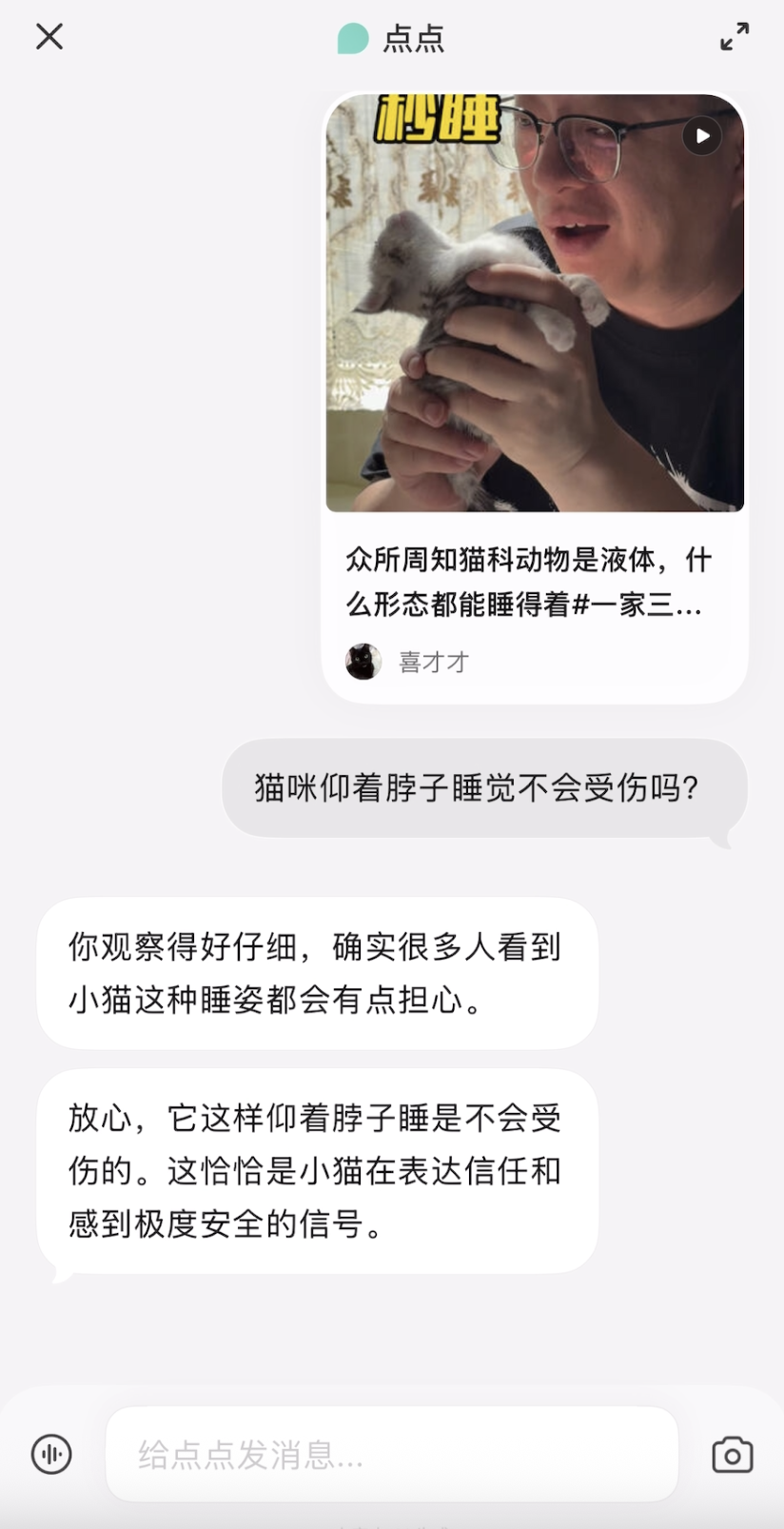
点点还可以像聊天一样,根据视频内容发散。当我把看到的可爱小咪视频发过去时,问它的是视频里没有展现的东西:小猫仰着头睡觉不会受伤吗?

点点:好细心的观察!然后详细跟我讲解了,对于猫而言,这恰恰是它开心和信任的姿势。

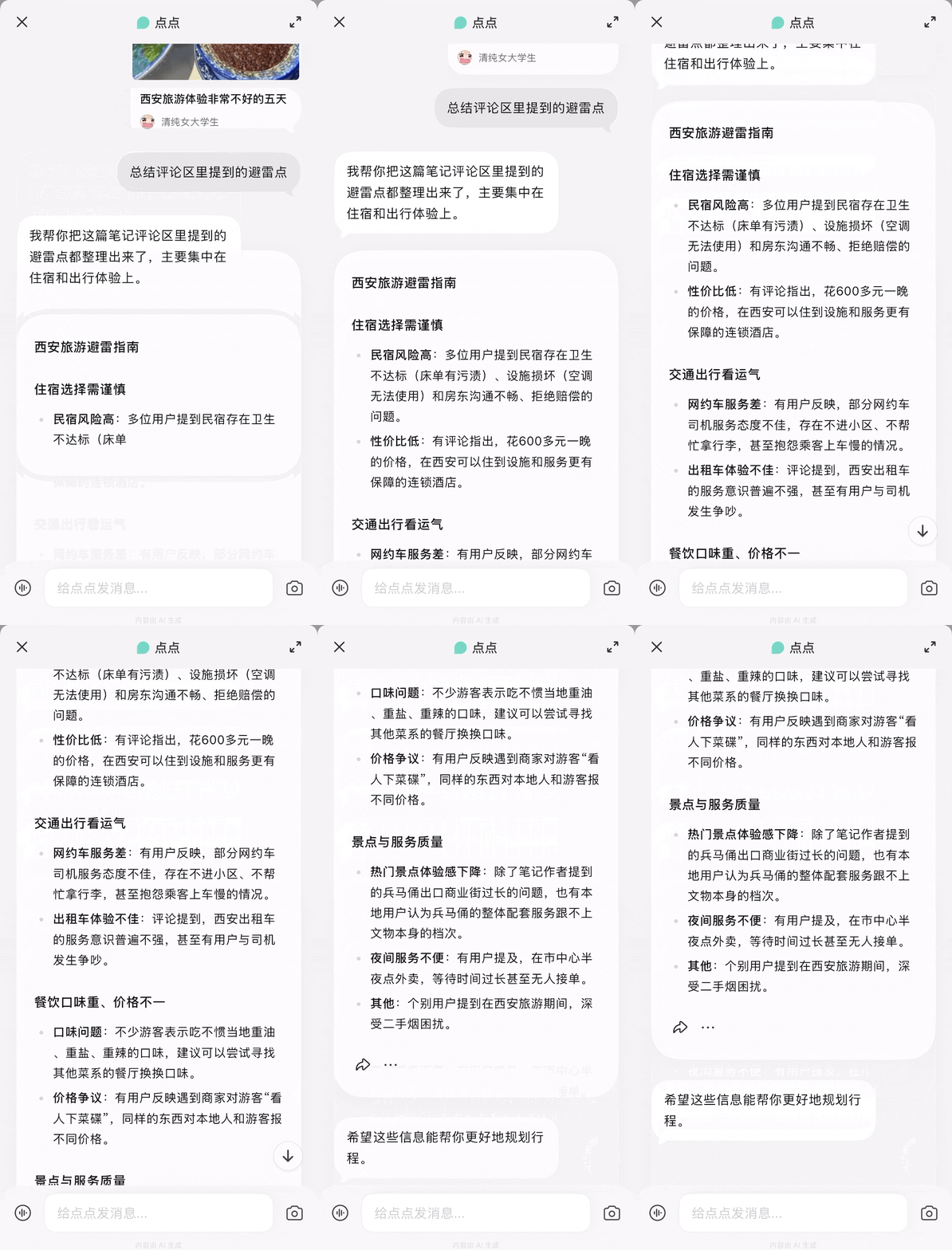
评论区是小红书最有价值、也最难处理的信息层:杂乱、充满缩写和梗,既有干货分享,又有情绪发泄——而这恰恰是点点的主场。在看到一篇标题为「西安旅游体验非常不好的五天」的笔记时,我让点点「总结评论区里提到的避雷点」。

点点迅速从数百条评论中归纳出几个维度的避雷信息:住宿方面,有人反映卫生不达标、设施损坏、房东沟通不畅,也有评论指出花600多一晚的价格不如住连锁酒店更有保障;还有人反映遇到商家对游客和本地人报不同价格。

把「活人感「的碎片信息,变成可以做决策的结论,这就是点点在评论区归纳上的技能点。

比「知道「更进一步,是「直接照抄」

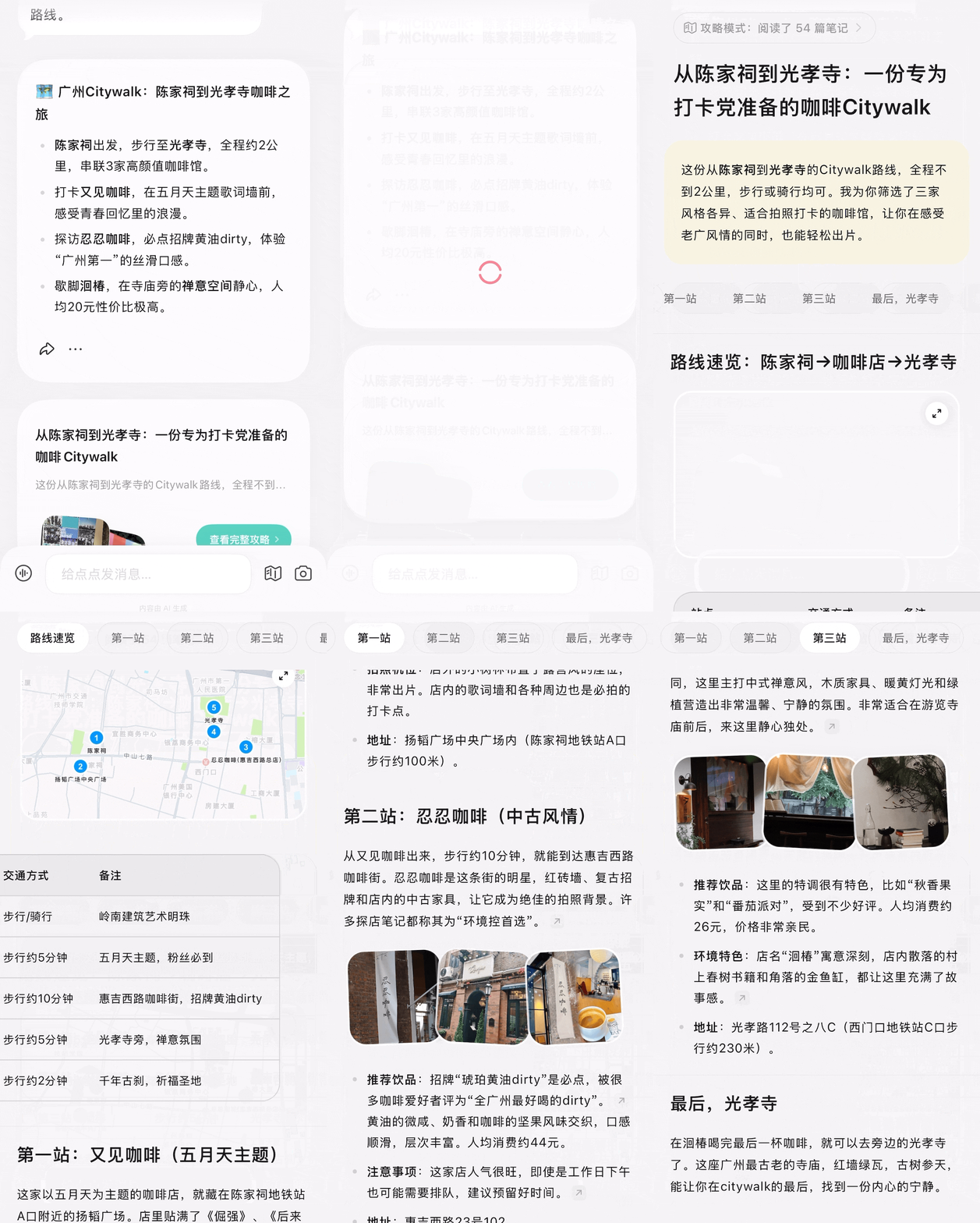
点点这次更新最让人眼前一亮的,是「攻略模式」的上线。

简单来说,攻略模式就是让点点帮你做一份完整的计划——不是那种干巴巴的清单,而是一份有时间线、有细节、能直接照着执行的攻略。

比如,用 AI 做旅行攻略,现在处于一个尴尬位置:结果大量存在,可执行的很少。很多 AI 给出的方案,逻辑上对,但落地时才发现——路线绕远了,时间排不下,某个地方早就关了。点点的攻略模式尝试解决的,正是这个从「信息」到「计划」之间的断层。它结合实时信息、真人经验与地图能力,生成具备时效性和可执行性的攻略。

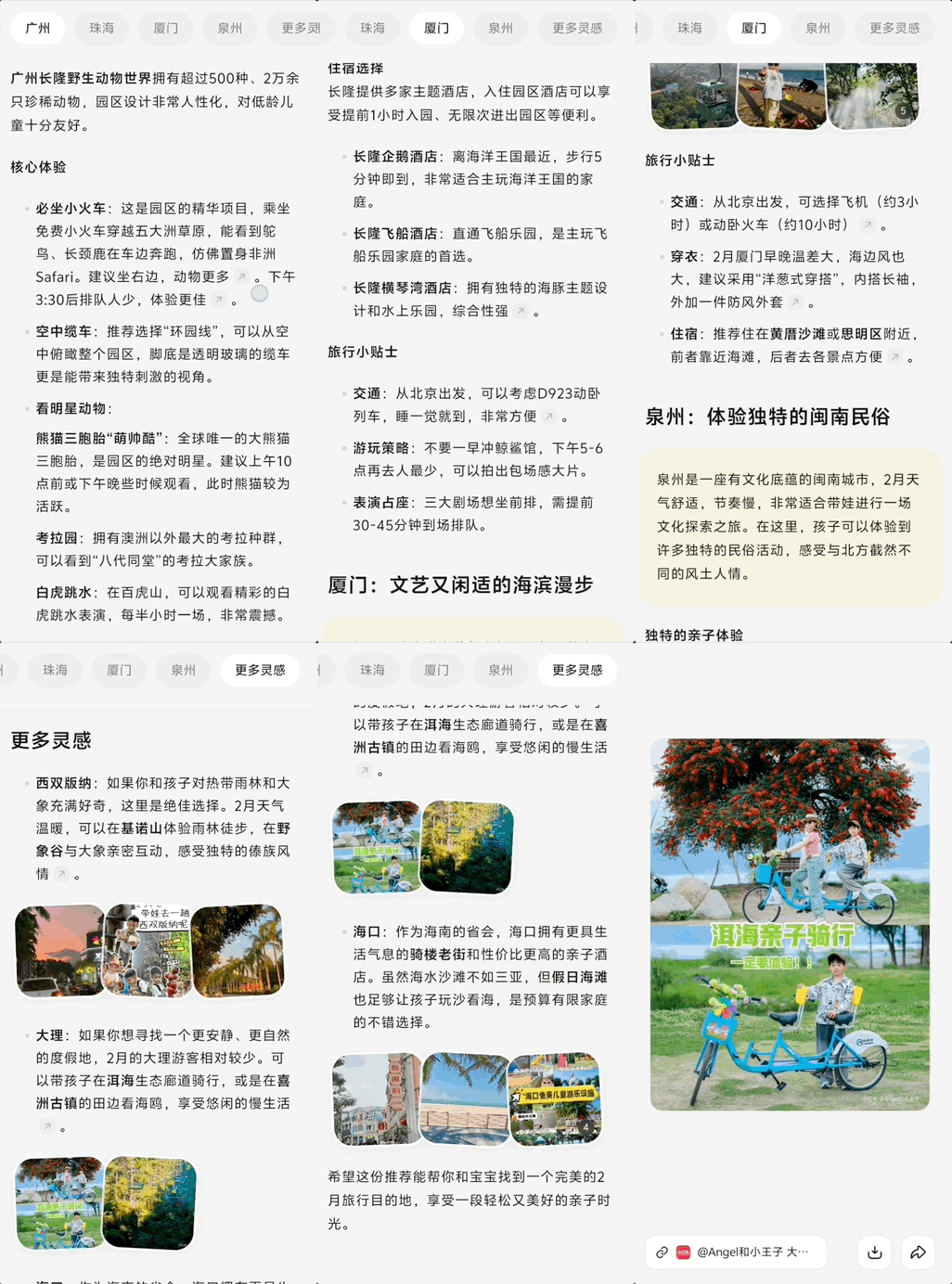
尤其是春节假期,带娃出门,最怕的就是计划赶不上变化。我让点点帮我规划一份「春节带孩子不费妈的出游计划」,看看它能给出什么方案。

点点很快生成了一份详细的亲子出游攻略。从目的地选择,到每天的行程安排、亲子友好型餐厅和酒店建议,甚至连带娃出行的必备物品清单都列得清清楚楚。更贴心的是,它还会考虑到孩子的作息时间,把行程节奏控制得不紧不慢,避免大人小孩都累得够呛。

这是大计划,小计划呢?这个假期,我发现点点在「小计划」上也非常实用,比如:两个目的地之间,中间想顺便逛逛、吃点喝点,但又不绕远。我就让点点安排两点之间的具体路线。

点点先是确认了探店的偏好、骑行还是步行等基本信息,然后就开始深度研究,推荐了沿途值得一逛的店铺。不只是笼统地说「这条路上有咖啡店」,而是具体到店名、地址、特色之处,当然,少不了附上小红书用户的真实评价和推荐理由。

这大大省掉了我站在太阳底下,划着手机一篇篇笔记翻,却又举棋不定,越纠结人越焦躁的情况。也是最能体现点点如何把 AI 助手,以及小红书原生内容整合到一起,强强联合后的效果。

小红书的独立 AI,想清楚要往哪走了吗?

需要指出的是,点点并非没有槽点。首先,攻略模式的生成时间不太稳定,有时候等的时间远超五分钟。另外,如果对生成结果不满意,目前没有一键重新生成的选项,需要多次点击才能重来。

攻略模式目前只在点点 app 上线,且有额度限制;主站内的入口也经历了几次调整,需要仔细留意才能发现,说明点点团队对于产品方向这件事,还在持续探索。

如果把视角拉远一点,从行业角度来看,点点过去的问题其实不在于功能做得不够好,而在于它需要回答一个更根本的问题:如何「用好」用户原生内容,以及,用什么样的方式「还给」用户

不过,瑕不掩瑜。在 AI 助手赛道越来越拥挤的今天,点点依然站在了一个非常独特的生态位上。

说到底,点点真正的壁垒不是技术——这年头谁家还不做一个 Deep Research了——而是小红书上那些真实用户的真实经验。其他 AI 助手是在用通用语料回答你,点点是在替你消化小红书。

在那些最依赖「真实经验」的场景里——你想知道这家店到底踩不踩雷、这条路线到底能不能走、这个攻略到底怎么做才对——来源的差异会决定答案的可信度。这些问题的答案,百科给不了你,通用大模型也给不了你,只有那些真正经历过的人才能告诉你。

这个时代不缺信息,缺的是有人帮你筛选、整理、判断。而社区语料的「活人感」,恰恰是最难被复制的东西。点点做的,就是把这种活人感规模化地交付出来。搜索给你信息,攻略模式给你方案——从「我有想法」到「我知道怎么做」,中间那些反复翻帖、拼信息的时间成本,点点正在一点点帮你省掉。

点点的未来会走向哪里,现在下结论还为时过早。但至少在「生活搜索」这个细分领域,点点已经找到了一个别人很难复制的方向。

接下来的问题是:点点能在这个位置上扎多深,又能把体验打磨到什么程度——这将决定它到底只是一个「有趣的 AI 功能实验」,还是真正成为用户手里,有活人感的「小帮手」。

毕竟,在 AI 这个赛道上,有独特价值只是入场券。能不能把价值转化为用户习惯、把习惯转化为商业回报,才是真正的挑战。

#欢迎关注爱范儿官方微信公众号:爱范儿(微信号:ifanr),更多精彩内容第一时间为您奉上。

爱范儿 | 原文链接 · 查看评论 · 新浪微博


PHP Error Reporting: Enable, Display, and Log Errors

PHP error reporting controls which errors are shown, logged, or silently ignored. Configuring it correctly is essential during development — where you want full visibility — and on production servers — where errors should be logged but never displayed to users.

This guide explains how to configure PHP error reporting using php.ini, the error_reporting() function, and .htaccess. If you are not sure which PHP version is active, first check it with the PHP version guide .

Quick Reference

Task Setting / Command
Enable all errors in php.ini error_reporting = E_ALL
Display errors on screen display_errors = On
Hide errors from users (production) display_errors = Off
Log errors to a file log_errors = On
Set custom log file error_log = /var/log/php/error.log
Enable all errors at runtime error_reporting(E_ALL);
Suppress all errors at runtime error_reporting(0);

PHP Error Levels

PHP categorizes errors into levels. Each level has a name (constant) and a numeric value. You can combine levels using bitwise operators to control exactly which errors are reported.

The most commonly used levels are:

  • E_ERROR — fatal errors that stop script execution (undefined function, missing module)
  • E_WARNING — non-fatal errors that allow execution to continue (wrong function argument, missing include)
  • E_PARSE — syntax errors detected at parse time; always stop execution
  • E_NOTICE — minor issues such as using an undefined variable; useful during development
  • E_DEPRECATED — warnings about features that will be removed in future PHP versions
  • E_ALL — all errors and warnings; recommended during development

For a full list of error constants, see the PHP error constants documentation .

Configure Error Reporting in php.ini

The php.ini file is the main configuration file for PHP. Changes here apply globally to all PHP scripts on the server. After editing php.ini, restart the web server for the changes to take effect.

To find the location of your active php.ini file, run:

Terminal
php --ini

Enable Error Reporting

Open php.ini and set the following directives:

ini
; Report all errors
error_reporting = E_ALL

; Display errors on the page (development only)
display_errors = On

; Display startup sequence errors
display_startup_errors = On
Warning
Never enable display_errors on a production server. Displaying error messages to users exposes file paths, database credentials, and application logic that can be exploited.

Log Errors to a File

To write errors to a log file instead of displaying them, set:

ini
; Disable displaying errors
display_errors = Off

; Enable error logging
log_errors = On

; Set the path to the log file
error_log = /var/log/php/error.log

Make sure the directory exists and is writable by the web server user. To create the directory:

Terminal
sudo mkdir -p /var/log/php
sudo chown www-data:www-data /var/log/php

Recommended Development Configuration

ini
error_reporting = E_ALL
display_errors = On
display_startup_errors = On
log_errors = On
error_log = /var/log/php/error.log

Recommended Production Configuration

ini
error_reporting = E_ALL & ~E_DEPRECATED
display_errors = Off
display_startup_errors = Off
log_errors = On
error_log = /var/log/php/error.log

This reports all serious errors while suppressing deprecation notices, and logs everything without displaying anything to users.

Configure Error Reporting at Runtime

You can override php.ini settings within a PHP script using the error_reporting() function and ini_set(). Runtime changes apply only to the current script.

To enable all errors at the top of a script:

php
<?php
ini_set('display_errors', '1');
ini_set('display_startup_errors', '1');
error_reporting(E_ALL);

To report all errors except notices:

php
<?php
error_reporting(E_ALL & ~E_NOTICE);

To suppress all error output (not recommended for debugging):

php
<?php
error_reporting(0);

Runtime configuration is useful during development when you do not have access to php.ini, but it should not replace proper server-level configuration on production systems.

Configure Error Reporting in .htaccess

If you are on a shared hosting environment without access to php.ini, you can configure PHP error reporting via .htaccess (when PHP runs as an Apache module):

apache
php_flag display_errors On
php_value error_reporting -1
php_flag log_errors On
php_value error_log /var/log/php/error.log

Using -1 for error_reporting enables all possible errors, including those added in future PHP versions.

Info
.htaccess directives only work when PHP runs as an Apache module (mod_php). They have no effect with PHP-FPM.

View PHP Error Logs

Once log_errors is enabled, errors are written to the file specified by error_log. To monitor the log in real time, use the tail -f command:

Terminal
tail -f /var/log/php/error.log

If no error_log path is set, PHP writes errors to the web server error log:

  • Apache: /var/log/apache2/error.log
  • Nginx + PHP-FPM: /var/log/nginx/error.log and /var/log/php/php-fpm.log

For related service commands, see how to start, stop, or restart Apache and how to start, stop, or restart Nginx .

Troubleshooting

Errors are not displayed even with display_errors = On
Confirm you are editing the correct php.ini file. Run php --ini or call phpinfo() in a script to see which configuration file is loaded and the current value of display_errors.

Changes to php.ini have no effect
The web server must be restarted after editing php.ini. For Apache, run sudo systemctl restart apache2. For Nginx + PHP-FPM, restart Nginx and your versioned PHP-FPM service (for example, sudo systemctl restart nginx php8.3-fpm).

No errors appear in the log file
Check that the log file path is writable by the web server user (www-data or nginx), and that log_errors = On is set in the active php.ini.

ini_set('display_errors', '1') has no effect
Fatal parse errors (E_PARSE) occur before any PHP code runs, so ini_set() cannot catch them. Enable display_errors in php.ini or .htaccess to see parse errors.

Error suppression operator @ hides errors
PHP’s @ prefix suppresses errors for a single expression. If errors from a specific function are missing from logs, check whether the call is prefixed with @.

FAQ

What is the difference between display_errors and log_errors?
display_errors controls whether errors are output directly to the browser or CLI. log_errors controls whether errors are written to the error log file. On production, always set display_errors = Off and log_errors = On.

Which error_reporting level should I use?
Use E_ALL during development to catch every possible issue. On production, use E_ALL & ~E_DEPRECATED to log serious errors while suppressing deprecation notices that do not require immediate action.

How do I check the current error reporting level?
Call error_reporting() with no arguments: it returns the current bitmask as an integer. You can also check it in the output of phpinfo().

Can I log errors to a database instead of a file?
Not directly via php.ini. Use a custom error handler registered with set_error_handler() and set_exception_handler() to send errors to a database, email, or external logging service.

Where is php.ini located?
Run php --ini from the command line or add <?php phpinfo(); ?> to a script and load it in a browser. The “Loaded Configuration File” row shows the active path. Common locations are /etc/php/8.x/cli/php.ini (CLI) and /etc/php/8.x/apache2/php.ini (Apache).

Conclusion

During development, set error_reporting = E_ALL and display_errors = On in php.ini to see all errors immediately. On production, set display_errors = Off and log_errors = On to log errors silently without exposing details to users.

Make changes in php.ini for permanent server-wide configuration, use error_reporting() and ini_set() for per-script overrides, or use .htaccess on shared hosting without php.ini access.

If you have any questions, feel free to leave a comment below.

chown Cheatsheet

Basic Syntax

Use these core command forms for chown.

Command Description
chown USER FILE Change file owner
chown USER:GROUP FILE Change owner and group
chown :GROUP FILE Change group only
chown USER: FILE Change owner and set group to user’s login group
chown --reference=REF FILE Copy owner and group from another file

Common Examples

Common ownership changes for files and directories.

Command Description
chown root file.txt Set owner to root
chown www-data:www-data /var/www/index.html Set owner and group for a web file
sudo chown $USER:$USER file.txt Return ownership to current user
chown :developers app.log Change group only
chown --reference=source.txt target.txt Match ownership of another file

Recursive Changes

Apply ownership updates to full directory trees.

Command Description
chown -R USER:GROUP /path Recursively change owner and group
chown -R USER /path Recursively change owner only
chown -R :GROUP /path Recursively change group only
chown -R -h USER:GROUP /path Change symlink ownership itself during recursion
chown -R --from=OLDUSER:OLDGROUP NEWUSER:NEWGROUP /path Change only matching current ownership

Symlinks and Traversal

Control how chown treats symbolic links.

Command Description
chown USER:GROUP symlink Change target by default
chown -h USER:GROUP symlink Change symlink itself (not target)
chown -R -H USER:GROUP /path Follow symlink command-line args to directories
chown -R -L USER:GROUP /path Follow all directory symlinks
chown -R -P USER:GROUP /path Never follow symlinks (default)

Safe Patterns

Use these patterns to avoid ownership mistakes.

Command Description
chown --from=root root:root /path/file Change only if current owner matches
find /path -user olduser -exec chown newuser {} + Target only files owned by one user
find /path -group oldgroup -exec chown :newgroup {} + Target only one group
ls -l /path/file Verify ownership before and after changes
id username Confirm user and group names exist

Common Errors

Quick checks when ownership changes fail.

Issue Check
Operation not permitted You need root privileges; run with sudo
invalid user Verify user exists with getent passwd username
invalid group Verify group exists with getent group groupname
Changes did not apply recursively Confirm -R was used
Access still denied after chown Check permission bits with ls -l and ACLs

Related Guides

Use these guides for full ownership and permissions workflows.

Guide Description
Chown Command in Linux Full chown guide with examples
chgrp Command in Linux Change file group ownership
How to Change File Permissions in Linux (chmod command) Update permission bits
Understanding Linux File Permissions Ownership and permission model
How to List Groups in Linux Check group membership and IDs

rm Cheatsheet

Basic Syntax

Core command forms for file and directory removal.

Command Description
rm [OPTIONS] FILE... Remove one or more files
rm -r [OPTIONS] DIRECTORY... Remove directories recursively
rm -- FILE Treat argument as filename even if it starts with -
rm -i FILE Prompt before each removal

Remove Files

Common file deletion commands.

Command Description
rm file.txt Remove one file
rm file1 file2 file3 Remove multiple files
rm *.log Remove files matching pattern
rm -- -strange-filename Remove file named with leading -
rm -v file.txt Remove file with verbose output

Remove Directories

Delete directories and their contents.

Command Description
rm -r dir/ Remove directory recursively
rm -rf dir/ Force recursive removal without prompts
rm -r dir1 dir2 Remove multiple directories
rm -r -- */ Remove all directories in current path

Prompt and Safety Options

Control how aggressively rm deletes files.

Command Description
rm -i file.txt Prompt before each file removal
rm -I file1 file2 Prompt once before deleting many files
rm --interactive=always file.txt Always prompt
rm --interactive=once *.tmp Prompt once
rm -f file.txt Ignore nonexistent files, never prompt

Useful Patterns

Frequent real-world combinations.

Command Description
find . -type f -name '*.tmp' -delete Remove matching temporary files
find . -type d -empty -delete Remove empty directories
rm -rf -- build/ dist/ Remove common build directories
rm -f -- *.bak *.old Remove backup files quietly

Troubleshooting

Quick checks for common removal errors.

Issue Check
Permission denied Check ownership and permissions; use sudo only when needed
Is a directory Add -r to remove directories
No such file or directory Verify path and shell glob expansion
Cannot remove write-protected file Use -i for prompts or -f to force
File name starts with - Use rm -- filename

Related Guides

Use these references for safer file management workflows.

Guide Description
Rm Command in Linux Full rm guide with examples
How to Find Files in Linux Using the Command Line Find and target files before deleting
Chmod Command in Linux Fix permission errors before removal
Linux Commands Cheatsheet General Linux command quick reference

Linux patch Command: Apply Diff Files

The patch command applies a set of changes described in a diff file to one or more original files. It is the standard way to distribute and apply source code changes, security fixes, and configuration updates in Linux, and pairs directly with the diff command.

This guide explains how to use the patch command in Linux with practical examples.

Syntax

The general syntax of the patch command is:

txt
patch [OPTIONS] [ORIGINALFILE] [PATCHFILE]

You can pass the patch file using the -i option or pipe it through standard input:

txt
patch [OPTIONS] -i patchfile [ORIGINALFILE]
patch [OPTIONS] [ORIGINALFILE] < patchfile

patch Options

Option Long form Description
-i FILE --input=FILE Read the patch from FILE instead of stdin
-p N --strip=N Strip N leading path components from file names in the patch
-R --reverse Reverse the patch (undo a previously applied patch)
-b --backup Back up the original file before patching
--dry-run Test the patch without making any changes
-d DIR --directory=DIR Change to DIR before doing anything
-N --forward Skip patches that appear to be already applied
-l --ignore-whitespace Ignore whitespace differences when matching lines
-f --force Force apply even if the patch does not match cleanly
-u --unified Interpret the patch as a unified diff

Create and Apply a Basic Patch

The most common workflow is to use diff to generate a patch file and patch to apply it.

Start with two versions of a file. Here is the original:

hello.pytxt
print("Hello, World!")
print("Version 1")

And the updated version:

hello_new.pytxt
print("Hello, Linux!")
print("Version 2")

Use diff with the -u flag to generate a unified diff and save it to a patch file:

Terminal
diff -u hello.py hello_new.py > hello.patch

The hello.patch file will contain the following differences:

output
--- hello.py 2026-02-21 10:00:00.000000000 +0100
+++ hello_new.py 2026-02-21 10:05:00.000000000 +0100
@@ -1,2 +1,2 @@
-print("Hello, World!")
-print("Version 1")
+print("Hello, Linux!")
+print("Version 2")

To apply the patch to the original file:

Terminal
patch hello.py hello.patch
output
patching file hello.py

hello.py now contains the updated content from hello_new.py.

Dry Run Before Applying

Use --dry-run to test whether a patch will apply cleanly without actually modifying any files:

Terminal
patch --dry-run hello.py hello.patch
output
patching file hello.py

If the patch cannot be applied cleanly, patch reports the conflict without touching any files. This is useful before applying patches from external sources or when you are unsure whether a patch has already been applied.

Back Up the Original File

Use the -b option to create a backup of the original file before applying the patch. The backup is saved with a .orig extension:

Terminal
patch -b hello.py hello.patch
output
patching file hello.py

After running this command, hello.py.orig contains the original unpatched file. You can restore it manually if needed.

Strip Path Components with -p

When a patch file is generated from a different directory structure than the one where you apply it, the file paths inside the patch may not match your local paths. Use -p N to strip N leading path components from the paths recorded in the patch.

For example, a patch generated with git diff will reference files like:

output
--- a/src/utils/hello.py
+++ b/src/utils/hello.py

To apply this patch from the project root, use -p1 to strip the a/ and b/ prefixes:

Terminal
patch -p1 < hello.patch

-p1 is the standard option for patches generated by git diff and by diff -u from the root of a project directory. Without it, patch would look for a file named a/src/utils/hello.py on disk, which does not exist.

Reverse a Patch

Use the -R option to undo a previously applied patch and restore the original file:

Terminal
patch -R hello.py hello.patch
output
patching file hello.py

The file is restored to its state before the patch was applied.

Apply a Multi-File Patch

A single patch file can contain changes to multiple files. In this case, you do not specify a target file on the command line — patch reads the file names from the diff headers inside the patch:

Terminal
patch -p1 < project.patch

patch processes each file name from the diff headers and applies the corresponding changes. Use -p1 when the patch was produced by git diff or diff -u from the project root.

Quick Reference

Task Command
Apply a patch patch original.txt changes.patch
Apply from stdin patch -p1 < changes.patch
Specify patch file with -i patch -i changes.patch original.txt
Dry run (test without applying) patch --dry-run -p1 < changes.patch
Back up original before patching patch -b original.txt changes.patch
Strip one path prefix (git patches) patch -p1 < changes.patch
Reverse a patch patch -R original.txt changes.patch
Ignore whitespace differences patch -l original.txt changes.patch
Apply to a specific directory patch -d /path/to/dir -p1 < changes.patch

Troubleshooting

Hunk #1 FAILED at line N.
The patch does not match the current content of the file. This usually means the file has already been modified since the patch was created, or you are applying the patch against the wrong version. patch creates a .rej file containing the failed hunk so you can review and apply the change manually.

Reversed (or previously applied) patch detected! Assume -R?
patch has detected that the changes in the patch are already present in the file — the patch may have been applied before. Answer y to reverse the patch or n to skip it. Use -N (--forward) to automatically skip already-applied patches without prompting.

patch: **** malformed patch at line N
The patch file is corrupted or not in a recognized format. Make sure the patch was generated with diff -u (unified format). Non-unified formats require the -c (context) or specific format flag to be passed to patch.

File paths in the patch do not match files on disk.
Adjust the -p N value. Run patch --dry-run -p0 < changes.patch first, then increment N (-p1, -p2) until patch finds the correct files.

FAQ

How do I create a patch file?
Use the diff command with the -u flag: diff -u original.txt updated.txt > changes.patch. The -u flag produces a unified diff, which is the format patch works with by default. See the diff command guide for details.

What does -p1 mean?
-p1 tells patch to strip one leading path component from file names in the patch. Patches generated by git diff prefix file paths with a/ and b/, so -p1 removes that prefix before patch looks for the file on disk.

How do I undo a patch I already applied?
Run patch -R originalfile patchfile. patch reads the diff in reverse and restores the original content.

What is a .rej file?
When patch cannot apply one or more sections of a patch (called hunks), it writes the failed hunks to a file with a .rej extension alongside the original file. You can open the .rej file and apply those changes manually.

What is the difference between patch and git apply?
Both apply diff files, but git apply is designed for use inside a Git repository and integrates with the Git index. patch is a standalone POSIX tool that works on any file regardless of version control.

Conclusion

The patch command is the standard tool for applying diff files in Linux. Use --dry-run to verify a patch before applying it, -b to keep a backup of the original, and -R to reverse changes when needed.

If you have any questions, feel free to leave a comment below.

❌