阅读视图

发现新文章,点击刷新页面。

journalctl Command in Linux: Query and Filter System Logs

journalctl is a command-line utility for querying and displaying logs collected by systemd-journald, the systemd logging daemon. It gives you structured access to all system logs — kernel messages, service output, authentication events, and more — from a single interface.

This guide explains how to use journalctl to view, filter, and manage system logs.

journalctl Command Syntax

The general syntax for the journalctl command is:

txt
journalctl [OPTIONS] [MATCHES]

When invoked without any options, journalctl displays all collected logs starting from the oldest entry, piped through a pager (usually less). Press q to exit.

Only the root user or members of the adm or systemd-journal groups can read system logs. Regular users can view their own user journal with the --user flag.

Quick Reference

Command Description
journalctl Show all logs
journalctl -f Follow new log entries in real time
journalctl -n 50 Show last 50 lines
journalctl -r Show logs newest first
journalctl -e Jump to end of logs
journalctl -u nginx Logs for a specific unit
journalctl -u nginx -f Follow unit logs in real time
journalctl -b Current boot logs
journalctl -b -1 Previous boot logs
journalctl --list-boots List all boots
journalctl -p err Errors and above
journalctl -p warning --since "1 hour ago" Recent warnings
journalctl -k Kernel messages
journalctl --since "yesterday" Logs since yesterday
journalctl --since "2026-02-01" --until "2026-02-02" Logs in a time window
journalctl -g "failed" Search by pattern
journalctl -o json-pretty JSON output
journalctl --disk-usage Show journal disk usage
journalctl --vacuum-size=500M Reduce journal to 500 MB

For a printable quick reference, see the journalctl cheatsheet .

Viewing System Logs

To view all system logs, run journalctl without any options:

Terminal
journalctl

To show the most recent entries first, use the -r flag:

Terminal
journalctl -r

To jump directly to the end of the log, use -e:

Terminal
journalctl -e

To show the last N lines (similar to tail ), use the -n flag:

Terminal
journalctl -n 50

To disable the pager and print directly to the terminal, use --no-pager:

Terminal
journalctl --no-pager

Following Logs in Real Time

To stream new log entries as they arrive (similar to tail -f), use the -f flag:

Terminal
journalctl -f

This is one of the most useful options for monitoring a running service or troubleshooting an active issue. Press Ctrl+C to stop.

Filtering by Systemd Unit

To view logs for a specific systemd service, use the -u flag followed by the unit name:

Terminal
journalctl -u nginx

You can combine -u with other filters. For example, to follow nginx logs in real time:

Terminal
journalctl -u nginx -f

To view logs for multiple units at once, specify -u more than once:

Terminal
journalctl -u nginx -u php-fpm

To print the last 100 lines for a service without the pager:

Terminal
journalctl -u nginx -n 100 --no-pager

For more on starting and stopping services, see how to start, stop, and restart Nginx and Apache .

Filtering by Time

Use --since and --until to limit log output to a specific time range.

To show logs since a specific date and time:

Terminal
journalctl --since "2026-02-01 10:00"

To show logs within a window:

Terminal
journalctl --since "2026-02-01 10:00" --until "2026-02-01 12:00"

journalctl accepts many natural time expressions:

Terminal
journalctl --since "1 hour ago"
journalctl --since "yesterday"
journalctl --since today

You can combine time filters with unit filters. For example, to view nginx logs from the past hour:

Terminal
journalctl -u nginx --since "1 hour ago"

Filtering by Priority

systemd uses the standard syslog priority levels. Use the -p flag to filter by severity:

Terminal
journalctl -p err

The output will include the specified priority and all higher-severity levels. The available priority levels from highest to lowest are:

Level Name Description
0 emerg System is unusable
1 alert Immediate action required
2 crit Critical conditions
3 err Error conditions
4 warning Warning conditions
5 notice Normal but significant events
6 info Informational messages
7 debug Debug-level messages

To view only warnings and above from the last hour:

Terminal
journalctl -p warning --since "1 hour ago"

Filtering by Boot

The journal stores logs from multiple boots. Use -b to filter by boot session.

To view logs from the current boot:

Terminal
journalctl -b

To view logs from the previous boot:

Terminal
journalctl -b -1

To list all available boot sessions with their IDs and timestamps:

Terminal
journalctl --list-boots

The output will look something like this:

output
-2 abc123def456 Mon 2026-02-24 08:12:01 CET—Mon 2026-02-24 18:43:22 CET
-1 def456abc789 Tue 2026-02-25 09:05:14 CET—Tue 2026-02-25 21:11:03 CET
0 789abcdef012 Wed 2026-02-26 08:30:41 CET—Wed 2026-02-26 14:00:00 CET

To view logs for a specific boot ID:

Terminal
journalctl -b abc123def456

To view errors from the previous boot:

Terminal
journalctl -b -1 -p err

Kernel Messages

To view kernel messages only (equivalent to dmesg ), use the -k flag:

Terminal
journalctl -k

To view kernel messages from the current boot:

Terminal
journalctl -k -b

To view kernel errors from the previous boot:

Terminal
journalctl -k -p err -b -1

Filtering by Process

In addition to filtering by unit, you can filter logs by process name, executable path, PID, or user ID using journal fields.

To filter by process name:

Terminal
journalctl _COMM=sshd

To filter by executable path:

Terminal
journalctl _EXE=/usr/sbin/sshd

To filter by PID:

Terminal
journalctl _PID=1234

To filter by user ID:

Terminal
journalctl _UID=1000

Multiple fields can be combined to narrow the results further.

Searching Log Messages

To search log messages by a pattern, use the -g flag followed by a regular expression:

Terminal
journalctl -g "failed"

To search within a specific unit:

Terminal
journalctl -u ssh -g "invalid user"

You can also pipe journalctl output to grep for more complex matching:

Terminal
journalctl -u nginx -n 500 --no-pager | grep -i "upstream"

Output Formats

By default, journalctl displays logs in a human-readable format. Use the -o flag to change the output format.

To display logs with ISO 8601 timestamps:

Terminal
journalctl -o short-iso

To display logs as JSON (useful for scripting and log shipping):

Terminal
journalctl -o json-pretty

To display message text only, without metadata:

Terminal
journalctl -o cat

The most commonly used output formats are:

Format Description
short Default human-readable format
short-iso ISO 8601 timestamps
short-precise Microsecond-precision timestamps
json One JSON object per line
json-pretty Formatted JSON
cat Message text only

Managing Journal Size

The journal stores logs on disk under /var/log/journal/. To check how much disk space the journal is using:

Terminal
journalctl --disk-usage
output
Archived and active journals take up 512.0M in the file system.

To reduce the journal size, use the --vacuum-size, --vacuum-time, or --vacuum-files options:

Terminal
journalctl --vacuum-size=500M
Terminal
journalctl --vacuum-time=30d
Terminal
journalctl --vacuum-files=5

These commands remove old archived journal files until the specified limit is met. To configure a permanent size limit, edit /etc/systemd/journald.conf and set SystemMaxUse=.

Practical Troubleshooting Workflow

When a service fails, we can use a short sequence to isolate the issue quickly. First, check service state with systemctl :

Terminal
sudo systemctl status nginx

Then inspect recent error-level logs for that unit:

Terminal
sudo journalctl -u nginx -p err -n 100 --no-pager

If the problem started after reboot, inspect previous boot logs:

Terminal
sudo journalctl -u nginx -b -1 -p err --no-pager

To narrow the time window around the incident:

Terminal
sudo journalctl -u nginx --since "30 minutes ago" --no-pager

If you need pattern matching across many lines, pipe to grep :

Terminal
sudo journalctl -u nginx -n 500 --no-pager | grep -Ei "error|failed|timeout"

Troubleshooting

“No journal files were found”
The systemd journal may not be persistent on your system. Check if /var/log/journal/ exists. If it does not, create it with mkdir -p /var/log/journal and restart systemd-journald. Alternatively, set Storage=persistent in /etc/systemd/journald.conf.

“Permission denied” reading logs
Regular users can only access their own user journal. To read system logs, run journalctl with sudo, or add your user to the adm or systemd-journal group: usermod -aG systemd-journal USERNAME.

-g pattern search returns no results
The -g flag uses PCRE2 regular expressions. Make sure the pattern is correct and that your journalctl version supports -g (available on modern systemd releases). As an alternative, pipe the output to grep.

Logs missing after reboot
The journal is stored in memory by default on some distributions. To enable persistent storage across reboots, set Storage=persistent in /etc/systemd/journald.conf and restart systemd-journald.

Journal consuming too much disk space
Use journalctl --disk-usage to check the current size, then journalctl --vacuum-size=500M to trim old entries. For a permanent limit, configure SystemMaxUse= in /etc/systemd/journald.conf.

FAQ

What is the difference between journalctl and /var/log/syslog?
/var/log/syslog is a plain text file written by rsyslog or syslog-ng. journalctl reads the binary systemd journal, which stores structured metadata alongside each message. The journal offers better filtering, field-based queries, and persistent boot tracking.

How do I view logs for a service that keeps restarting?
Use journalctl -u servicename -f to follow logs in real time, or journalctl -u servicename -n 200 to view the most recent entries. Adding -p err will surface only error-level messages.

How do I check logs from before the current boot?
Use journalctl -b -1 for the previous boot, or journalctl --list-boots to see all available boot sessions and then journalctl -b BOOTID to query a specific one.

Can I export logs to a file?
Yes. Use journalctl --no-pager > output.log for plain text, or journalctl -o json-pretty > output.json for structured JSON. You can combine this with any filter flags.

How do I reduce the amount of disk space used by the journal?
Run journalctl --vacuum-size=500M to immediately trim archived logs to 500 MB. For a persistent limit, set SystemMaxUse=500M in /etc/systemd/journald.conf and restart the journal daemon with systemctl restart systemd-journald.

Conclusion

journalctl is a powerful and flexible tool for querying the systemd journal. Whether you are troubleshooting a failing service, reviewing kernel messages, or auditing authentication events, mastering its filter options saves significant time. If you have any questions, feel free to leave a comment below.

Linux patch Command: Apply Diff Files

The patch command applies a set of changes described in a diff file to one or more original files. It is the standard way to distribute and apply source code changes, security fixes, and configuration updates in Linux, and pairs directly with the diff command.

This guide explains how to use the patch command in Linux with practical examples.

Syntax

The general syntax of the patch command is:

txt
patch [OPTIONS] [ORIGINALFILE] [PATCHFILE]

You can pass the patch file using the -i option or pipe it through standard input:

txt
patch [OPTIONS] -i patchfile [ORIGINALFILE]
patch [OPTIONS] [ORIGINALFILE] < patchfile

patch Options

Option Long form Description
-i FILE --input=FILE Read the patch from FILE instead of stdin
-p N --strip=N Strip N leading path components from file names in the patch
-R --reverse Reverse the patch (undo a previously applied patch)
-b --backup Back up the original file before patching
--dry-run Test the patch without making any changes
-d DIR --directory=DIR Change to DIR before doing anything
-N --forward Skip patches that appear to be already applied
-l --ignore-whitespace Ignore whitespace differences when matching lines
-f --force Force apply even if the patch does not match cleanly
-u --unified Interpret the patch as a unified diff

Create and Apply a Basic Patch

The most common workflow is to use diff to generate a patch file and patch to apply it.

Start with two versions of a file. Here is the original:

hello.pytxt
print("Hello, World!")
print("Version 1")

And the updated version:

hello_new.pytxt
print("Hello, Linux!")
print("Version 2")

Use diff with the -u flag to generate a unified diff and save it to a patch file:

Terminal
diff -u hello.py hello_new.py > hello.patch

The hello.patch file will contain the following differences:

output
--- hello.py 2026-02-21 10:00:00.000000000 +0100
+++ hello_new.py 2026-02-21 10:05:00.000000000 +0100
@@ -1,2 +1,2 @@
-print("Hello, World!")
-print("Version 1")
+print("Hello, Linux!")
+print("Version 2")

To apply the patch to the original file:

Terminal
patch hello.py hello.patch
output
patching file hello.py

hello.py now contains the updated content from hello_new.py.

Dry Run Before Applying

Use --dry-run to test whether a patch will apply cleanly without actually modifying any files:

Terminal
patch --dry-run hello.py hello.patch
output
patching file hello.py

If the patch cannot be applied cleanly, patch reports the conflict without touching any files. This is useful before applying patches from external sources or when you are unsure whether a patch has already been applied.

Back Up the Original File

Use the -b option to create a backup of the original file before applying the patch. The backup is saved with a .orig extension:

Terminal
patch -b hello.py hello.patch
output
patching file hello.py

After running this command, hello.py.orig contains the original unpatched file. You can restore it manually if needed.

Strip Path Components with -p

When a patch file is generated from a different directory structure than the one where you apply it, the file paths inside the patch may not match your local paths. Use -p N to strip N leading path components from the paths recorded in the patch.

For example, a patch generated with git diff will reference files like:

output
--- a/src/utils/hello.py
+++ b/src/utils/hello.py

To apply this patch from the project root, use -p1 to strip the a/ and b/ prefixes:

Terminal
patch -p1 < hello.patch

-p1 is the standard option for patches generated by git diff and by diff -u from the root of a project directory. Without it, patch would look for a file named a/src/utils/hello.py on disk, which does not exist.

Reverse a Patch

Use the -R option to undo a previously applied patch and restore the original file:

Terminal
patch -R hello.py hello.patch
output
patching file hello.py

The file is restored to its state before the patch was applied.

Apply a Multi-File Patch

A single patch file can contain changes to multiple files. In this case, you do not specify a target file on the command line — patch reads the file names from the diff headers inside the patch:

Terminal
patch -p1 < project.patch

patch processes each file name from the diff headers and applies the corresponding changes. Use -p1 when the patch was produced by git diff or diff -u from the project root.

Quick Reference

Task Command
Apply a patch patch original.txt changes.patch
Apply from stdin patch -p1 < changes.patch
Specify patch file with -i patch -i changes.patch original.txt
Dry run (test without applying) patch --dry-run -p1 < changes.patch
Back up original before patching patch -b original.txt changes.patch
Strip one path prefix (git patches) patch -p1 < changes.patch
Reverse a patch patch -R original.txt changes.patch
Ignore whitespace differences patch -l original.txt changes.patch
Apply to a specific directory patch -d /path/to/dir -p1 < changes.patch

Troubleshooting

Hunk #1 FAILED at line N.
The patch does not match the current content of the file. This usually means the file has already been modified since the patch was created, or you are applying the patch against the wrong version. patch creates a .rej file containing the failed hunk so you can review and apply the change manually.

Reversed (or previously applied) patch detected! Assume -R?
patch has detected that the changes in the patch are already present in the file — the patch may have been applied before. Answer y to reverse the patch or n to skip it. Use -N (--forward) to automatically skip already-applied patches without prompting.

patch: **** malformed patch at line N
The patch file is corrupted or not in a recognized format. Make sure the patch was generated with diff -u (unified format). Non-unified formats require the -c (context) or specific format flag to be passed to patch.

File paths in the patch do not match files on disk.
Adjust the -p N value. Run patch --dry-run -p0 < changes.patch first, then increment N (-p1, -p2) until patch finds the correct files.

FAQ

How do I create a patch file?
Use the diff command with the -u flag: diff -u original.txt updated.txt > changes.patch. The -u flag produces a unified diff, which is the format patch works with by default. See the diff command guide for details.

What does -p1 mean?
-p1 tells patch to strip one leading path component from file names in the patch. Patches generated by git diff prefix file paths with a/ and b/, so -p1 removes that prefix before patch looks for the file on disk.

How do I undo a patch I already applied?
Run patch -R originalfile patchfile. patch reads the diff in reverse and restores the original content.

What is a .rej file?
When patch cannot apply one or more sections of a patch (called hunks), it writes the failed hunks to a file with a .rej extension alongside the original file. You can open the .rej file and apply those changes manually.

What is the difference between patch and git apply?
Both apply diff files, but git apply is designed for use inside a Git repository and integrates with the Git index. patch is a standalone POSIX tool that works on any file regardless of version control.

Conclusion

The patch command is the standard tool for applying diff files in Linux. Use --dry-run to verify a patch before applying it, -b to keep a backup of the original, and -R to reverse changes when needed.

If you have any questions, feel free to leave a comment below.
Understanding the /etc/fstab File in Linux

The /etc/fstab file (filesystem table) is a system configuration file that defines how filesystems, partitions, and storage devices are mounted at boot time. The system reads this file during startup and mounts each entry automatically.

Understanding /etc/fstab is essential when you need to add a new disk, create a swap file , mount a network share , or change mount options for an existing filesystem.

This guide explains the /etc/fstab file format, what each field means, common mount options, and how to add new entries safely.

/etc/fstab Format

The /etc/fstab file is a plain text file with one entry per line. Each line defines a filesystem to mount. Lines beginning with # are comments and are ignored by the system.

To view the contents of the file safely, use less :

Terminal
less /etc/fstab

A typical /etc/fstab file looks like this:

output
# <file system> <mount point> <type> <options> <dump> <pass>
UUID=a1b2c3d4-e5f6-7890-abcd-ef1234567890 / ext4 errors=remount-ro 0 1
UUID=b2c3d4e5-f6a7-8901-bcde-f12345678901 /home ext4 defaults 0 2
UUID=c3d4e5f6-a7b8-9012-cdef-123456789012 none swap sw 0 0
tmpfs /tmp tmpfs defaults,noatime 0 0

Each entry contains six space-separated fields:

txt
UUID=a1b2c3d4... /home ext4 defaults 0 2
[---------------] [---] [--] [------] - -
| | | | | |
| | | | | +-> 6. Pass (fsck order)
| | | | +----> 5. Dump (backup flag)
| | | +-----------> 4. Options
| | +------------------> 3. Type
| +-------------------------> 2. Mount point
+---------------------------------------------> 1. File system

Field Descriptions

  1. File system — The device or partition to mount. This can be specified as:

    • A UUID: UUID=a1b2c3d4-e5f6-7890-abcd-ef1234567890
    • A disk label: LABEL=home
    • A device path: /dev/sda1
    • A network path: 192.168.1.10:/export/share (for NFS)

    Using UUIDs is recommended because device paths like /dev/sda1 can change if disks are added or removed. To find the UUID of a partition, run blkid:

    Terminal
    sudo blkid
  2. Mount point — The directory where the filesystem is attached. The directory must already exist. Common mount points include /, /home, /boot, and /mnt/data. For swap entries, this field is set to none.

  3. Type — The filesystem type. Common values include:

    • ext4 — The default Linux filesystem
    • xfs — High-performance filesystem used on RHEL-based distributions
    • btrfs — Copy-on-write filesystem with snapshot support
    • swap — Swap partition or file
    • tmpfs — Temporary filesystem stored in memory
    • nfs — Network File System
    • vfat — FAT32 filesystem (USB drives, EFI partitions)
    • auto — Let the kernel detect the filesystem type automatically
  4. Options — A comma-separated list of mount options. See the Common Mount Options section below for details.

  5. Dump — Used by the dump backup utility. A value of 0 means the filesystem is not included in backups. A value of 1 means it is. Most modern systems do not use dump, so this is typically set to 0.

  6. Pass — The order in which fsck checks filesystems at boot. The root filesystem should be 1. Other filesystems should be 2 so they are checked after root. A value of 0 means the filesystem is not checked.

Common Mount Options

The fourth field in each fstab entry is a comma-separated list of mount options. The following options are the most commonly used:

  • defaults — Uses the standard default options (rw, suid, dev, exec, auto, nouser, async). Some effective behaviors can still vary by filesystem and kernel settings.
  • ro — Mount the filesystem as read-only.
  • rw — Mount the filesystem as read-write.
  • noatime — Do not update file access times. This can improve performance, especially on SSDs.
  • nodiratime — Do not update directory access times.
  • noexec — Do not allow execution of binaries on the filesystem.
  • nosuid — Do not allow set-user-ID or set-group-ID bits to take effect.
  • nodev — Do not interpret character or block special devices on the filesystem.
  • nofail — Do not report errors if the device does not exist at boot. Useful for removable drives and network shares.
  • auto — Mount the filesystem automatically at boot (default behavior).
  • noauto — Do not mount automatically at boot. The filesystem can still be mounted manually with mount.
  • user — Allow a regular user to mount the filesystem.
  • errors=remount-ro — Remount the filesystem as read-only if an error occurs. Common on root filesystem entries.
  • _netdev — The filesystem requires network access. The system waits for the network to be available before mounting. Use this for NFS, CIFS, and iSCSI mounts.
  • x-systemd.automount — Mount the filesystem on first access instead of at boot. Managed by systemd.

You can combine multiple options separated by commas:

txt
UUID=a1b2c3d4... /data ext4 defaults,noatime,nofail 0 2

Adding an Entry to /etc/fstab

Before editing /etc/fstab, always create a backup:

Terminal
sudo cp /etc/fstab /etc/fstab.bak

Step 1: Find the UUID

Identify the UUID of the partition you want to mount:

Terminal
sudo blkid /dev/sdb1
output
/dev/sdb1: UUID="d4e5f6a7-b8c9-0123-def0-123456789abc" TYPE="ext4"

Step 2: Create the Mount Point

Create the directory where the filesystem will be mounted:

Terminal
sudo mkdir -p /mnt/data

Step 3: Add the Entry

Open /etc/fstab in a text editor :

Terminal
sudo nano /etc/fstab

Add a new line at the end of the file:

/etc/fstabsh
UUID=d4e5f6a7-b8c9-0123-def0-123456789abc /mnt/data ext4 defaults,nofail 0 2

Step 4: Test the Entry

Instead of rebooting, use mount -a to mount all entries in /etc/fstab that are not already mounted:

Terminal
sudo mount -a

If the command produces no output, the entry is correct. If there is an error, fix the fstab entry before rebooting — an incorrect fstab can prevent the system from booting normally.

Verify the filesystem is mounted :

Terminal
df -h /mnt/data

Common fstab Examples

Swap File

To add a swap file to fstab:

/etc/fstabsh
/swapfile none swap sw 0 0

NFS Network Share

To mount an NFS share that requires network access:

/etc/fstabsh
192.168.1.10:/export/share /mnt/nfs nfs defaults,_netdev,nofail 0 0

CIFS/SMB Windows Share

To mount a Windows/Samba share with a credentials file:

/etc/fstabsh
//192.168.1.20/share /mnt/smb cifs credentials=/etc/samba/creds,_netdev,nofail 0 0

Set strict permissions on the credentials file so other users cannot read it:

Terminal
sudo chmod 600 /etc/samba/creds

USB or External Drive

To mount a removable drive that may not always be attached:

/etc/fstabsh
UUID=e5f6a7b8-c9d0-1234-ef01-23456789abcd /mnt/usb ext4 defaults,nofail,noauto 0 0

The nofail option prevents boot errors when the drive is not connected. The noauto option prevents automatic mounting — mount it manually with sudo mount /mnt/usb when needed.

tmpfs for /tmp

To mount /tmp as a temporary filesystem in memory:

/etc/fstabsh
tmpfs /tmp tmpfs defaults,noatime,size=2G 0 0

Quick Reference

Task Command
View fstab contents less /etc/fstab
Back up fstab sudo cp /etc/fstab /etc/fstab.bak
Find partition UUIDs sudo blkid
Mount all fstab entries sudo mount -a
Check mounted filesystems mount or df -h
Check filesystem type lsblk -f
Restore fstab from backup sudo cp /etc/fstab.bak /etc/fstab

Troubleshooting

System does not boot after editing fstab
An incorrect fstab entry can cause a boot failure. Boot into recovery mode or a live USB, mount the root filesystem, and fix or restore /etc/fstab from the backup. Always test with sudo mount -a before rebooting.

mount -a reports “wrong fs type” or “bad superblock”
The filesystem type in the fstab entry does not match the actual filesystem on the device. Use sudo blkid or lsblk -f to check the correct type.

Network share fails to mount at boot
Add the _netdev option to tell the system to wait for network availability before mounting. For systemd-based systems, x-systemd.automount can also help with timing issues.

“mount point does not exist”
The directory specified in the second field does not exist. Create it with mkdir -p /path/to/mountpoint before running mount -a.

UUID changed after reformatting a partition
Reformatting a partition assigns a new UUID. Run sudo blkid to find the new UUID and update the fstab entry accordingly.

FAQ

What happens if I make an error in /etc/fstab?
If the entry references a non-existent device without the nofail option, the system may drop to an emergency shell during boot. Always use nofail for non-essential filesystems and test with sudo mount -a before rebooting.

Should I use UUID or device path (/dev/sda1)?
Use UUID. Device paths can change if you add or remove disks, or if the boot order changes. UUIDs are unique to each filesystem and do not change unless you reformat the partition.

What does the nofail option do?
It tells the system to continue booting even if the device is not present or cannot be mounted. Without nofail, a missing device causes the system to drop to an emergency shell.

How do I remove an fstab entry?
Open /etc/fstab with sudo nano /etc/fstab, delete or comment out the line (add # at the beginning), save the file, and then unmount the filesystem with sudo umount /mount/point.

What is the difference between noauto and nofail?
noauto prevents the filesystem from being mounted automatically at boot — you must mount it manually. nofail still mounts automatically but does not cause a boot error if the device is missing.

Conclusion

The /etc/fstab file controls how filesystems are mounted at boot. Each entry specifies the device, mount point, filesystem type, options, and check order. Always back up fstab before editing, use UUIDs instead of device paths, and test changes with sudo mount -a before rebooting.

If you have any questions, feel free to leave a comment below.

Best Linux Distributions for Every Use Case

A Linux distribution (or “distro”) is an operating system built on the Linux kernel, combined with GNU tools, libraries, and software packages. Each distro includes a desktop environment, package manager, and preinstalled applications tailored to specific use cases.

With hundreds of Linux distributions available, choosing the right one can be overwhelming. This guide covers the best Linux distributions for different types of users, from complete beginners to security professionals.

How to Choose a Linux Distro

When selecting a Linux distribution, consider these factors:

  • Experience level — Some distros are beginner-friendly, while others require technical knowledge
  • Hardware — Older computers benefit from lightweight distros like Xubuntu and other Xfce-based systems
  • Purpose — Desktop use, gaming, server deployment, or security testing all have ideal distros
  • Software availability — Check if your required applications are available in the distro’s repositories
  • Community support — Larger communities mean more documentation and help

Linux Distros for Beginners

These distributions are designed with user-friendliness in mind, featuring intuitive interfaces and easy installation.

Ubuntu

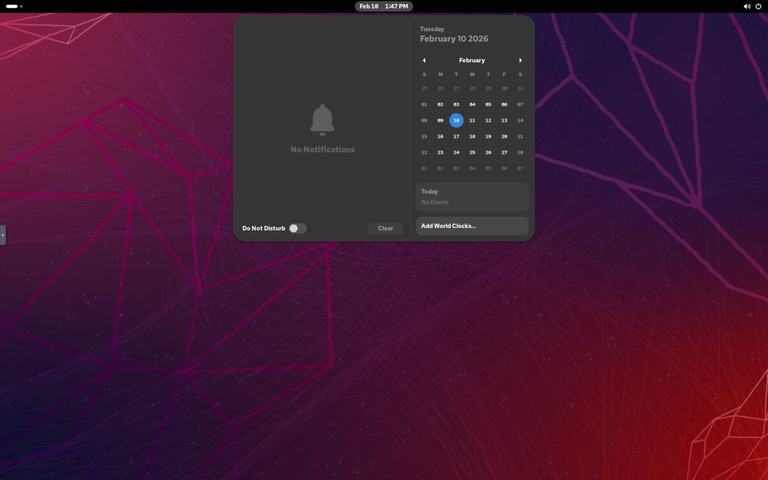
Ubuntu is the most popular Linux distribution and an excellent starting point for newcomers. Developed by Canonical, it offers a polished desktop experience with the GNOME environment and extensive hardware support.

Ubuntu desktop screenshot

Ubuntu comes in several editions:

  • Ubuntu Desktop — Standard desktop with GNOME
  • Ubuntu Server — For server deployments
  • Kubuntu, Lubuntu, Xubuntu — Alternative desktop environments

Ubuntu releases new versions every six months, with Long Term Support (LTS) versions every two years receiving five years of security updates.

Website: https://ubuntu.com/

Linux Mint

Linux Mint is an excellent choice for users coming from Windows. Its Cinnamon desktop environment provides a familiar layout with a taskbar, start menu, and system tray.

Linux Mint desktop screenshot

Key features:

  • Comes with multimedia codecs preinstalled
  • LibreOffice productivity suite included
  • Update Manager for easy system maintenance
  • Available with Cinnamon, MATE, or Xfce desktops

Website: https://linuxmint.com/

Pop!_OS

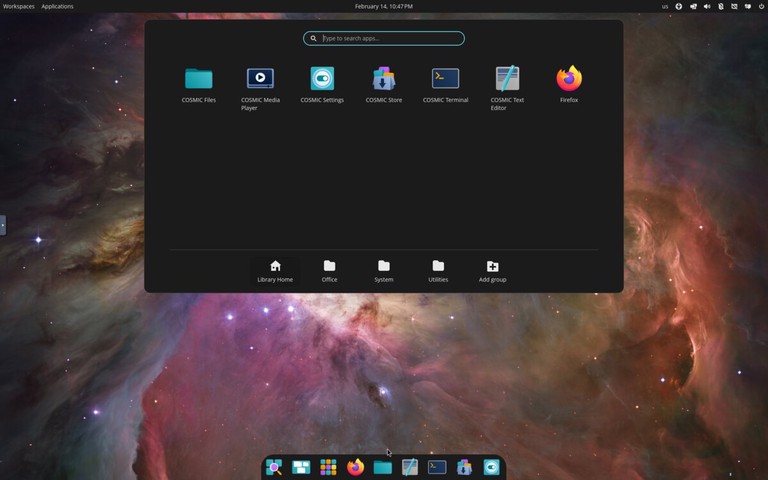
Developed by System76, Pop!_OS is based on Ubuntu but optimized for productivity and gaming. It ships with the COSMIC desktop environment (built in Rust by System76), featuring built-in window tiling, a launcher for quick app access, and excellent NVIDIA driver support out of the box.

Pop!_OS desktop screenshot

Pop!_OS is particularly popular among:

  • Gamers (thanks to Steam and Proton integration)
  • Developers (includes many development tools)
  • Users with NVIDIA graphics cards

Website: https://pop.system76.com/

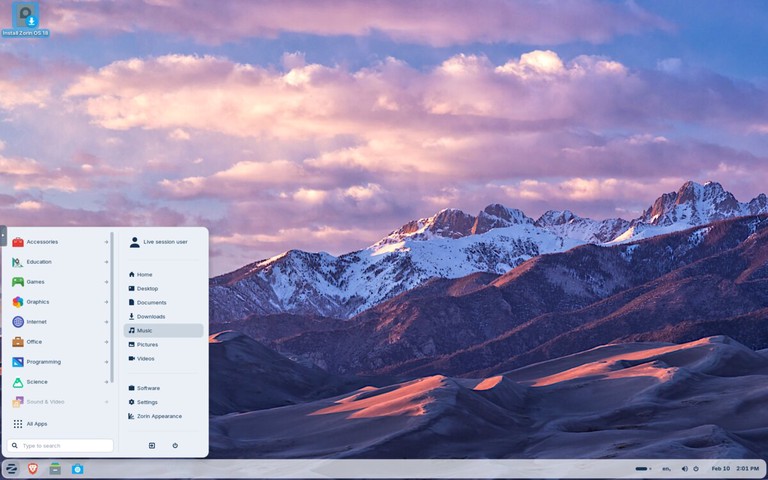
Zorin OS

Zorin OS is a beginner-focused distribution designed to make the move from Windows or macOS easier. It includes polished desktop layouts, strong hardware compatibility, and a simple settings experience for new users.

Zorin OS is a strong option when you want:

  • A familiar desktop layout with minimal setup
  • Stable Ubuntu-based package compatibility
  • Good out-of-the-box support for everyday desktop tasks
Zorin OS desktop screenshot

Website: https://zorin.com/os/

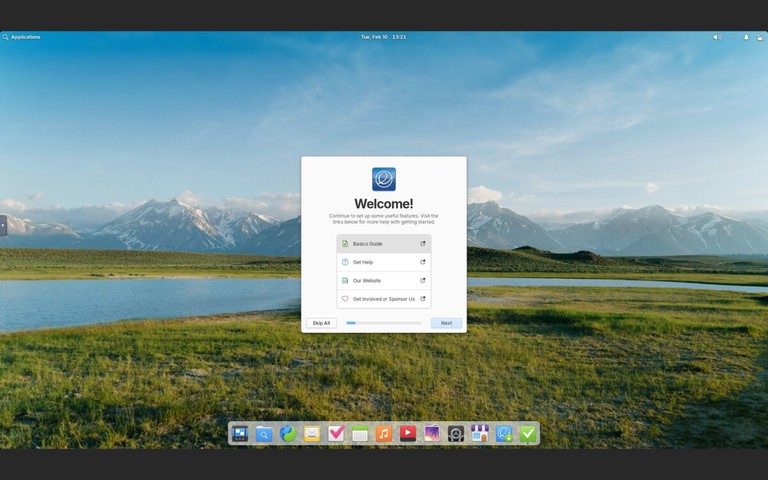
elementary OS

elementary OS is a design-focused distribution with a macOS-like interface called Pantheon. It emphasizes simplicity, consistency, and a curated app experience through its AppCenter.

elementary OS desktop screenshot

elementary OS is a good fit when you want:

  • A clean, visually polished desktop out of the box
  • A curated app store with native applications
  • A macOS-like workflow on Linux

Website: https://elementary.io/

Lightweight Linux Distros

These distributions are designed for older hardware or users who prefer a minimal, fast system.

Xubuntu

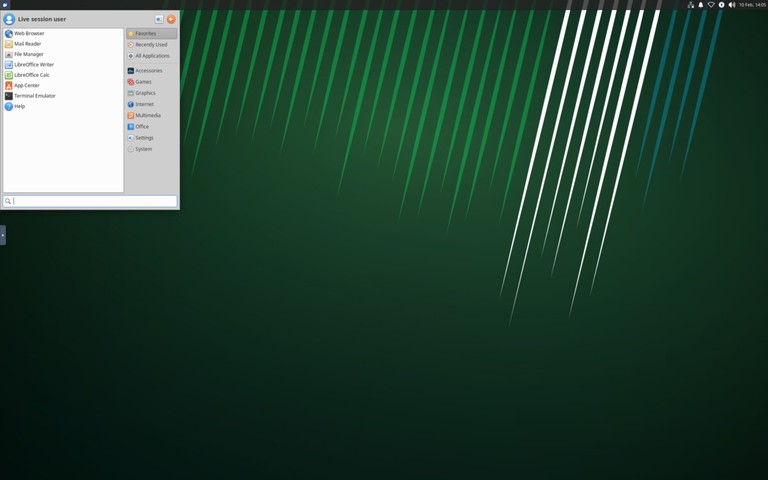
Xubuntu combines Ubuntu’s reliability with the Xfce desktop environment, offering a good balance between performance and features. It is lighter than standard Ubuntu while remaining full-featured for daily desktop use.

Xubuntu is a practical choice when you need:

  • Better performance on older hardware
  • A traditional desktop workflow
  • Ubuntu repositories and long-term support options
Xubuntu desktop screenshot

Website: https://xubuntu.org/

Lubuntu

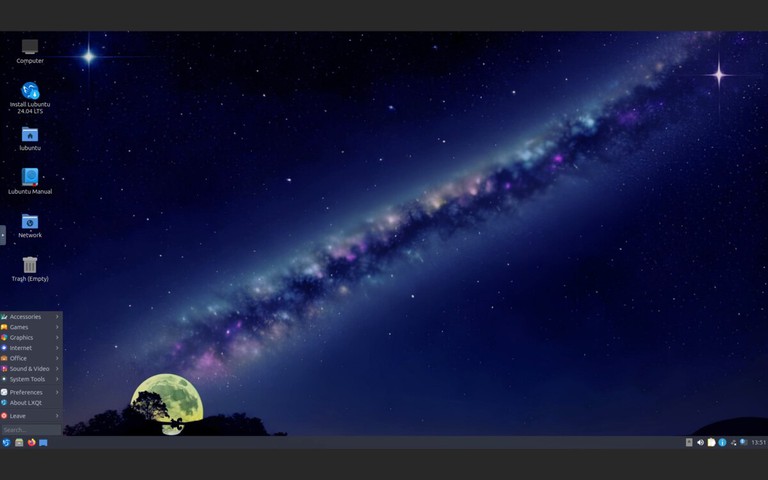
Lubuntu uses the LXQt desktop environment, making it one of the lightest Ubuntu-based distributions available. It is designed for very old or resource-constrained hardware where even Xfce feels heavy.

Lubuntu desktop screenshot

Lubuntu works well when you need:

  • Minimal memory and CPU usage
  • A functional desktop on very old hardware
  • Access to Ubuntu repositories and LTS support

Website: https://lubuntu.me/

Linux Distros for Advanced Users

These distributions offer more control and customization but require technical knowledge to set up and maintain.

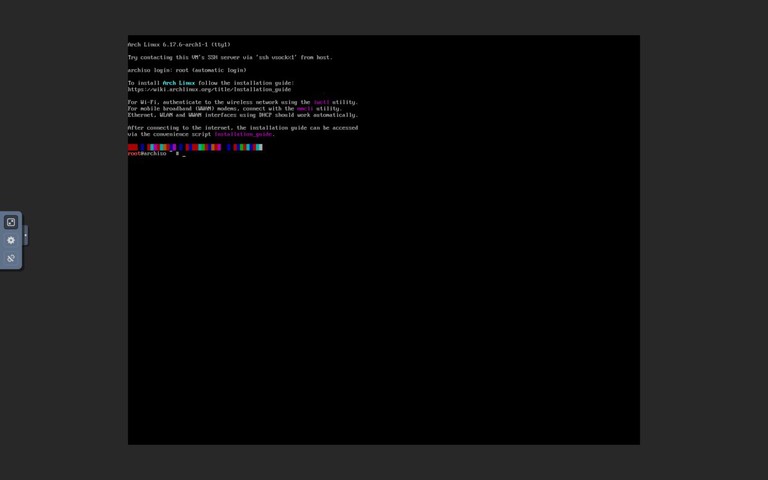
Arch Linux

Arch Linux follows a “do-it-yourself” philosophy, providing a minimal base system that users build according to their needs. It uses a rolling release model, meaning you always have the latest software without major version upgrades.

Key features:

  • Pacman package manager with access to vast repositories
  • Arch User Repository (AUR) for community packages
  • Excellent documentation in the Arch Wiki
  • Complete control over every aspect of the system
Arch Linux desktop screenshot
Tip
Arch Linux requires manual installation via the command line. If you want the Arch experience with an easier setup, consider Manjaro or EndeavourOS.

Website: https://archlinux.org/

EndeavourOS

EndeavourOS is an Arch-based distribution that keeps the Arch philosophy while simplifying installation and initial setup. It is popular among users who want a near-Arch experience without doing a fully manual install.

EndeavourOS gives you:

  • Rolling release updates
  • Access to Arch repositories and AUR packages
  • A cleaner onboarding path than a base Arch install
EndeavourOS desktop screenshot

Website: https://endeavouros.com/

Fedora

Fedora is a cutting-edge distribution sponsored by Red Hat. It showcases the latest open-source technologies while maintaining stability, making it popular among developers and system administrators.

Fedora desktop screenshot

Fedora editions include:

  • Fedora Workstation — Desktop with GNOME
  • Fedora Server — For server deployments
  • Fedora Silverblue — Immutable desktop OS
  • Fedora Spins — Alternative desktops (KDE, Xfce, etc.)

Many Red Hat technologies debut in Fedora before reaching RHEL, making it ideal for learning enterprise Linux.

Website: https://fedoraproject.org/

openSUSE

openSUSE is a community-driven distribution known for its stability and powerful administration tools. It offers two main variants:

  • openSUSE Leap — Regular releases based on SUSE Linux Enterprise
  • openSUSE Tumbleweed — Rolling release with the latest packages

The YaST (Yet another Setup Tool) configuration utility makes system administration straightforward, handling everything from software installation to network configuration.

openSUSE desktop screenshot

Website: https://www.opensuse.org/

Linux Distros for Gaming

Gaming-focused distributions prioritize current graphics stacks, controller support, and compatibility with modern Steam and Proton workflows.

Bazzite

Bazzite is an immutable Fedora-based desktop optimized for gaming and handheld devices. It ships with gaming-focused defaults and integrates well with Steam, Proton, and modern GPU drivers.

Bazzite is ideal when you want:

  • A Steam-first gaming setup
  • Reliable rollback and update behavior from an immutable base
  • A distro tuned for gaming PCs and handheld hardware
Bazzite desktop screenshot

Website: https://bazzite.gg/

Linux Distros for Servers

These distributions are optimized for stability, security, and long-term support in server environments.

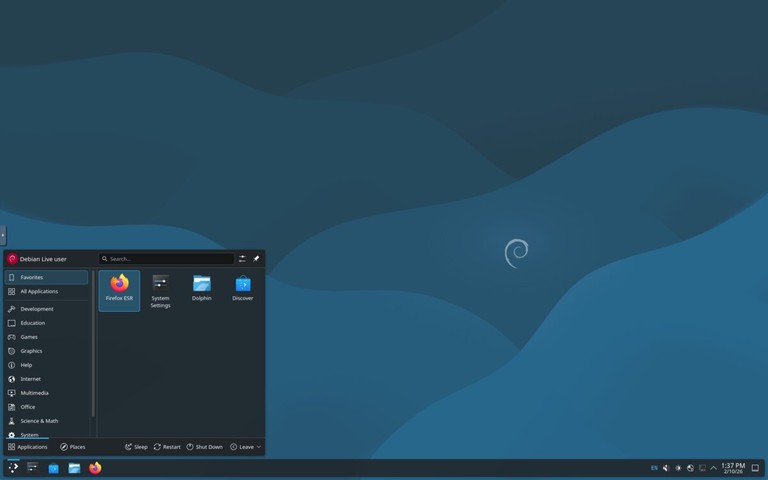
Debian

Debian is one of the oldest and most influential Linux distributions. Known for its rock-solid stability and rigorous testing process, it serves as the foundation for Ubuntu, Linux Mint, Kali Linux, and many other distributions.

Debian desktop screenshot

Debian offers three release channels:

  • Stable — Thoroughly tested, ideal for production servers
  • Testing — Upcoming stable release with newer packages
  • Unstable (Sid) — Rolling release with the latest software

With over 59,000 packages in its repositories, Debian supports more hardware architectures than any other Linux distribution.

Website: https://www.debian.org/

Red Hat Enterprise Linux (RHEL)

RHEL is the industry standard for enterprise Linux deployments. It offers:

  • 10-year support lifecycle
  • Certified hardware and software compatibility
  • Red Hat Insights for predictive analytics
  • Professional support from Red Hat

RHEL runs on multiple architectures including x86_64, ARM64, IBM Power, and IBM Z.

Website: https://www.redhat.com/

Rocky Linux

After CentOS shifted to CentOS Stream, Rocky Linux emerged as a community-driven RHEL-compatible distribution. Founded by one of the original CentOS creators, it provides 1:1 binary compatibility with RHEL.

Rocky Linux desktop screenshot

Rocky Linux is ideal for:

  • Organizations previously using CentOS
  • Production servers requiring stability
  • Anyone needing RHEL compatibility without the cost

Website: https://rockylinux.org/

Ubuntu Server

Ubuntu Server is widely used for cloud deployments and containerized workloads. It powers a significant portion of public cloud instances on AWS, Google Cloud, and Azure.

Features include:

  • Regular and LTS releases
  • Excellent container and Kubernetes support
  • Ubuntu Pro for extended security maintenance
  • Snap packages for easy application deployment

Website: https://ubuntu.com/server

SUSE Linux Enterprise Server (SLES)

SUSE Linux Enterprise Server is designed for mission-critical workloads. It excels in:

  • SAP HANA deployments
  • High-performance computing
  • Mainframe environments
  • Edge computing

SLES offers a common codebase across different environments, simplifying workload migration.

Website: https://www.suse.com/products/server/

Linux Distros for Security and Privacy

These distributions focus on security testing, anonymity, and privacy protection.

Kali Linux

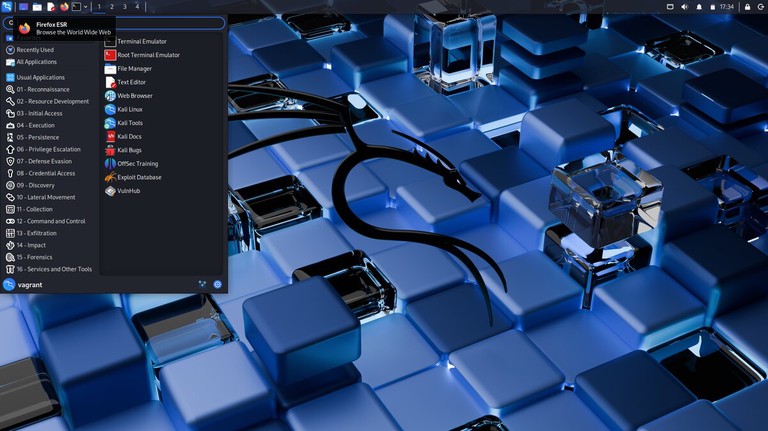
Kali Linux is the industry-standard platform for penetration testing and security research. Maintained by Offensive Security, it includes hundreds of security tools preinstalled.

Common use cases:

  • Penetration testing
  • Security auditing
  • Digital forensics
  • Reverse engineering
Kali Linux desktop screenshot
Warning
Kali Linux is designed for security professionals. It should not be used as a daily driver operating system.

Website: https://www.kali.org/

Tails

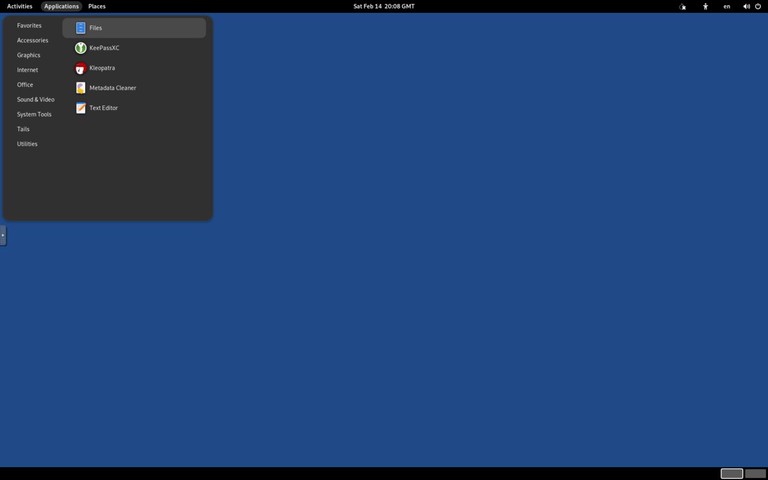
Tails (The Amnesic Incognito Live System) is a portable operating system designed for privacy and anonymity. It runs from a USB drive and routes all traffic through the Tor network.

Key features:

  • Leaves no trace on the host computer
  • All connections go through Tor
  • Built-in encryption tools
  • Amnesic by design (forgets everything on shutdown)
Tails desktop screenshot

Website: https://tails.net/

Qubes OS

Qubes OS takes a unique approach to security by isolating different activities in separate virtual machines called “qubes.” If one qube is compromised, others remain protected.

The Xen hypervisor runs directly on hardware, providing strong isolation between:

  • Work applications
  • Personal browsing
  • Untrusted software
  • Sensitive data

Website: https://www.qubes-os.org/

Parrot Security OS

Parrot Security is a Debian-based distribution for security testing, development, and privacy. It is lighter than Kali Linux and can serve as a daily driver.

Parrot offers several editions:

  • Security Edition — Full security toolkit
  • Home Edition — Privacy-focused daily use
  • Cloud Edition — For cloud deployments

Website: https://parrotsec.org/

Getting Started

Once you have chosen a distro, the next steps are:

  1. Download the ISO from the official website
  2. Create a bootable USB drive — See our guide on creating a bootable Linux USB
  3. Try it live before installing (most distros support this)
  4. Install following the distro’s installation wizard

Quick Comparison

Distro Best For Desktop Package Manager Based On
Ubuntu Beginners GNOME APT Debian
Linux Mint Windows users Cinnamon APT Ubuntu
Zorin OS New Linux users GNOME (Zorin desktop) APT Ubuntu
elementary OS macOS-like experience Pantheon APT Ubuntu
Fedora Developers GNOME DNF Independent
Debian Stability/Servers GNOME APT Independent
Arch Linux Advanced users Any Pacman Independent
EndeavourOS Arch with easier setup Xfce (default) Pacman Arch Linux
Pop!_OS Gaming/Developers COSMIC APT Ubuntu
Bazzite Gaming KDE/GNOME variants RPM-OSTree Fedora
Rocky Linux Enterprise servers None DNF RHEL
Xubuntu Older hardware Xfce APT Ubuntu
Lubuntu Very old hardware LXQt APT Ubuntu
Kali Linux Security testing Xfce APT Debian

FAQ

Which Linux distro is best for beginners?
Ubuntu, Linux Mint, and Zorin OS are the best choices for beginners. Ubuntu has the largest community and most documentation, while Linux Mint and Zorin OS provide a familiar desktop experience.

Can I try a Linux distro without installing it?
Yes. Most distributions support “live booting” from a USB drive, allowing you to test the system without making any changes to your computer.

Is Linux free?
Most Linux distributions are completely free to download and use. Some enterprise distros like RHEL offer paid support subscriptions.

Can I run Windows software on Linux?
Many Windows applications run on Linux through Wine or Proton (for games via Steam). Native alternatives like LibreOffice, GIMP, and Firefox are also available.

What is a rolling release distro?
A rolling release distro (like Arch Linux or openSUSE Tumbleweed) delivers continuous updates instead of major version upgrades. You always have the latest software, but updates require more attention.

Conclusion

The best Linux distribution depends entirely on your needs and experience level. If you are new to Linux, start with Ubuntu, Linux Mint, or Zorin OS. If you want full control over your system, try Arch Linux, EndeavourOS, or Fedora. For gaming, Pop!_OS and Bazzite are strong options. For servers, Debian, Rocky Linux, Ubuntu Server, and RHEL are all solid choices. For security testing, Kali Linux and Parrot Security are the industry standards.

Most distributions are free to download and try. Create a bootable USB, test a few options, and find the one that fits your workflow.

If you have any questions, feel free to leave a comment below.

Traceroute Command in Linux

The traceroute command is a network diagnostic tool that displays the path packets take from your system to a destination host. It shows each hop (router) along the route and the time it takes for packets to reach each one.

Network administrators use traceroute to identify where packets are being delayed or dropped, making it essential for troubleshooting connectivity issues, latency problems, and routing failures.

This guide covers how to use the traceroute command with practical examples and explanations of the most common options.

Syntax

The general syntax for the traceroute command is:

Terminal
traceroute [OPTIONS] DESTINATION
  • OPTIONS — Flags that modify the behavior of the command.
  • DESTINATION — The target hostname or IP address to trace.

Installing traceroute

The traceroute command is not installed by default on all Linux distributions. To check if it is available on your system, type:

Terminal
traceroute --version

If traceroute is not present, the command will print “traceroute: command not found”. You can install it using your distribution’s package manager.

Install traceroute on Ubuntu, Debian, and Derivatives

Terminal
sudo apt update && sudo apt install traceroute

Install traceroute on Fedora, RHEL, and Derivatives

Terminal
sudo dnf install traceroute

Install traceroute on Arch Linux

Terminal
sudo pacman -S traceroute

How traceroute works

When you run traceroute, it sends packets with incrementally increasing TTL (Time to Live) values, starting at 1. Each router along the path decrements the TTL by 1. When the TTL reaches 0, the router discards the packet and sends back an ICMP “Time Exceeded” message.

By increasing the TTL with each round of packets, traceroute discovers each hop along the route until the packets reach the final destination.

By default, traceroute sends three UDP packets per hop (on Linux) and displays the round-trip time for each packet.

Basic Usage

To trace the route to a destination, run traceroute followed by the hostname or IP address:

Terminal
traceroute google.com

The output should look something like this:

output
traceroute to google.com (142.250.185.78), 30 hops max, 60 byte packets
1 router.local (192.168.1.1) 1.234 ms 1.102 ms 1.056 ms
2 10.0.0.1 (10.0.0.1) 12.345 ms 12.234 ms 12.123 ms
3 isp-gateway.example.net (203.0.113.1) 15.678 ms 15.567 ms 15.456 ms
4 core-router.example.net (198.51.100.1) 20.123 ms 20.012 ms 19.901 ms
5 google-peer.example.net (192.0.2.1) 22.345 ms 22.234 ms 22.123 ms
6 142.250.185.78 (142.250.185.78) 25.678 ms 25.567 ms 25.456 ms

Understanding the Output

Each line in the traceroute output represents a hop along the route. Let us break down what each field means:

  • Hop number — The sequential number of the router in the path (1, 2, 3, etc.).
  • Hostname — The DNS name of the router, if available.
  • IP address — The IP address of the router in parentheses.
  • Round-trip times — Three time measurements in milliseconds, one for each probe packet sent to that hop.

The first line shows the destination, maximum number of hops (default 30), and packet size (default 60 bytes).

Interpreting the Results

Asterisks (* * *) indicate that no response was received for that hop. This can happen when:

  • The router is configured to not respond to traceroute probes.
  • A firewall is blocking the packets.
  • The packets were lost due to network congestion.

Increasing latency at a specific hop suggests a bottleneck or congested link at that point in the network.

Consistent high latency from a certain hop onward indicates the issue is at or before that router.

Common Options

The traceroute command accepts several options to customize its behavior:

  • -n — Do not resolve IP addresses to hostnames. This speeds up the output by skipping DNS lookups.
  • -m max_ttl — Set the maximum number of hops (default is 30).
  • -q nqueries — Set the number of probe packets per hop (default is 3).
  • -w waittime — Set the time in seconds to wait for a response (default is 5).
  • -I — Use ICMP ECHO packets instead of UDP (requires root privileges).
  • -T — Use TCP SYN packets instead of UDP (requires root privileges).
  • -p port — Set the destination port for UDP or TCP probes.
  • -s source_addr — Use the specified source IP address.
  • -i interface — Send packets through the specified network interface.

Skip DNS Resolution

To speed up the trace and display only IP addresses, use the -n option:

Terminal
traceroute -n google.com
output
traceroute to google.com (142.250.185.78), 30 hops max, 60 byte packets
1 192.168.1.1 1.234 ms 1.102 ms 1.056 ms
2 10.0.0.1 12.345 ms 12.234 ms 12.123 ms
3 203.0.113.1 15.678 ms 15.567 ms 15.456 ms

This is useful when DNS resolution is slow or when you only need IP addresses.

Change Maximum Hops

By default, traceroute stops after 30 hops. To change this limit, use the -m option:

Terminal
traceroute -m 15 google.com

This limits the trace to 15 hops maximum.

Change Number of Probes

To send a different number of probe packets per hop, use the -q option:

Terminal
traceroute -q 1 google.com

This sends only one probe per hop, resulting in faster but less detailed output.

Use ICMP Instead of UDP

By default, Linux traceroute uses UDP packets. Some networks block UDP, so you can use ICMP ECHO packets instead:

Terminal
sudo traceroute -I google.com
Info
The -I option requires root privileges because sending raw ICMP packets requires elevated permissions.

Use TCP Instead of UDP

For networks that block both UDP and ICMP, you can use TCP SYN packets:

Terminal
sudo traceroute -T google.com

You can also specify a port, such as port 443 for HTTPS:

Terminal
sudo traceroute -T -p 443 google.com

This is useful for tracing routes through firewalls that only allow specific TCP ports.

Trace IPv6 Routes

To trace IPv6 routes, use the -6 option:

Terminal
traceroute -6 ipv6.google.com

Specify Source Interface

If your system has multiple network interfaces, you can specify which one to use:

Terminal
traceroute -i eth0 google.com

Or specify the source IP address:

Terminal
traceroute -s 192.168.1.100 google.com

Traceroute vs tracepath

Linux systems often include tracepath, which is similar to traceroute but does not require root privileges and automatically discovers the MTU (Maximum Transmission Unit) along the path.

Feature traceroute tracepath
Root required Yes (for ICMP/TCP) No
Protocol UDP, ICMP, TCP UDP only
MTU discovery No Yes
Customization Many options Limited

Use tracepath for quick traces without root access:

Terminal
tracepath google.com

Use traceroute when you need more control over the probe method or when tracepath does not provide enough information.

Practical Examples

Diagnose Slow Connections

If a website is loading slowly, trace the route to identify where the delay occurs:

Terminal
traceroute -n example.com

Look for hops with significantly higher latency than the previous ones. The hop before the latency spike is often the source of the problem.

Check if a Host is Reachable

If ping shows packet loss, use traceroute to find where packets are being dropped:

Terminal
traceroute google.com

Hops showing * * * followed by successful hops indicate a router that does not respond to probes but forwards traffic. If all remaining hops show * * *, the issue is at or after the last responding hop.

Trace Through a Firewall

If standard UDP probes are blocked, try ICMP or TCP:

Terminal
sudo traceroute -I google.com
sudo traceroute -T -p 80 google.com

Compare Routes to Different Servers

To understand routing differences, trace routes to multiple servers:

Terminal
traceroute -n server1.example.com
traceroute -n server2.example.com

This helps identify whether traffic to different destinations takes different paths through your network.

Quick Reference

Task Command
Basic trace traceroute example.com
Skip DNS resolution traceroute -n example.com
Limit to N hops traceroute -m 15 example.com
One probe per hop traceroute -q 1 example.com
Use ICMP sudo traceroute -I example.com
Use TCP sudo traceroute -T example.com
Use TCP on port 443 sudo traceroute -T -p 443 example.com
Specify interface traceroute -i eth0 example.com
Set timeout traceroute -w 3 example.com
Trace with tracepath tracepath example.com

Troubleshooting

All hops show * * *
The destination or your network may be blocking traceroute probes. Try using ICMP (-I) or TCP (-T) instead of the default UDP. If the issue persists, a firewall between you and the destination is likely blocking all probe types.

Only the first hop responds
Your local router responds, but nothing beyond it does. This often indicates a firewall or routing issue at your ISP. Contact your network administrator or ISP for assistance.

Trace never completes
The destination may not be reachable, or the maximum hop count is too low. Increase the maximum hops with -m 60 and check if the trace progresses further.

High latency at a specific hop
A single hop with high latency does not always indicate a problem. Routers often deprioritize ICMP responses. If the final destination has acceptable latency, the intermediate high latency may not affect actual traffic.

Latency increases then decreases
This can occur due to asymmetric routing, where the return path differs from the outbound path. The times displayed include the round trip, so a longer return path can inflate the displayed latency.

Permission denied
Options like -I (ICMP) and -T (TCP) require root privileges. Run the command with sudo.

FAQ

What is the difference between traceroute and ping?
ping tests whether a destination is reachable and measures round-trip latency. traceroute shows the path packets take and the latency at each hop along the route. Use ping for basic connectivity checks and traceroute for diagnosing where problems occur.

Why do some hops show asterisks?
Asterisks (* * *) mean no response was received. The router may be configured to ignore traceroute probes, a firewall may be blocking them, or the packets may have been lost. This does not necessarily mean the router is down.

What is the default protocol used by traceroute?
On Linux, traceroute uses UDP by default. On Windows, tracert uses ICMP. You can switch Linux traceroute to ICMP with -I or TCP with -T.

How do I trace the route on Windows?
Windows uses the tracert command instead of traceroute. The syntax is similar: tracert example.com. It uses ICMP by default.

What does TTL mean in traceroute?
TTL (Time to Live) is a field in the IP packet header that limits the packet’s lifespan. Each router decrements the TTL by 1. When it reaches 0, the router discards the packet and sends an ICMP “Time Exceeded” message. Traceroute uses this mechanism to discover each hop.

How can I trace the route to a specific port?
Use the -p option with TCP (-T) or UDP to specify the destination port:

Terminal
sudo traceroute -T -p 443 example.com

Is there an alternative to traceroute for continuous diagnostics?
mtr combines ping and traceroute in a single, continuously updating view and is useful for ongoing packet loss and latency checks.

Conclusion

The traceroute command is an essential tool for diagnosing network connectivity and routing issues. It shows the path packets take to a destination and helps identify where delays or failures occur.

For more options, refer to the traceroute man page by running man traceroute in your terminal.

If you have any questions, feel free to leave a comment below.
❌