前言
❝
KML是一种基于XML的地理数据格式,最初有Keyhole公司开发,后来被Google采用并成为OGC标准。在GIS开发中,属于一种重要的数据格式,使用GDAL读取KML数据,有助于认识、了解KML数据结构与特点,从而提高开发效率。
本篇教程在之前一系列文章的基础上讲解
- GDAL 简介[1]
- GDAL 下载安装[2]
- GDAL 开发起步[3]
如果你还没有看过,建议从以上内容开始。
1. 开发环境
本文使用如下开发环境,以供参考。
时间:2025年
系统:Windows 11
Python:3.11.7
GDAL:3.11.1
2. 导入依赖
KML作为一种矢量数据格式,可以使用GDAL直接读取或者使用其矢量库OGR进行处理,以实现KML图层和属性数据读取。
from osgeo import ogr,gdal
import os
3. 读取KML数据
(一)使用GDAL读取
定义一个方法ReadKMLOfGDAL(kmlPath)用于读取KML数据,其中kmlPath为数据路径。在读取KML数据之前,需要检查数据路径是否存在。
# 检查文件是否存在
if os.path.exists(kmlPath):
    print("文件存在")
else:
    print("文件不存在,请重新选择文件!")
    return
若KML数据路径正确,则可以使用OpenEx方法打开KML文件。需要判断KML数据集是否正常,若无法打开,则退出数据读取程序。
# 打开KML文件
dataset = gdal.OpenEx(kmlPath)
if dataset is None:
    print("KML 文件打开异常,请检查文件路径!")
    return
通过数据集方法GetLayerCount可以获取图层数量。
# 获取图层数量
layerCount = dataset.GetLayerCount()
print(f"图层数量:{layerCount}")
图层数量信息显示如下:
之后通过遍历图层获取图层字段数量、字段名称以及字段类型等信息,在输出结果中读取要素属性信息和几何对象并限制要素输出数量。
# 遍历图层
for i in range(layerCount):
    print(f"################开始打印第【{i+1}】个图层################n")
    # 根据索引获取目标图层
    layer = dataset.GetLayerByIndex(i)
    # 获取图层名称
    layerName = layer.GetName()
    # 获取图层要素数量
    layerFeatureCount = layer.GetFeatureCount()

    print(f"图层名称:{layerName}")
    print(f"要素数量:{layerFeatureCount}")

    # 获取图层属性
    layerProperty = layer.GetLayerDefn()
    # 获取图层字段数量
    fieldCount = layerProperty.GetFieldCount()
    print(f"字段数量:{fieldCount}")

    # 获取字段信息
    for j in range(fieldCount):
        # 获取字段属性对象
        fieldProperty = layerProperty.GetFieldDefn(j)
        # 获取字段属性名称
        fieldName = fieldProperty.GetName()
        # 获取字段属性类型
        fieldType = fieldProperty.GetTypeName()

        print(f"第 【{j}】 个字段名称:{fieldName},字段类型:{fieldType}")

    # 获取要素
    feature = layer.GetNextFeature()
    limitCount = 0

    # 限制打印前十个要素
    while feature and limitCount < 10:
        print(f"打印第【{limitCount+1}】个要素")
        # print(f"打印要素类型:{type(feature)},{feature}")

        # 读取要素属性
        for k in range(fieldCount):
            # 属性字段名
            fieldName = layerProperty.GetFieldDefn(j).GetName()
            # 属性字段值
            fieldValue = feature.GetField(k)
            # fieldValue = feature.GetField(fieldName)

            print(f"第 【{k}】 个字段名:{fieldName},字段值:{fieldValue}")

        # 读取几何属性
        geom = feature.GetGeometryRef()
        if geom:
            # 获取几何类型
            geomType = geom.GetGeometryName()
            # 获取WKT格式几何对象,打印前100个字符
            geomWKT = geom.ExportToWkt()[:100]

            print(f"第 【{limitCount}】 个几何对象类型:{geomType},几何对象:{geomWKT}")

        feature = layer.GetNextFeature()
        limitCount += 1

    # 重置读取位置
    layer.ResetReading()

    print(f"n################结束打印第【{i+1}】个图层################n")
图层要素属性信息显示如下: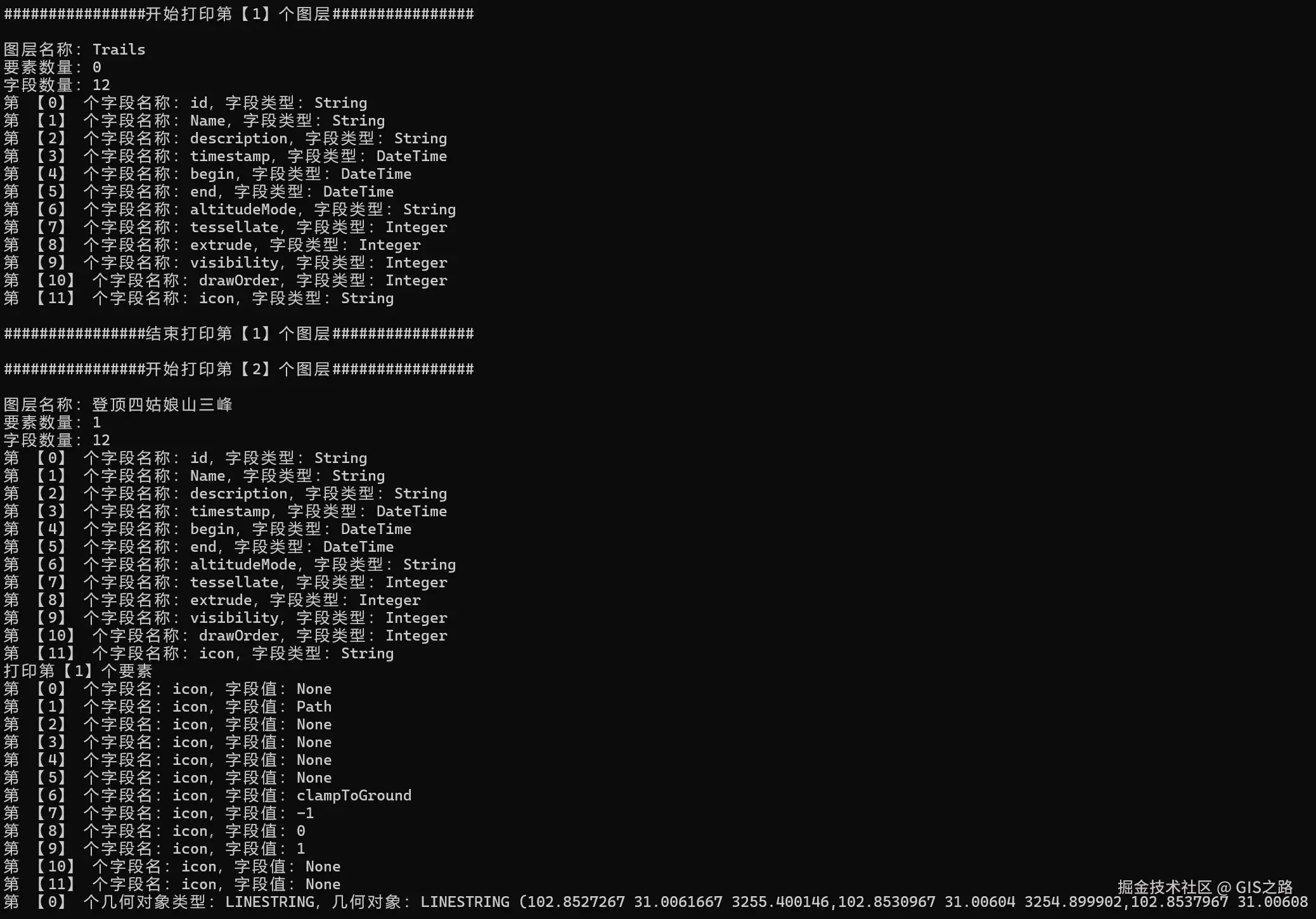
(二)使用OGR读取
定义一个方法ReadKMLOfOGR(kmlPath)用于读取KML数据,其中kmlPath为数据路径。在读取KML数据之前,需要检查数据路径是否存在。
# 检查文件是否存在
if os.path.exists(kmlPath):
    print("文件存在")
else:
    print("文件不存在,请重新选择文件!")
    return
若KML数据路径正确,则可以注册KML数据驱动用于读取KML数据,如使用RegisterAll方法注册所有矢量驱动。然后调用ogr对象Open方法打开KML数据源,若其不存在,则退出数据读取程序。
# 注册所有驱动
ogr.RegisterAll()

# 打开KML数据源
dataSource = ogr.Open(kmlPath)

# 检查数据源是否正常
if dataSource is None:
    print("文件打开出错,请重新选择文件!")
    return
之后通过遍历图层获取图层空间参考、字段名称以及字段类型等信息,在输出结果中读取要素属性信息。
# 遍历图层
for i in range(dataSource.GetLayerCount()):
    # 根据索引获取目标图层
    layer = dataSource.GetLayer(i)
    # 获取图层名称
    layerName = layer.GetName()
    print(f"第【{i}】个图层名称:{layerName}")

    # 获取空间参考
    spatialReference = layer.GetSpatialRef()
    if spatialReference:
        print(f"空间参考:{spatialReference.GetName()}")
    else:
        print(f"图层【{layerName}】空间参考不存在")

    # 读取几何属性
    for feature in layer:
        # 读取几何属性
        geom = feature.GetGeometryRef()
        if geom:
            # 获取四至范围
            envelope = geom.GetEnvelope()
            print(f"几何范围:{envelope}")

        # 读取要素属性
        for field in feature.keys():
            # 获取属性字段值
            fieldValue = feature.GetField(field)
            print(f"属性字段名称:{field},属性字段值:{fieldValue}")

# 关闭数据源
dataSource = None
图层要素属性信息显示如下: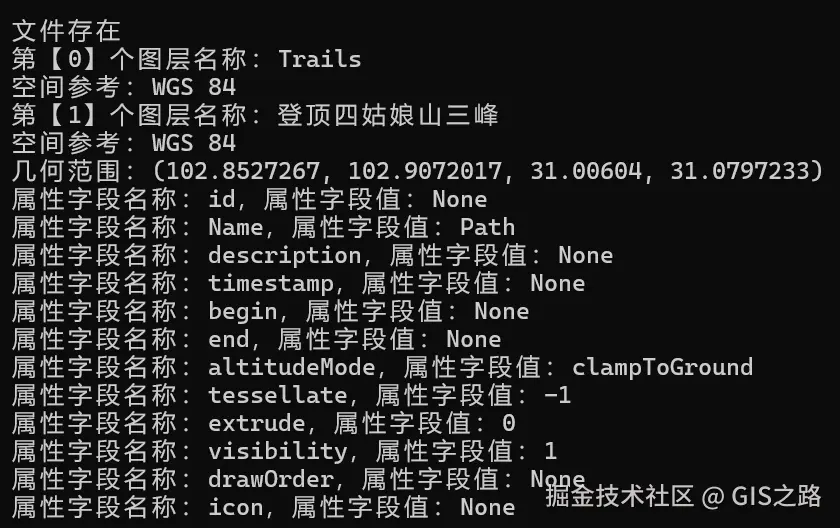
4. 注意事项
注1:数据路径读取异常
在windows系统中建议使用"\"定义数据路径。
注2:中文数据读取异常(中文乱码)
在GIS开发中,涉及属性数据读取时经常会遇到中文乱码问题,需要根据图层编码设置正确的字符集。
# 设置Shapefile的编码为GBK
os.environ['SHAPE_ENCODING'] = "GBK"
注3:代码运行异常
需要开启代码异常处理
# 启用异常处理(推荐)
ogr.UseExceptions()
注4:坐标读取异常
在读取坐标参考时报错已安装PostgreSQL数据库中的投影文件版本与GDAL中的投影文件不兼容,此时需要为GDAL单独指定投影文件,在代码开头添加以下代码指定目标投影文件路径。
# 找到proj文件路径
os.environ['PROJ_LIB'] = r'D:\Programs\Python\Python311\Lib\site-packages\osgeo\data\proj'
5. 完整代码
from osgeo import ogr,gdal
import os

# 如果是通过 pip 安装的,可能需要找到对应位置
os.environ['PROJ_LIB'] = r'D:ProgramsPythonPython311Libsite-packagesosgeodataproj'

# 设置Shapefile的编码为GBK
os.environ['SHAPE_ENCODING'] = "GBK"

# 启用异常处理(推荐)
ogr.UseExceptions()

# 注册所有驱动
ogr.RegisterAll()

"""
使用GDAL读取KML数据
"""
def ReadKMLOfGDAL(kmlPath):

    # 检查文件是否存在
    if os.path.exists(kmlPath):
        print("文件存在")
    else:
        print("文件不存在,请重新选择文件!")
        return

    # 打开KML文件
    dataset = gdal.OpenEx(kmlPath)
    if dataset is None:
        print("KML 文件打开异常,请检查文件路径!")
        return

    # 获取图层数量
    layerCount = dataset.GetLayerCount()
    print(f"图层数量:{layerCount}")

    # 遍历图层
    for i in range(layerCount):
        print(f"################开始打印第【{i+1}】个图层################n")
        # 根据索引获取目标图层
        layer = dataset.GetLayerByIndex(i)
        # 获取图层名称
        layerName = layer.GetName()
        # 获取图层要素数量
        layerFeatureCount = layer.GetFeatureCount()

        print(f"图层名称:{layerName}")
        print(f"要素数量:{layerFeatureCount}")

        # 获取图层属性
        layerProperty = layer.GetLayerDefn()
        # 获取图层字段数量
        fieldCount = layerProperty.GetFieldCount()
        print(f"字段数量:{fieldCount}")

        # 获取字段信息
        for j in range(fieldCount):
            # 获取字段属性对象
            fieldProperty = layerProperty.GetFieldDefn(j)
            # 获取字段属性名称
            fieldName = fieldProperty.GetName()
            # 获取字段属性类型
            fieldType = fieldProperty.GetTypeName()

            print(f"第 【{j}】 个字段名称:{fieldName},字段类型:{fieldType}")

        # 获取要素
        feature = layer.GetNextFeature()
        limitCount = 0

        # 限制打印前十个要素
        while feature and limitCount < 10:
            print(f"打印第【{limitCount+1}】个要素")
            # print(f"打印要素类型:{type(feature)},{feature}")

            # 读取要素属性
            for k in range(fieldCount):
                # 属性字段名
                fieldName = layerProperty.GetFieldDefn(j).GetName()
                # 属性字段值
                fieldValue = feature.GetField(k)
                # fieldValue = feature.GetField(fieldName)

                print(f"第 【{k}】 个字段名:{fieldName},字段值:{fieldValue}")

            # 读取几何属性
            geom = feature.GetGeometryRef()
            if geom:
                # 获取几何类型
                geomType = geom.GetGeometryName()
                # 获取WKT格式几何对象,打印前100个字符
                geomWKT = geom.ExportToWkt()[:100]

                print(f"第 【{limitCount}】 个几何对象类型:{geomType},几何对象:{geomWKT}")

            feature = layer.GetNextFeature()
            limitCount += 1

        # 重置读取位置
        layer.ResetReading()

        print(f"n################结束打印第【{i+1}】个图层################n")

"""
使用OGR读取KML数据
"""
def ReadKMLOfOGR(kmlPath):

    # 检查文件是否存在
    if os.path.exists(kmlPath):
        print("文件存在")
    else:
        print("文件不存在,请重新选择文件!")
        return
    # 注册所有驱动
    ogr.RegisterAll()

    # 打开KML数据源
    dataSource = ogr.Open(kmlPath)

    # 检查数据源是否正常
    if dataSource is None:
        print("文件打开出错,请重新选择文件!")
        return

    # 遍历图层
    for i in range(dataSource.GetLayerCount()):
        # 根据索引获取目标图层
        layer = dataSource.GetLayer(i)
        # 获取图层名称
        layerName = layer.GetName()
        print(f"第【{i}】个图层名称:{layerName}")

        # 获取空间参考
        spatialReference = layer.GetSpatialRef()
        if spatialReference:
            print(f"空间参考:{spatialReference.GetName()}")
        else:
            print(f"图层【{layerName}】空间参考不存在")

        # 读取几何属性
        for feature in layer:
            # 读取几何属性
            geom = feature.GetGeometryRef()
            if geom:
                # 获取四至范围
                envelope = geom.GetEnvelope()
                print(f"几何范围:{envelope}")

            # 读取要素属性
            for field in feature.keys():
                # 获取属性字段值
                fieldValue = feature.GetField(field)
                print(f"属性字段名称:{field},属性字段值:{fieldValue}")

    # 关闭数据源
    dataSource = None

if __name__ == "__main__":

    # 数据路径
    kmlPath = "E:\data\test_data\四姑娘山三峰.kml"

    # GDAL读取KML数据
    ReadKMLOfGDAL(kmlPath)

    # OGR读取KML数据
    ReadKMLOfOGR(kmlPath)
6. KML示例数据
<?xml version="1.0" encoding="utf-8"?>
<kml xmlns="http://www.opengis.net/kml/2.2">
  <Document>
    <name>Track 登顶四姑娘山三峰 :wikiloc.com</name>
    <visibility>1</visibility>
    <LookAt>
      <longitude>102.8793075</longitude>
      <latitude>31.0426283</latitude>
      <altitude>0</altitude>
      <heading>3</heading>
      <tilt>66</tilt>
      <range>15000</range>
    </LookAt>
    <StyleMap id="m1367020">
      <Pair>
        <key>normal</key>
        <styleUrl>#n1367020</styleUrl>
      </Pair>
      <Pair>
        <key>highlight</key>
        <styleUrl>#h1367020</styleUrl>
      </Pair>
    </StyleMap>
    <Style id="h1367020">
      <IconStyle>
        <Icon>
          <href>http://s1.wklcdn.com/wikiloc/images/pictograms/ge/1.png</href>
        </Icon>
      </IconStyle>
      <BalloonStyle>
        <text>$[description]</text>
      </BalloonStyle>
    </Style>
    <Style id="lineStyle">
      <LineStyle>
        <color>f03399ff</color>
        <width>4</width>
      </LineStyle>
    </Style>
    <Style id="n1367020">
      <LabelStyle>
        <scale>0</scale>
      </LabelStyle>
      <BalloonStyle>
        <text>$[description]</text>
      </BalloonStyle>
      <Icon>
        <href>http://s1.wklcdn.com/wikiloc/images/pictograms/ge/1.png</href>
      </Icon>
    </Style>
    <Style id="waypointStyle">
      <IconStyle>
        <Icon>
          <href>http://sc.wklcdn.com/wikiloc/images/pictograms/ge/wpt.png</href>
        </Icon>
      </IconStyle>
      <BalloonStyle>
        <text>$[description]</text>
      </BalloonStyle>
    </Style>
    <Folder>
      <name>Trails</name>
      <visibility>1</visibility>
      <Folder>
        <name>登顶四姑娘山三峰</name>
        <visibility>1</visibility>
        <Placemark>
          <name>Path</name>
          <visibility>1</visibility>
          <LookAt>
            <longitude>102.8862617</longitude>
            <latitude>31.052715</latitude>
            <altitude>0</altitude>
            <heading>0</heading>
            <tilt>0.00779126500014642</tilt>
            <range>5250.96911517065</range>
          </LookAt>
          <Style>
            <IconStyle>
              <color>ffffffff</color>
              <scale>1</scale>
              <Icon>
                <href/>
              </Icon>
            </IconStyle>
            <LabelStyle>
              <color>ffffffff</color>
              <scale>1</scale>
            </LabelStyle>
            <LineStyle>
              <color>f00000ff</color>
              <width>4</width>
            </LineStyle>
            <PolyStyle>
              <color>ffffffff</color>
              <fill>1</fill>
              <outline>1</outline>
            </PolyStyle>
          </Style>
          <LineString>
            <altitudeMode>clampToGround</altitudeMode>
            <coordinates>
              102.8527267,31.0061667,3255.400146
              102.8530967,31.00604,3254.899902
              102.8537967,31.0060883,3256.899902
              102.8547817,31.0064133,3270.100098
              102.8558183,31.0071067,3271.100098
              102.8575333,31.00785,3271.699951
              102.8588867,31.0093867,3278.899902
              102.8599,31.0099067,3281.5
              102.8605217,31.01093,3289.899902
              102.8613217,31.0128967,3298.899902
              102.863045,31.014905,3307.199951
              102.8638983,31.016515,3313.100098
              102.8639067,31.01642,3306.699951
              102.86423,31.0168667,3317.199951
              102.8645867,31.017765,3330.000244
              102.8655283,31.0190083,3314.100342
              102.86643,31.0211683,3324.100098
              102.8665367,31.0217183,3321.300049
              102.86754,31.0228467,3328.399902
              102.8682333,31.023345,3331.699951
              102.868495,31.02422,3338.399902
              102.86873,31.0245367,3336.199951
              102.8697533,31.0251667,3343.100098
              102.870035,31.0256033,3345.800049
              102.86997,31.02594,3350.099854
              102.870195,31.0265117,3357.800049
              102.8706917,31.0273617,3360.300049
              102.8717183,31.0284717,3374
              102.8735067,31.0298317,3377.699951
              102.8744233,31.0310767,3382.300049
              102.8748283,31.0321567,3378.699951
              102.8747833,31.0328433,3391.800049
              102.8756183,31.0336933,3406.399902
              102.875455,31.034915,3408
              102.8754967,31.0361467,3406.399902
              102.8759333,31.037405,3412
              102.8763117,31.0379283,3415.999756
              102.87597,31.0385567,3416.199951
              102.8757067,31.0415767,3399.100098
              102.87552,31.0419067,3415.999756
              102.8758433,31.0423217,3424.100098
              102.8762517,31.0425117,3439.200195
              102.8762617,31.04284,3444
              102.8764567,31.0430117,3450.199951
              102.8766917,31.0436783,3461.399902
              102.8771717,31.0439417,3481.399902
              102.876935,31.04407,3486.899902
              102.8771133,31.04414,3494.399902
              102.8772133,31.0444317,3502.300049
              102.8782383,31.0450583,3541.100098
              102.878835,31.045955,3559.100098
              102.8790667,31.0470883,3574.699951
              102.8792533,31.0472867,3574.5
              102.8790733,31.04746,3574.199951
              102.8791133,31.0475933,3575.300049
              102.879595,31.0479917,3586
              102.8803283,31.0490267,3626.399902
              102.8804683,31.0489483,3627.600098
              102.880595,31.049135,3626.800049
              102.8807983,31.0491317,3629.199951
              102.8807333,31.0493933,3629.800049
              102.88088,31.04944,3629.100098
              102.880855,31.049585,3628.699951
              102.8811167,31.0496783,3629
              102.8812417,31.049575,3629.600098
              102.8814083,31.049755,3632.600098
              102.881335,31.0500367,3634.5
              102.8811333,31.0499417,3638.800049
              102.88138,31.05021,3638.699951
              102.8812683,31.0501417,3639
              102.8813417,31.0499933,3637.499756
              102.8813383,31.0501217,3642.600098
              102.8822067,31.050155,3652.599854
              102.8823317,31.050305,3655.699951
              102.8827433,31.0501883,3663.399902
              102.882945,31.0503983,3691
              102.8835383,31.0504067,3708.600098
              102.883635,31.0504717,3713.199707
              102.88357,31.0509167,3720.699951
              102.8834217,31.0509483,3723.000244
              102.8837983,31.0511317,3728.600342
              102.8841217,31.0509617,3733
              102.8840783,31.0516483,3760.400146
              102.8844567,31.0517517,3780.399902
              102.8844183,31.0518767,3795.699951
              102.884775,31.0518117,3818.499756
              102.8848583,31.0522,3863
              102.885575,31.051965,3896.800049
              102.88583,31.05217,3908.600098
              102.885545,31.0519417,3948.100098
              102.88575,31.0519467,3951.500244
              102.8857867,31.0521417,3960.899902
              102.8861367,31.0522567,3973.300293
              102.8862617,31.052715,3985.5
              102.8865033,31.0528033,3996.699707
              102.8865233,31.0531233,4007.399902
              102.886855,31.053565,4025.600098
              102.8878733,31.0542133,4081.300049
              102.888465,31.0543383,4096.399902
              102.8887633,31.05476,4105.5
              102.8889883,31.0546883,4115.200195
              102.8891233,31.0549117,4131
              102.8893483,31.0548067,4143.200195
              102.8900367,31.055275,4164.200195
              102.8902983,31.0563283,4190.399902
              102.8902633,31.0578033,4191.899902
              102.890535,31.05789,4203.200195
              102.89051,31.058235,4225.799805
              102.8909267,31.0584983,4262.799805
              102.8911817,31.05891,4273.899902
              102.8913883,31.05877,4285
              102.8913233,31.0584617,4289.399902
              102.89199,31.0583817,4299
              102.8919,31.058545,4308.200195
              102.8920433,31.05873,4319.299805
              102.8924917,31.05891,4352
              102.8927133,31.0588033,4365.200195
              102.8930267,31.059215,4373.200195
              102.89327,31.0590433,4388.899902
              102.8934967,31.0592717,4391.299805
              102.8934583,31.0594417,4395.899902
              102.8937567,31.0595283,4406.299805
              102.8940683,31.0601267,4421
              102.8943233,31.06027,4429.5
              102.8943667,31.0605067,4435.600098
              102.8941,31.0606483,4444
              102.89444,31.0607917,4452.799805
              102.89331,31.0618433,4485.899902
              102.893345,31.061985,4489.799805
              102.8938833,31.0621483,4498.399902
              102.8937483,31.0619783,4499
              102.89363,31.0620033,4499.399902
              102.8937967,31.062175,4499.799805
              102.8943467,31.0621867,4503.899902
              102.8943433,31.062095,4504.700195
              102.8943767,31.0622417,4504.5
              102.8948533,31.062295,4503.600098
              102.8957933,31.0629667,4506.299805
              102.8959517,31.0628633,4506.399902
              102.89649,31.0635683,4509.799805
              102.8966483,31.063565,4509.399902
              102.8967717,31.0639033,4511.600098
              102.8974033,31.0641033,4518.100098
              102.8982783,31.0652517,4530.399902
              102.8985533,31.0661067,4556.299805
              102.899115,31.0666583,4589.600098
              102.8990783,31.0670983,4620.700195
              102.8994317,31.0674483,4636
              102.8997217,31.068335,4650.799805
              102.9004533,31.0686783,4657.799805
              102.90056,31.0690317,4672.100098
              102.9008217,31.069215,4664.5
              102.9005883,31.0696883,4677.399902
              102.9007033,31.0700017,4692.100098
              102.9013133,31.070325,4701.100098
              102.9020567,31.0710117,4716.899902
              102.902175,31.0713983,4738.899902
              102.9026167,31.0719533,4748
              102.903125,31.0721467,4758.299805
              102.9036383,31.0726467,4757.299805
              102.9035233,31.072715,4757.399902
              102.9036517,31.0728533,4759.5
              102.9047917,31.0735717,4823.5
              102.905155,31.07431,4862.299805
              102.9062583,31.0745867,4891.799805
              102.9065483,31.07534,4962.100098
              102.906415,31.075375,4966
              102.906495,31.0755583,4993.700195
              102.9062583,31.0755983,4994.899902
              102.9066633,31.0755817,4990.700195
              102.9064633,31.0757367,5003.000488
              102.9069417,31.0759117,5031.500488
              102.9069833,31.0760817,5034.899902
              102.9068167,31.076175,5040.100098
              102.9069583,31.0762483,5041.700195
              102.9070367,31.0766883,5058.5
              102.906675,31.0769033,5078.899902
              102.906895,31.0768783,5081.200195
              102.90672,31.0772267,5096.200195
              102.9071467,31.0774933,5137.5
              102.9072017,31.07771,5142.200195
              102.90558,31.0791683,5322.200195
              102.905505,31.0793567,5341.899902
              102.905815,31.0797233,5358.100098
              102.9054383,31.07938,5345.500488
              102.9055167,31.07932,5349.5
              102.90543,31.0794,5349.100098
            </coordinates>
          </LineString>
        </Placemark>
      </Folder>
    </Folder>
  </Document>
</kml>
❝
OpenLayers示例数据下载,请回复关键字:ol数据
全国信息化工程师-GIS 应用水平考试资料,请回复关键字:GIS考试
❝
【GIS之路】 已经接入了智能助手,欢迎关注,欢迎提问。
欢迎访问我的博客网站-长谈GIS:http://shanhaitalk.com
都看到这了,不要忘记点赞、收藏 + 关注 哦 !
本号不定时更新有关 GIS开发 相关内容,欢迎关注 !

 登录
登录