阅读视图

发现新文章,点击刷新页面。

FTP Cheatsheet

Connect and Login

Start an FTP session and authenticate.

Command Description
ftp hostname Connect to server
ftp 192.168.1.10 Connect by IP
ftp hostname 21 Connect to a custom port
user username Log in with username (prompts for password)
user username password Log in with username and password
quit Quit session
bye Quit session (alias for quit)

Local and Remote Paths

Navigate directories on both sides.

Command Description
pwd Show remote working directory
!pwd Show local working directory
cd /remote/path Change remote directory
lcd /local/path Change local directory
ls List remote files
!ls List local files

Download Files

Transfer files from remote server to local system.

Command Description
get file.txt Download one file
get remote.txt local.txt Download and rename locally
mget *.log Download multiple files
prompt Toggle interactive prompt for mget
reget large.iso Resume interrupted download

Upload Files

Transfer local files to remote server.

Command Description
put file.txt Upload one file
put local.txt remote.txt Upload with remote name
mput *.txt Upload multiple files
append file.txt Append local file to remote file

Transfer Modes

Select ASCII or binary mode as needed.

Command Description
binary Set binary transfer mode
ascii Set text transfer mode
type Show current transfer mode
hash Show transfer progress marks
status Display session and transfer status

Remote File Management

Manage files and directories on the FTP server.

Command Description
mkdir dirname Create remote directory
rmdir dirname Remove remote directory
delete file.txt Delete remote file
mdelete *.tmp Delete multiple remote files
rename old.txt new.txt Rename remote file
size file.iso Show remote file size

Connection and Safety

Useful options to avoid transfer issues.

Command Description
passive Toggle passive mode
debug Toggle protocol debug output
verbose Toggle verbose transfer output
close Close connection, keep FTP shell
open hostname Reconnect to another host
!command Run a local shell command
help List available FTP commands

Batch and Non-Interactive

Run FTP commands from scripts.

Command Description
ftp -n hostname Disable auto-login
ftp -inv hostname Script-friendly mode
ftp hostname < commands.txt Run commands from file

Related Tools

Safer and encrypted alternatives when possible.

Tool Description
sftp SSH-based secure file transfer
scp Secure copy over SSH
rsync Efficient sync and incremental transfer

How to Parse Command-Line Options in Bash with getopts

The getopts command is a Bash built-in that provides a clean, structured way to parse command-line options in your scripts. Instead of manually looping through arguments with case and shift, getopts handles option parsing, argument extraction, and error reporting for you.

This guide explains how to use getopts to process options and arguments in Bash scripts. If you are new to command-line arguments, start with our guide on positional parameters .

Syntax

The basic syntax for getopts is:

sh
while getopts "optstring" VARNAME; do
 case $VARNAME in
 # handle each option
 esac
done
  • optstring — A string that defines which options the script accepts
  • VARNAME — A variable that holds the current option letter on each iteration

Each time the while loop runs, getopts processes the next option from the command line and stores the option letter in VARNAME. The loop ends when there are no more options to process.

Here is a simple example:

~/flags.shsh
#!/bin/bash

while getopts "vh" opt; do
 case $opt in
 v) echo "Verbose mode enabled" ;;
 h) echo "Usage: $0 [-v] [-h]"; exit 0 ;;
 esac
done

Run the script:

Terminal
./flags.sh -v
./flags.sh -h
./flags.sh -vh
output
Verbose mode enabled
Usage: ./flags.sh [-v] [-h]
Verbose mode enabled
Usage: ./flags.sh [-v] [-h]

Notice that -vh works the same as -v -h. The getopts command automatically handles combined short options.

The Option String

The option string tells getopts which option letters are valid and which ones require an argument. There are three patterns:

  • f — A simple flag (no argument). Used for boolean switches like -v for verbose.
  • f: — An option that requires an argument. The colon after the letter means the user must provide a value, such as -f filename.
  • : (leading colon) — Enables silent error mode. When placed at the very beginning of the option string, getopts suppresses its default error messages so you can handle errors yourself.

For example, the option string ":vf:o:" means:

  • : — Silent error mode
  • v — A simple flag (-v)
  • f: — An option requiring an argument (-f filename)
  • o: — An option requiring an argument (-o output)

OPTARG and OPTIND

When working with getopts, two special variables track the parsing state:

OPTARG

The OPTARG variable holds the argument value for options that require one. When you define an option with a trailing colon (e.g., f:), the value the user passes after -f is stored in OPTARG:

~/optarg_example.shsh
#!/bin/bash

while getopts "f:o:" opt; do
 case $opt in
 f) echo "Input file: $OPTARG" ;;
 o) echo "Output file: $OPTARG" ;;
 esac
done
Terminal
./optarg_example.sh -f data.csv -o results.txt
output
Input file: data.csv
Output file: results.txt

OPTIND

The OPTIND variable holds the index of the next argument to be processed. It starts at 1 and increments as getopts processes each option. After the while loop finishes, OPTIND points to the first non-option argument.

Use shift $((OPTIND - 1)) after the loop to remove all processed options, leaving only the remaining positional arguments in $@:

~/optind_example.shsh
#!/bin/bash

while getopts "v" opt; do
 case $opt in
 v) echo "Verbose mode enabled" ;;
 esac
done

shift $((OPTIND - 1))

echo "Remaining arguments: $@"
Terminal
./optind_example.sh -v file1.txt file2.txt
output
Verbose mode enabled
Remaining arguments: file1.txt file2.txt

The shift $((OPTIND - 1)) line is a common pattern. Without it, the processed options would still be part of the positional parameters, making it difficult to access the non-option arguments.

Error Handling

The getopts command has two error handling modes: verbose (default) and silent.

Verbose Mode (Default)

In verbose mode, getopts prints its own error messages when it encounters an invalid option or a missing argument:

~/verbose_errors.shsh
#!/bin/bash

while getopts "f:" opt; do
 case $opt in
 f) echo "File: $OPTARG" ;;
 esac
done
Terminal
./verbose_errors.sh -x
./verbose_errors.sh -f
output
./verbose_errors.sh: illegal option -- x
./verbose_errors.sh: option requires an argument -- f

In this mode, getopts sets opt to ? for both invalid options and missing arguments.

Silent Mode

Silent mode is enabled by adding a colon at the beginning of the option string. In this mode, getopts suppresses its default error messages and gives you more control:

  • For an invalid option, opt is set to ? and OPTARG contains the invalid option character.
  • For a missing argument, opt is set to : and OPTARG contains the option that was missing its argument.
~/silent_errors.shsh
#!/bin/bash

while getopts ":f:vh" opt; do
 case $opt in
 f) echo "File: $OPTARG" ;;
 v) echo "Verbose mode" ;;
 h) echo "Usage: $0 [-v] [-f file] [-h]"; exit 0 ;;
 \?) echo "Error: Invalid option -$OPTARG" >&2; exit 1 ;;
 :) echo "Error: Option -$OPTARG requires an argument" >&2; exit 1 ;;
 esac
done
Terminal
./silent_errors.sh -x
./silent_errors.sh -f
output
Error: Invalid option -x
Error: Option -f requires an argument

Silent mode is the recommended approach for production scripts because it allows you to write custom error messages that are more helpful to the user.

Practical Examples

Example 1: Script with Flags and Arguments

This script demonstrates a common pattern — a usage function , boolean flags, options with arguments, and input validation:

~/process.shsh
#!/bin/bash

usage() {
 echo "Usage: $0 [-v] [-o output] [-n count] file..."
 echo ""
 echo "Options:"
 echo " -v Enable verbose output"
 echo " -o output Write results to output file"
 echo " -n count Number of lines to process"
 echo " -h Show this help message"
 exit 1
}

VERBOSE=false
OUTPUT=""
COUNT=0

while getopts ":vo:n:h" opt; do
 case $opt in
 v) VERBOSE=true ;;
 o) OUTPUT="$OPTARG" ;;
 n) COUNT="$OPTARG" ;;
 h) usage ;;
 \?) echo "Error: Invalid option -$OPTARG" >&2; usage ;;
 :) echo "Error: Option -$OPTARG requires an argument" >&2; usage ;;
 esac
done

shift $((OPTIND - 1))

if [ $# -eq 0 ]; then
 echo "Error: No input files specified" >&2
 usage
fi

if [ "$VERBOSE" = true ]; then
 echo "Verbose: ON"
 echo "Output: ${OUTPUT:-stdout}"
 echo "Count: ${COUNT:-all}"
 echo "Files: $@"
 echo ""
fi

for file in "$@"; do
 if [ ! -f "$file" ]; then
 echo "Warning: '$file' not found, skipping" >&2
 continue
 fi

 if [ -n "$OUTPUT" ]; then
 if [ "$COUNT" -gt 0 ] 2>/dev/null; then
 head -n "$COUNT" "$file" >> "$OUTPUT"
 else
 cat "$file" >> "$OUTPUT"
 fi
 else
 if [ "$COUNT" -gt 0 ] 2>/dev/null; then
 head -n "$COUNT" "$file"
 else
 cat "$file"
 fi
 fi
done
Terminal
echo -e "line 1\nline 2\nline 3\nline 4\nline 5" > testfile.txt
./process.sh -v -n 3 testfile.txt
output
Verbose: ON
Output: stdout
Count: 3
Files: testfile.txt
line 1
line 2
line 3

The script parses the options first, then uses shift to access the remaining file arguments.

Example 2: Configuration Wrapper

This example shows a script that wraps another command, passing different configurations based on the options provided:

~/deploy.shsh
#!/bin/bash

ENV="staging"
DRY_RUN=false
TAG="latest"

while getopts ":e:t:dh" opt; do
 case $opt in
 e) ENV="$OPTARG" ;;
 t) TAG="$OPTARG" ;;
 d) DRY_RUN=true ;;
 h)
 echo "Usage: $0 [-e environment] [-t tag] [-d] service"
 echo ""
 echo " -e env Target environment (default: staging)"
 echo " -t tag Image tag (default: latest)"
 echo " -d Dry run mode"
 exit 0
 ;;
 \?) echo "Error: Invalid option -$OPTARG" >&2; exit 1 ;;
 :) echo "Error: Option -$OPTARG requires an argument" >&2; exit 1 ;;
 esac
done

shift $((OPTIND - 1))

SERVICE="${1:?Error: Service name required}"

echo "Deploying '$SERVICE' to $ENV with tag '$TAG'"

if [ "$DRY_RUN" = true ]; then
 echo "[DRY RUN] Would execute: docker pull myregistry/$SERVICE:$TAG"
 echo "[DRY RUN] Would execute: kubectl set image deployment/$SERVICE $SERVICE=myregistry/$SERVICE:$TAG -n $ENV"
else
 echo "Pulling image and updating deployment..."
fi
Terminal
./deploy.sh -e production -t v2.1.0 -d webapp
output
Deploying 'webapp' to production with tag 'v2.1.0'
[DRY RUN] Would execute: docker pull myregistry/webapp:v2.1.0
[DRY RUN] Would execute: kubectl set image deployment/webapp webapp=myregistry/webapp:v2.1.0 -n production

getopts vs getopt

The getopts built-in is often confused with the external getopt command. Here are the key differences:

Feature getopts (built-in) getopt (external)
Type Bash/POSIX built-in External program (/usr/bin/getopt)
Long options Not supported Supported (--verbose)
Portability Works on all POSIX shells Varies by OS (GNU vs BSD)
Whitespace handling Handles correctly GNU version handles correctly
Error handling Built-in verbose/silent modes Manual
Speed Faster (no subprocess) Slower (spawns a process)

Use getopts when you only need short options and want maximum portability. Use getopt (GNU version) when you need long options like --verbose or --output.

Troubleshooting

Options are not being parsed
Make sure your options come before any non-option arguments. The getopts command stops parsing when it encounters the first non-option argument. For example, ./script.sh file.txt -v will not parse -v because file.txt comes first.

OPTIND is not resetting between function calls
If you use getopts inside a function and call that function multiple times, you need to reset OPTIND to 1 before each call. Otherwise, getopts will start from where it left off.

Missing argument not detected
If an option requires an argument but getopts does not report an error, check that you included a colon after the option letter in the option string. For example, use "f:" instead of "f" if -f needs an argument.

Unexpected ? in the variable
In verbose mode (no leading colon), getopts sets the variable to ? for both invalid options and missing arguments. Switch to silent mode (leading colon) to distinguish between the two cases and write custom error messages.

Quick Reference

Element Description
getopts "opts" var Parse options defined in opts, store current letter in var
f in option string Simple flag, no argument
f: in option string Option that requires an argument
: (leading) Enable silent error mode
$OPTARG Holds the argument for the current option
$OPTIND Index of the next argument to process
shift $((OPTIND - 1)) Remove parsed options, keep remaining arguments
\? in case Handles invalid options
: in case Handles missing arguments (silent mode only)

FAQ

Does getopts support long options like –verbose?
No. The getopts built-in only supports single-character options (e.g., -v). For long options, use the external getopt command (GNU version) or parse them manually with a case statement and shift.

Can I combine options like -vf file?
Yes. The getopts command automatically handles combined options. When it encounters -vf file, it processes -v first, then -f with file as its argument.

What happens if I forget shift $((OPTIND - 1))?
The processed options will remain in the positional parameters. Any code that accesses $1, $2, or $@ after the getopts loop will still see the option flags instead of just the remaining arguments.

Is getopts POSIX compliant?
Yes. The getopts command is defined by the POSIX standard and works in all POSIX-compliant shells, including bash, dash, ksh, and zsh. This makes it more portable than the external getopt command.

How do I make an option’s argument optional?
The getopts built-in does not support optional arguments for options. An option either always requires an argument (using :) or never takes one. If you need optional arguments, handle the logic manually after parsing.

Conclusion

The getopts built-in provides a reliable way to parse command-line options in Bash scripts. It handles option string definitions, argument extraction, combined flags, and error reporting with minimal code.

If you have any questions, feel free to leave a comment below.

How to Revert a Commit in Git

The git revert command creates a new commit that undoes the changes introduced by a specified commit. Unlike git reset , which rewrites the commit history, git revert preserves the full history and is the safe way to undo changes that have already been pushed to a shared repository.

This guide explains how to use git revert to undo one or more commits with practical examples.

Quick Reference

Task Command
Revert the last commit git revert HEAD
Revert without opening editor git revert --no-edit HEAD
Revert a specific commit git revert COMMIT_HASH
Revert without committing git revert --no-commit HEAD
Revert a range of commits git revert --no-commit HEAD~3..HEAD
Revert a merge commit git revert -m 1 MERGE_COMMIT_HASH
Abort a revert in progress git revert --abort
Continue after resolving conflicts git revert --continue

Syntax

The general syntax for the git revert command is:

Terminal
git revert [OPTIONS] COMMIT
  • OPTIONS — Flags that modify the behavior of the command.
  • COMMIT — The commit hash or reference to revert.

git revert vs git reset

Before diving into examples, it is important to understand the difference between git revert and git reset, as they serve different purposes:

  • git revert — Creates a new commit that undoes the changes from a previous commit. The original commit remains in the history. This is safe to use on branches that have been pushed to a remote repository.
  • git reset — Moves the HEAD pointer backward, effectively removing commits from the history. This rewrites the commit history and should not be used on shared branches without coordinating with your team.

As a general rule, use git revert for commits that have already been pushed, and git reset for local commits that have not been shared.

Reverting the Last Commit

To revert the most recent commit, run git revert followed by HEAD:

Terminal
git revert HEAD

Git will open your default text editor so you can edit the revert commit message. The default message looks like this:

plain
Revert "Original commit message"

This reverts commit abc1234def5678...

Save and close the editor to complete the revert. Git will create a new commit that reverses the changes from the last commit.

To verify the revert, use git log to see the new revert commit in the history:

Terminal
git log --oneline -3
output
a1b2c3d (HEAD -> main) Revert "Add new feature"
f4e5d6c Add new feature
b7a8c9d Update configuration

The original commit (f4e5d6c) remains in the history, and the new revert commit (a1b2c3d) undoes its changes.

Reverting a Specific Commit

You do not have to revert the most recent commit. You can revert any commit in the history by specifying its commit hash.

First, find the commit hash using git log:

Terminal
git log --oneline
output
a1b2c3d (HEAD -> main) Update README
f4e5d6c Add login feature
b7a8c9d Fix navigation bug
e0f1a2b Add search functionality

To revert the “Fix navigation bug” commit, pass its hash to git revert:

Terminal
git revert b7a8c9d

Git will create a new commit that undoes only the changes introduced in commit b7a8c9d, leaving all other commits intact.

Reverting Without Opening an Editor

If you want to use the default revert commit message without opening an editor, use the --no-edit option:

Terminal
git revert --no-edit HEAD
output
[main d5e6f7a] Revert "Add new feature"
2 files changed, 0 insertions(+), 15 deletions(-)

This is useful when scripting or when you do not need a custom commit message.

Reverting Without Committing

By default, git revert automatically creates a new commit. If you want to stage the reverted changes without committing them, use the --no-commit (or -n) option:

Terminal
git revert --no-commit HEAD

The changes will be applied to the working directory and staging area, but no commit is created. You can then review the changes, make additional modifications, and commit manually:

Terminal
git status
git commit -m "Revert feature and clean up related code"

This is useful when you want to combine the revert with other changes in a single commit.

Reverting Multiple Commits

Reverting a Range of Commits

To revert a range of consecutive commits, specify the range using the .. notation:

Terminal
git revert --no-commit HEAD~3..HEAD

This reverts the last three commits. The --no-commit option stages all the reverted changes without creating individual revert commits, allowing you to commit them as a single revert:

Terminal
git commit -m "Revert last three commits"

Without --no-commit, Git will create a separate revert commit for each commit in the range.

Reverting Multiple Individual Commits

To revert multiple specific (non-consecutive) commits, list them one after another:

Terminal
git revert --no-commit abc1234 def5678 ghi9012
git commit -m "Revert selected commits"

Reverting a Merge Commit

Merge commits have two parent commits, so Git needs to know which parent to revert to. Use the -m option followed by the parent number (usually 1 for the branch you merged into):

Terminal
git revert -m 1 MERGE_COMMIT_HASH

In the following example, we revert a merge commit and keep the main branch as the base:

Terminal
git revert -m 1 a1b2c3d
  • -m 1 — Tells Git to use the first parent (the branch the merge was made into, typically main or master) as the base.
  • -m 2 — Would use the second parent (the branch that was merged in).

You can check the parents of a merge commit using:

Terminal
git log --oneline --graph

Handling Conflicts During Revert

If the code has changed since the original commit, Git may encounter conflicts when applying the revert. When this happens, Git will pause the revert and show conflicting files:

output
CONFLICT (content): Merge conflict in src/app.js
error: could not revert abc1234... Add new feature
hint: After resolving the conflicts, mark the corrected paths
hint: with 'git add <paths>' and run 'git revert --continue'.

To resolve the conflict:

  1. Open the conflicting files and resolve the merge conflicts manually.

  2. Stage the resolved files:

    Terminal
    git add src/app.js
  3. Continue the revert:

    Terminal
    git revert --continue

If you decide not to proceed with the revert, you can abort it:

Terminal
git revert --abort

This restores the repository to the state before you started the revert.

Pushing a Revert to a Remote Repository

Since git revert creates a new commit rather than rewriting history, you can safely push it to a shared repository using a regular push:

Terminal
git push origin main

There is no need for --force because the commit history is not rewritten.

Common Options

The git revert command accepts several options:

  • --no-edit — Use the default commit message without opening an editor.
  • --no-commit (-n) — Apply the revert to the working directory and index without creating a commit.
  • -m parent-number — Specify which parent to use when reverting a merge commit (usually 1).
  • --abort — Cancel the revert operation and return to the pre-revert state.
  • --continue — Continue the revert after resolving conflicts.
  • --skip — Skip the current commit and continue reverting the rest.

Troubleshooting

Revert is in progress
If you see a message that a revert is in progress, either continue with git revert --continue after resolving conflicts or cancel with git revert --abort.

Revert skips a commit
If Git reports that a commit was skipped because it was already applied, it means the changes are already present. You can proceed or use git revert --skip to continue.

FAQ

What is the difference between git revert and git reset?
git revert creates a new commit that undoes changes while preserving the full commit history. git reset moves the HEAD pointer backward and can remove commits from the history. Use git revert for shared branches and git reset for local, unpushed changes.

Can I revert a commit that has already been pushed?
Yes. This is exactly what git revert is designed for. Since it creates a new commit rather than rewriting history, it is safe to push to shared repositories without disrupting other collaborators.

How do I revert a merge commit?
Use the -m option to specify the parent number. For example, git revert -m 1 MERGE_HASH reverts the merge and keeps the first parent (usually the main branch) as the base.

Can I undo a git revert?
Yes. Since a revert is just a regular commit, you can revert the revert commit itself: git revert REVERT_COMMIT_HASH. This effectively re-applies the original changes.

What happens if there are conflicts during a revert?
Git will pause the revert and mark the conflicting files. You need to resolve the conflicts manually, stage the files with git add, and then run git revert --continue to complete the operation.

Conclusion

The git revert command is the safest way to undo changes in a Git repository, especially for commits that have already been pushed. It creates a new commit that reverses the specified changes while keeping the full commit history intact.

If you have any questions, feel free to leave a comment below.

Find Cheatsheet

Basic Search

Find files and directories by name.

Command Description
find . -name "file.txt" Find an exact filename
find . -iname "readme.md" Case-insensitive name search
find /etc -name "*.conf" Find by extension
find . -type d -name "backup" Find directories by name

Filter by Type

Limit results to file system object type.

Command Description
find . -type f Regular files only
find . -type d Directories only
find . -type l Symlinks only
find . -type f -name "*.log" Files with a specific extension
find . -maxdepth 1 -type f Search current directory only
find . -type f -empty Find empty files
find . -type d -empty Find empty directories

Size Filters

Find files by size.

Command Description
find . -type f -size +100M Larger than 100 MB
find . -type f -size -10M Smaller than 10 MB
find . -type f -size 1G Exactly 1 GB
find /var -type f -size +500M Large files under /var

Time Filters

Filter by file modification, access, and change times.

Command Description
find . -type f -mtime -7 Modified in last 7 days
find . -type f -mtime +30 Modified more than 30 days ago
find . -type f -atime -1 Accessed in last 24 hours
find . -type f -ctime -3 Metadata changed in last 3 days
find . -type f -mmin -60 Modified in last 60 minutes

Permissions and Ownership

Find files based on permissions and owners.

Command Description
find . -type f -perm 644 Exact permission match
find . -type f -perm -u+w User-writable files
find / -type f -user root Files owned by user
find /srv -type f -group www-data Files owned by group

Excluding Paths

Skip directories from search results.

Command Description
find . -path ./node_modules -prune -o -type f -print Exclude one directory
find . \( -path ./node_modules -o -path ./.git \) -prune -o -type f -print Exclude multiple directories
find . -type f ! -name "*.log" Exclude one filename pattern
find . -type f ! -path "*/cache/*" Exclude by path pattern

Actions (-exec, -delete)

Run commands on matched files.

Command Description
find . -type f -name "*.tmp" -delete Delete matches
find . -type f -name "*.log" -exec gzip {} \; Run command per file
find . -type f -name "*.jpg" -exec mv {} /tmp/images/ \; Move matched files
find . -type f -name "*.conf" -exec grep -H "listen" {} \; Search text in matched files
find . -type f -name "*.log" -exec rm {} + Batch delete (faster than \;)

Safer Bulk Operations

Use null-delimited output for safe piping.

Command Description
find . -type f -name "*.txt" -print0 | xargs -0 rm -f Safely remove files with spaces
find . -type f -print0 | xargs -0 ls -lh Safe batch listing
find . -type f -name "*.log" -print0 | xargs -0 du -h Safe size report for matches
find . -type f -name "*.bak" -print0 | xargs -0 -I{} mv "{}" /tmp/backup/ Safe batch move

Common Options

Useful flags to remember.

Option Description
-name Match filename (case-sensitive)
-iname Match filename (case-insensitive)
-type Filter by file type
-size Filter by size
-mtime Filter by modification time (days)
-maxdepth Limit recursion depth
-mindepth Skip top levels
-prune Exclude directories
-exec Execute command on matches
-empty Find empty files/directories
-mmin Filter by modification time (minutes)
-delete Delete matched files

Git Cheatsheet

Getting Started

Initialize and configure Git.

Command Description
git init Initialize a new repository
git clone url Clone a remote repository
git status Show working tree status
git config --global user.name "Name" Set global name
git config --global user.email "email" Set global email

Staging and Committing

Add changes and create commits.

Command Description
git add file Stage a file
git add . Stage all changes
git commit -m "message" Commit staged changes
git commit --amend Amend last commit
git revert commit Revert a commit

Branches

Create, list, and switch branches.

Command Description
git branch List branches
git branch name Create a branch
git switch name Switch branch
git switch -c name Create and switch
git branch -d name Delete local branch
git branch -D name Force delete branch
git branch -m new-name Rename current branch

Merge and Rebase

Combine branches and rewrite history.

Command Description
git merge branch Merge branch into current
git merge --no-ff branch Merge with merge commit
git merge --abort Abort merge in progress
git rebase branch Rebase onto branch
git rebase -i HEAD~3 Interactive rebase last 3
git rebase --abort Abort rebase in progress
git cherry-pick commit Apply a single commit

Remote Repositories

Work with remotes and synchronization.

Command Description
git remote -v List remotes
git remote add origin url Add remote
git remote set-url origin url Change remote URL
git remote remove origin Remove remote
git fetch Fetch from remote
git pull Fetch and merge
git push Push to remote
git push -u origin branch Push and set upstream
git push origin --delete branch Delete remote branch

Stash

Temporarily save uncommitted changes.

Command Description
git stash Stash changes
git stash push -m "message" Stash with message
git stash list List stashes
git stash pop Apply and remove latest
git stash apply stash@{0} Apply without removing
git stash drop stash@{0} Delete a stash
git stash clear Delete all stashes

History and Diff

Inspect history and changes.

Command Description
git log View commit history
git log --oneline --graph Compact graph view
git log -p file History of a file
git show commit Show a commit
git blame file Show who changed each line
git reflog Show reference log (recovery)
git diff Unstaged diff
git diff --staged Staged diff
git diff branch1..branch2 Compare branches

Undo and Cleanup

Discard or reset changes safely.

Command Description
git restore file Discard local changes
git restore --staged file Unstage a file
git reset --soft HEAD~1 Undo commit, keep changes
git reset --hard HEAD Reset to last commit
git clean -fd Remove untracked files/dirs

Tags

Create and manage tags.

Command Description
git tag List tags
git tag v1.0.0 Create tag
git tag -a v1.0.0 -m "msg" Annotated tag
git push --tags Push all tags
git tag -d v1.0.0 Delete local tag
git push origin --delete v1.0.0 Delete remote tag

.gitignore

Exclude files from version control.

Pattern Description
*.log Ignore all .log files
node_modules/ Ignore directory
!important.log Negate ignore rule
**/build Ignore in any directory
git rm --cached file Untrack a tracked file

Iptables Cheatsheet

View Rules

Inspect current firewall rules.

Command Description
sudo iptables -L List rules
sudo iptables -L -n List without resolving names
sudo iptables -L -v Verbose output
sudo iptables -L -n --line-numbers Show rule numbers
sudo iptables -S Show rules as commands
sudo iptables -t nat -L -n -v View NAT rules

Default Policies

Set default policies for chains.

Command Description
sudo iptables -P INPUT DROP Default drop inbound
sudo iptables -P FORWARD DROP Default drop forwarding
sudo iptables -P OUTPUT ACCEPT Default allow outbound

Allow Traffic

Allow common inbound traffic.

Command Description
sudo iptables -A INPUT -i lo -j ACCEPT Allow loopback
sudo iptables -A INPUT -m conntrack --ctstate ESTABLISHED,RELATED -j ACCEPT Allow established
sudo iptables -A INPUT -p tcp --dport 22 -j ACCEPT Allow SSH
sudo iptables -A INPUT -p tcp --dport 80 -j ACCEPT Allow HTTP
sudo iptables -A INPUT -p tcp --dport 443 -j ACCEPT Allow HTTPS
sudo iptables -A INPUT -p icmp -j ACCEPT Allow ping
sudo iptables -A INPUT -s 192.168.1.0/24 -j ACCEPT Allow subnet

Block Traffic

Drop or reject traffic.

Command Description
sudo iptables -A INPUT -s 203.0.113.10 -j DROP Drop IP address
sudo iptables -A INPUT -s 203.0.113.0/24 -j DROP Drop subnet
sudo iptables -A INPUT -p tcp --dport 23 -j DROP Block Telnet
sudo iptables -A INPUT -p tcp --dport 25 -j REJECT Reject SMTP
sudo iptables -A INPUT -m mac --mac-source XX:XX:XX:XX:XX:XX -j DROP Block MAC address

Port Forwarding (DNAT)

Redirect traffic to a different host or port.

Command Description
sudo iptables -t nat -A PREROUTING -p tcp --dport 80 -j DNAT --to-destination 192.168.1.10:80 Forward port to host
sudo iptables -t nat -A PREROUTING -p tcp --dport 8080 -j REDIRECT --to-port 80 Redirect local port
sudo iptables -A FORWARD -p tcp -d 192.168.1.10 --dport 80 -j ACCEPT Allow forwarded traffic

NAT (Masquerade)

Enable NAT for outbound traffic.

Command Description
sudo iptables -t nat -A POSTROUTING -o eth0 -j MASQUERADE NAT for interface
sudo iptables -t nat -A POSTROUTING -s 192.168.1.0/24 -o eth0 -j SNAT --to-source 203.0.113.1 Static NAT
sudo sysctl -w net.ipv4.ip_forward=1 Enable IP forwarding

Rate Limiting

Limit connection rates to prevent abuse.

Command Description
sudo iptables -A INPUT -p tcp --dport 22 -m limit --limit 3/min --limit-burst 3 -j ACCEPT Limit SSH attempts
sudo iptables -A INPUT -p tcp --dport 80 -m connlimit --connlimit-above 50 -j DROP Limit connections per IP
sudo iptables -A INPUT -p icmp -m limit --limit 1/sec -j ACCEPT Limit ping rate

Logging

Log matched packets for debugging.

Command Description
sudo iptables -A INPUT -j LOG --log-prefix "IPT-DROP: " Log dropped packets
sudo iptables -A INPUT -p tcp --dport 22 -j LOG --log-prefix "SSH: " --log-level 4 Log SSH access
sudo iptables -A INPUT -m limit --limit 5/min -j LOG Log with rate limit

Delete and Insert Rules

Manage rule order and removal.

Command Description
sudo iptables -D INPUT 3 Delete rule number 3
sudo iptables -D INPUT -p tcp --dport 80 -j ACCEPT Delete by specification
sudo iptables -I INPUT 1 -p tcp --dport 22 -j ACCEPT Insert rule at top
sudo iptables -R INPUT 3 -p tcp --dport 443 -j ACCEPT Replace rule number 3
sudo iptables -F Flush all rules
sudo iptables -F INPUT Flush INPUT chain only

Save and Restore

Persist rules between reboots.

Command Description
sudo iptables-save > /etc/iptables/rules.v4 Save rules
sudo iptables-restore < /etc/iptables/rules.v4 Restore rules
sudo apt install iptables-persistent Auto-persist on Debian/Ubuntu
sudo service iptables save Save on RHEL and Derivatives

Editorial Policy

Linuxize publishes practical Linux tutorials and guides for system administrators, DevOps engineers, and developers. This policy explains how we research, test, update, and correct our content.

Who Writes Our Content

Linuxize was founded by Dejan Panovski , an RHCSA-certified Linux professional with over 20 years of experience as a system administrator, DevOps engineer, and technical writer. The vast majority of articles on this site are written and maintained by Dejan. Guest contributors follow the same editorial standards outlined below.

Editorial Standards

  • Accuracy first — We verify commands, outputs, and configuration examples before publication.
  • Practical focus — Articles are written for real systems and real use cases, not theoretical examples.
  • Clear steps — We present instructions in a logical order with explanations before code blocks.
  • Security awareness — We highlight risky commands and recommend safe defaults.

Testing and Verification

We test commands and workflows on real systems whenever possible. For distro-specific posts, we verify instructions on the named distribution and version. If a procedure changes across versions, we note the difference or provide separate versions.

Updates and Maintenance

We regularly review and update published articles to keep them accurate and current. Updated articles display a “Last updated” date to indicate when they were last revised. Common reasons for updates include:

  • Software version changes or deprecated commands
  • Improved procedures or better practices
  • Reader feedback and error reports
  • New sections such as FAQ, Quick Reference, or Troubleshooting

Corrections

If you find an error, outdated step, or missing detail, please contact us at hello@linuxize.com . We review corrections promptly and update the article when needed.

Contributor Guidelines

Guest submissions follow the same standards for accuracy, testing, and clarity. All submissions are reviewed for technical correctness and editorial consistency before publication.

Transparency

We do not accept sponsored content that compromises the integrity of our tutorials. Advertising is kept separate from editorial decisions.

How to Set or Change Timezone on Debian 13

A time zone is a geographic region that has the same standard time. Using the correct time zone is essential for many system tasks and processes. For example, the cron daemon uses the system’s time zone for executing cron jobs, and the timestamps in log files are based on the same time zone.

On Debian 13 (Trixie), the system’s time zone is set during the installation, but it can be easily changed at a later time.

This article explains how to set or change the time zone on Debian 13.

Quick Reference

Task Command
Check current time zone timedatectl
List all time zones timedatectl list-timezones
Filter time zones timedatectl list-timezones | grep -i "keyword"
Set time zone sudo timedatectl set-timezone Region/City
Set to UTC sudo timedatectl set-timezone Etc/UTC
Interactive method sudo dpkg-reconfigure tzdata
Verify symlink ls -l /etc/localtime

Checking the Current Time Zone

timedatectl is a command-line utility that allows you to view and change the system’s time and date. It is available on all modern systemd-based Linux systems, including Debian 13.

To view the current time zone, run the timedatectl command without any options:

Terminal
timedatectl

The output below shows that the system’s time zone is set to UTC:

output
 Local time: Sat 2026-02-07 14:30:44 UTC
Universal time: Sat 2026-02-07 14:30:44 UTC
RTC time: Sat 2026-02-07 14:30:44
Time zone: Etc/UTC (UTC, +0000)
System clock synchronized: yes
systemd-timesyncd.service active: yes
RTC in local TZ: no

The system time zone is configured by symlinking the /etc/localtime file to a binary time zone identifier in the /usr/share/zoneinfo directory. You can also check the time zone by viewing the path the symlink points to using the ls command:

Terminal
ls -l /etc/localtime
output
lrwxrwxrwx 1 root root 27 Feb 7 14:30 /etc/localtime -> /usr/share/zoneinfo/Etc/UTC

Changing the Time Zone on Debian 13

Before changing the time zone, you need to find the long name of the time zone you want to use. Time zones use a “Region/City” format.

To list all available time zones, use the timedatectl command with the list-timezones option:

Terminal
timedatectl list-timezones
output
...
America/Montserrat
America/Nassau
America/New_York
America/Nipigon
America/Nome
...

To filter the list for a specific region or city, pipe the output through grep:

Terminal
timedatectl list-timezones | grep -i "europe"

Once you identify the correct time zone for your location, run the following command as root or user with sudo privileges :

Terminal
sudo timedatectl set-timezone <your_time_zone>

For example, to change the system’s time zone to Europe/London, you would run:

Terminal
sudo timedatectl set-timezone Europe/London

Verify the change by invoking the timedatectl command again:

Terminal
timedatectl
output
 Local time: Sat 2026-02-07 14:35:09 GMT
Universal time: Sat 2026-02-07 14:35:09 UTC
RTC time: Sat 2026-02-07 14:35:09
Time zone: Europe/London (GMT, +0000)
System clock synchronized: yes
systemd-timesyncd.service active: yes
RTC in local TZ: no

The time zone has been successfully changed.

Using dpkg-reconfigure

On Debian systems, you can also change the time zone using the tzdata package. This method provides an interactive text-based interface:

Terminal
sudo dpkg-reconfigure tzdata

The command opens a menu where you can select the geographic area and then the city or region. After making your selection, the system time zone is updated automatically.

Troubleshooting

Changes do not persist after reboot
Ensure /etc/localtime is a symlink to a valid file in /usr/share/zoneinfo and re-run sudo timedatectl set-timezone Region/City.

Clock is still wrong after changing the time zone
Check that NTP sync is active with timedatectl status. If it is disabled, enable time synchronization: sudo timedatectl set-ntp true.

FAQ

How do I check the current time zone on Debian 13?
Run the timedatectl command without any arguments. The “Time zone” line in the output shows the currently configured time zone.

Can I change the time zone without restarting?
Yes. The timedatectl set-timezone command takes effect immediately. There is no need to restart the system or any services.

What is the difference between timedatectl and dpkg-reconfigure tzdata?
Both methods achieve the same result. timedatectl is a single command that works on any systemd-based distribution. dpkg-reconfigure tzdata provides an interactive menu and is specific to Debian and Ubuntu systems.

Where are the time zone files stored?
Time zone data files are stored in the /usr/share/zoneinfo directory. The /etc/localtime file is a symlink that points to the active time zone file in that directory.

Conclusion

To change the time zone on Debian 13, use the sudo timedatectl set-timezone command followed by the long name of the time zone you want to set.

If you have any questions, feel free to leave a comment below.

Awk Cheatsheet

Basic Usage

Process lines and fields.

Command Description
awk '{print}' file.txt Print all lines
awk '{print $1}' file.txt Print first field
awk '{print $1, $3}' file.txt Print multiple fields
awk 'NR==1{print}' file.txt Print first line
awk 'NR>1{print}' file.txt Skip header

Field Separators

Change the input field separator.

Command Description
awk -F ':' '{print $1}' /etc/passwd Use colon separator
awk -F ',' '{print $2}' file.csv CSV column
awk -F '\t' '{print $1}' file.tsv TSV column
`awk ‘BEGIN{FS=" “} {print $2}’ file.txt`

Pattern Matching

Filter lines by conditions.

Command Description
awk '/error/ {print}' file.log Match regex
awk '$3 > 100 {print}' file.txt Numeric condition
awk '$1 == "root" {print}' /etc/passwd String match
awk 'NF == 3 {print}' file.txt Exact field count
awk 'NF > 0 {print}' file.txt Non-empty lines

Calculations

Do arithmetic and totals.

Command Description
awk '{sum += $2} END {print sum}' file.txt Sum column
awk '{sum += $2} END {print sum/NR}' file.txt Average column
awk 'BEGIN{print 5*7}' Simple calculation
awk '$2 > 0 {print $1, $2*1.2}' file.txt Multiply column

Output Formatting

Format output and columns.

Command Description
awk '{printf "%s\t%s\n", $1, $2}' file.txt Tab-separated output
awk '{printf "%-20s %s\n", $1, $2}' file.txt Left-align columns
awk '{printf "%.2f\n", $1}' file.txt Format numbers
awk 'BEGIN{OFS=","} {print $1,$2}' file.txt Set output separator

Common Options

Useful flags to remember.

Option Description
-F Set input field separator
-v Set variable (e.g., -v limit=10)
-f Read program from file
-E Use extended regex (gawk)
--posix POSIX mode

Grep Cheatsheet

Basic Search

Find matching lines in a file.

Command Description
grep "pattern" file.txt Search a single file
grep -i "pattern" file.txt Case-insensitive search
grep -n "pattern" file.txt Show line numbers
grep -v "pattern" file.txt Invert match
grep -w "word" file.txt Match whole words

Multiple Files

Search across multiple files.

Command Description
grep "pattern" file1 file2 Search specific files
grep "pattern" *.log Search by glob
grep -l "pattern" *.log Show matching filenames
grep -L "pattern" *.log Show non-matching filenames

Recursive Search

Search directories recursively.

Command Description
grep -r "pattern" dir/ Recursive search
grep -R "pattern" dir/ Follow symlinks
grep -r --include="*.conf" "pattern" dir/ Include file types
grep -r --exclude="*.log" "pattern" dir/ Exclude file types

Context Output

Show lines around matches.

Command Description
grep -C 3 "pattern" file.txt 3 lines before and after
grep -A 2 "pattern" file.txt 2 lines after
grep -B 2 "pattern" file.txt 2 lines before

Count and Only Matches

Summarize or extract matches.

Command Description
grep -c "pattern" file.txt Count matching lines
grep -o "pattern" file.txt Only the matching part
grep -m 1 "pattern" file.txt Stop after 1 match

Extended Regex

Use more powerful patterns.

Command Description
[`grep -E “foo bar” file.txt`](/post/grep-multiple-patterns/)
grep -E "colou?r" file.txt Optional character
grep -E "[0-9]{3}" file.txt Repetition
grep -E "^start" file.txt Line starts with
grep -E "end$" file.txt Line ends with

Common Options

Useful flags to remember.

Option Description
-i Ignore case
-n Show line numbers
-v Invert match
-w Match whole words
-r Recursive search
-E Extended regex
-F Fixed strings (no regex)
-H Always show filename
-q Quiet mode (exit status only)

Traceroute Command in Linux

The traceroute command is a network diagnostic tool that displays the path packets take from your system to a destination host. It shows each hop (router) along the route and the time it takes for packets to reach each one.

Network administrators use traceroute to identify where packets are being delayed or dropped, making it essential for troubleshooting connectivity issues, latency problems, and routing failures.

This guide covers how to use the traceroute command with practical examples and explanations of the most common options.

Syntax

The general syntax for the traceroute command is:

Terminal
traceroute [OPTIONS] DESTINATION
  • OPTIONS — Flags that modify the behavior of the command.
  • DESTINATION — The target hostname or IP address to trace.

Installing traceroute

The traceroute command is not installed by default on all Linux distributions. To check if it is available on your system, type:

Terminal
traceroute --version

If traceroute is not present, the command will print “traceroute: command not found”. You can install it using your distribution’s package manager.

Install traceroute on Ubuntu, Debian, and Derivatives

Terminal
sudo apt update && sudo apt install traceroute

Install traceroute on Fedora, RHEL, and Derivatives

Terminal
sudo dnf install traceroute

Install traceroute on Arch Linux

Terminal
sudo pacman -S traceroute

How traceroute works

When you run traceroute, it sends packets with incrementally increasing TTL (Time to Live) values, starting at 1. Each router along the path decrements the TTL by 1. When the TTL reaches 0, the router discards the packet and sends back an ICMP “Time Exceeded” message.

By increasing the TTL with each round of packets, traceroute discovers each hop along the route until the packets reach the final destination.

By default, traceroute sends three UDP packets per hop (on Linux) and displays the round-trip time for each packet.

Basic Usage

To trace the route to a destination, run traceroute followed by the hostname or IP address:

Terminal
traceroute google.com

The output should look something like this:

output
traceroute to google.com (142.250.185.78), 30 hops max, 60 byte packets
1 router.local (192.168.1.1) 1.234 ms 1.102 ms 1.056 ms
2 10.0.0.1 (10.0.0.1) 12.345 ms 12.234 ms 12.123 ms
3 isp-gateway.example.net (203.0.113.1) 15.678 ms 15.567 ms 15.456 ms
4 core-router.example.net (198.51.100.1) 20.123 ms 20.012 ms 19.901 ms
5 google-peer.example.net (192.0.2.1) 22.345 ms 22.234 ms 22.123 ms
6 142.250.185.78 (142.250.185.78) 25.678 ms 25.567 ms 25.456 ms

Understanding the Output

Each line in the traceroute output represents a hop along the route. Let us break down what each field means:

  • Hop number — The sequential number of the router in the path (1, 2, 3, etc.).
  • Hostname — The DNS name of the router, if available.
  • IP address — The IP address of the router in parentheses.
  • Round-trip times — Three time measurements in milliseconds, one for each probe packet sent to that hop.

The first line shows the destination, maximum number of hops (default 30), and packet size (default 60 bytes).

Interpreting the Results

Asterisks (* * *) indicate that no response was received for that hop. This can happen when:

  • The router is configured to not respond to traceroute probes.
  • A firewall is blocking the packets.
  • The packets were lost due to network congestion.

Increasing latency at a specific hop suggests a bottleneck or congested link at that point in the network.

Consistent high latency from a certain hop onward indicates the issue is at or before that router.

Common Options

The traceroute command accepts several options to customize its behavior:

  • -n — Do not resolve IP addresses to hostnames. This speeds up the output by skipping DNS lookups.
  • -m max_ttl — Set the maximum number of hops (default is 30).
  • -q nqueries — Set the number of probe packets per hop (default is 3).
  • -w waittime — Set the time in seconds to wait for a response (default is 5).
  • -I — Use ICMP ECHO packets instead of UDP (requires root privileges).
  • -T — Use TCP SYN packets instead of UDP (requires root privileges).
  • -p port — Set the destination port for UDP or TCP probes.
  • -s source_addr — Use the specified source IP address.
  • -i interface — Send packets through the specified network interface.

Skip DNS Resolution

To speed up the trace and display only IP addresses, use the -n option:

Terminal
traceroute -n google.com
output
traceroute to google.com (142.250.185.78), 30 hops max, 60 byte packets
1 192.168.1.1 1.234 ms 1.102 ms 1.056 ms
2 10.0.0.1 12.345 ms 12.234 ms 12.123 ms
3 203.0.113.1 15.678 ms 15.567 ms 15.456 ms

This is useful when DNS resolution is slow or when you only need IP addresses.

Change Maximum Hops

By default, traceroute stops after 30 hops. To change this limit, use the -m option:

Terminal
traceroute -m 15 google.com

This limits the trace to 15 hops maximum.

Change Number of Probes

To send a different number of probe packets per hop, use the -q option:

Terminal
traceroute -q 1 google.com

This sends only one probe per hop, resulting in faster but less detailed output.

Use ICMP Instead of UDP

By default, Linux traceroute uses UDP packets. Some networks block UDP, so you can use ICMP ECHO packets instead:

Terminal
sudo traceroute -I google.com
Info
The -I option requires root privileges because sending raw ICMP packets requires elevated permissions.

Use TCP Instead of UDP

For networks that block both UDP and ICMP, you can use TCP SYN packets:

Terminal
sudo traceroute -T google.com

You can also specify a port, such as port 443 for HTTPS:

Terminal
sudo traceroute -T -p 443 google.com

This is useful for tracing routes through firewalls that only allow specific TCP ports.

Trace IPv6 Routes

To trace IPv6 routes, use the -6 option:

Terminal
traceroute -6 ipv6.google.com

Specify Source Interface

If your system has multiple network interfaces, you can specify which one to use:

Terminal
traceroute -i eth0 google.com

Or specify the source IP address:

Terminal
traceroute -s 192.168.1.100 google.com

Traceroute vs tracepath

Linux systems often include tracepath, which is similar to traceroute but does not require root privileges and automatically discovers the MTU (Maximum Transmission Unit) along the path.

Feature traceroute tracepath
Root required Yes (for ICMP/TCP) No
Protocol UDP, ICMP, TCP UDP only
MTU discovery No Yes
Customization Many options Limited

Use tracepath for quick traces without root access:

Terminal
tracepath google.com

Use traceroute when you need more control over the probe method or when tracepath does not provide enough information.

Practical Examples

Diagnose Slow Connections

If a website is loading slowly, trace the route to identify where the delay occurs:

Terminal
traceroute -n example.com

Look for hops with significantly higher latency than the previous ones. The hop before the latency spike is often the source of the problem.

Check if a Host is Reachable

If ping shows packet loss, use traceroute to find where packets are being dropped:

Terminal
traceroute google.com

Hops showing * * * followed by successful hops indicate a router that does not respond to probes but forwards traffic. If all remaining hops show * * *, the issue is at or after the last responding hop.

Trace Through a Firewall

If standard UDP probes are blocked, try ICMP or TCP:

Terminal
sudo traceroute -I google.com
sudo traceroute -T -p 80 google.com

Compare Routes to Different Servers

To understand routing differences, trace routes to multiple servers:

Terminal
traceroute -n server1.example.com
traceroute -n server2.example.com

This helps identify whether traffic to different destinations takes different paths through your network.

Quick Reference

Task Command
Basic trace traceroute example.com
Skip DNS resolution traceroute -n example.com
Limit to N hops traceroute -m 15 example.com
One probe per hop traceroute -q 1 example.com
Use ICMP sudo traceroute -I example.com
Use TCP sudo traceroute -T example.com
Use TCP on port 443 sudo traceroute -T -p 443 example.com
Specify interface traceroute -i eth0 example.com
Set timeout traceroute -w 3 example.com
Trace with tracepath tracepath example.com

Troubleshooting

All hops show * * *
The destination or your network may be blocking traceroute probes. Try using ICMP (-I) or TCP (-T) instead of the default UDP. If the issue persists, a firewall between you and the destination is likely blocking all probe types.

Only the first hop responds
Your local router responds, but nothing beyond it does. This often indicates a firewall or routing issue at your ISP. Contact your network administrator or ISP for assistance.

Trace never completes
The destination may not be reachable, or the maximum hop count is too low. Increase the maximum hops with -m 60 and check if the trace progresses further.

High latency at a specific hop
A single hop with high latency does not always indicate a problem. Routers often deprioritize ICMP responses. If the final destination has acceptable latency, the intermediate high latency may not affect actual traffic.

Latency increases then decreases
This can occur due to asymmetric routing, where the return path differs from the outbound path. The times displayed include the round trip, so a longer return path can inflate the displayed latency.

Permission denied
Options like -I (ICMP) and -T (TCP) require root privileges. Run the command with sudo.

FAQ

What is the difference between traceroute and ping?
ping tests whether a destination is reachable and measures round-trip latency. traceroute shows the path packets take and the latency at each hop along the route. Use ping for basic connectivity checks and traceroute for diagnosing where problems occur.

Why do some hops show asterisks?
Asterisks (* * *) mean no response was received. The router may be configured to ignore traceroute probes, a firewall may be blocking them, or the packets may have been lost. This does not necessarily mean the router is down.

What is the default protocol used by traceroute?
On Linux, traceroute uses UDP by default. On Windows, tracert uses ICMP. You can switch Linux traceroute to ICMP with -I or TCP with -T.

How do I trace the route on Windows?
Windows uses the tracert command instead of traceroute. The syntax is similar: tracert example.com. It uses ICMP by default.

What does TTL mean in traceroute?
TTL (Time to Live) is a field in the IP packet header that limits the packet’s lifespan. Each router decrements the TTL by 1. When it reaches 0, the router discards the packet and sends an ICMP “Time Exceeded” message. Traceroute uses this mechanism to discover each hop.

How can I trace the route to a specific port?
Use the -p option with TCP (-T) or UDP to specify the destination port:

Terminal
sudo traceroute -T -p 443 example.com

Is there an alternative to traceroute for continuous diagnostics?
mtr combines ping and traceroute in a single, continuously updating view and is useful for ongoing packet loss and latency checks.

Conclusion

The traceroute command is an essential tool for diagnosing network connectivity and routing issues. It shows the path packets take to a destination and helps identify where delays or failures occur.

For more options, refer to the traceroute man page by running man traceroute in your terminal.

If you have any questions, feel free to leave a comment below.

journalctl Cheatsheet

Basic Usage

View logs and follow output.

Command Description
journalctl Show all logs
journalctl -f Follow new logs (tail -f)
journalctl -n 50 Show last 50 lines
journalctl -e Jump to end of logs
journalctl -x Show explanatory messages

By Unit / Service

Filter by systemd unit.

Command Description
journalctl -u nginx Logs for a service
journalctl -u nginx --since today Logs from today
journalctl -u nginx -f Follow service logs
journalctl -u nginx -n 100 Last 100 lines for a service

Time Filters

Limit logs by time range.

Command Description
journalctl --since "2026-02-01" Logs since date
journalctl --since "1 hour ago" Logs from last hour
journalctl --since "yesterday" Logs since yesterday
journalctl --since "2026-02-01 10:00" --until "2026-02-01 12:00" Logs in time window

Boot Logs

View logs from specific boots.

Command Description
journalctl -b Current boot logs
journalctl -b -1 Previous boot logs
journalctl --list-boots List boot IDs
journalctl -b <ID> Logs for a boot ID

Priority and Kernel

Filter by severity and kernel messages.

Command Description
journalctl -p err Errors and above
journalctl -p warning Warnings and above
journalctl -p 3 Priority number (0-7)
journalctl -k Kernel messages
journalctl -k -b Kernel messages for current boot

Output Formats

Change how logs are displayed.

Command Description
journalctl -o short-iso ISO timestamps
journalctl -o short-precise High precision timestamps
journalctl -o json JSON output
journalctl -o json-pretty Pretty JSON

Disk Usage and Cleanup

Check size and vacuum old logs.

Command Description
journalctl --disk-usage Show journal size
journalctl --vacuum-size=1G Limit journal to 1 GB
journalctl --vacuum-time=7d Keep logs for 7 days
journalctl --vacuum-files=10 Keep last 10 journal files

systemctl Cheatsheet

Service Control

Start, stop, and restart services.

Command Description
systemctl start nginx Start a service
systemctl stop nginx Stop a service
systemctl restart nginx Restart a service
systemctl reload nginx Reload configuration without full restart
systemctl try-restart nginx Restart only if running
systemctl reload-or-restart nginx Reload or restart if reload unsupported

Enable at Boot

Control whether a service starts automatically.

Command Description
systemctl enable nginx Enable at boot
systemctl disable nginx Disable at boot
systemctl enable --now nginx Enable and start immediately
systemctl disable --now nginx Disable and stop immediately
systemctl is-enabled nginx Check if enabled

Status and State

Check service state and details.

Command Description
systemctl status nginx Show status and recent logs
systemctl is-active nginx Check if active
systemctl is-failed nginx Check if failed
systemctl show nginx Show unit properties
systemctl show -p ExecStart nginx Show a specific property

List Units

Find units and see what is running.

Command Description
systemctl list-units List active units
systemctl list-units --type=service List active services
systemctl list-units --all List all units
systemctl list-unit-files List unit files and enablement
systemctl list-unit-files --type=service List service unit files

Unit Files

Inspect and edit unit files.

Command Description
systemctl cat nginx Show unit file content
systemctl edit nginx Create override drop-in
systemctl edit --full nginx Edit full unit file
systemctl daemon-reload Reload systemd units after changes

Masking and Dependencies

Prevent services from starting or inspect dependencies.

Command Description
systemctl mask nginx Prevent a unit from starting
systemctl unmask nginx Remove mask
systemctl list-dependencies nginx Show dependencies
systemctl list-dependencies --reverse nginx Show reverse dependencies

System Actions

System-wide power and state controls.

Command Description
systemctl reboot Reboot the system
systemctl poweroff Power off the system
systemctl halt Halt the system
systemctl suspend Suspend
systemctl hibernate Hibernate

How to Install Google Chrome Web Browser on Ubuntu 24.04

Google Chrome is a fast and secure web browser built for the modern web. It is available for all major operating systems and allows you to sync bookmarks, history, and passwords across devices.

This guide explains how to install Google Chrome on Ubuntu 24.04 using the official Google package and repository.

Info
The official Google Chrome .deb package is available for 64-bit x86 (amd64) systems only. On ARM devices, use Chromium or another ARM-compatible browser.

Quick Reference

Task Command
Download package wget https://dl.google.com/linux/direct/google-chrome-stable_current_amd64.deb
Install package sudo apt install ./google-chrome-stable_current_amd64.deb
Start Chrome google-chrome
Set as default browser xdg-settings set default-web-browser google-chrome.desktop
Update Chrome sudo apt update && sudo apt upgrade
Uninstall Chrome sudo apt remove google-chrome-stable
Verify repo file cat /etc/apt/sources.list.d/google-chrome.list

Installing Google Chrome on Ubuntu

Chrome is not open source and is not included in the standard Ubuntu repositories. The official .deb package adds the Google signing key and repository so Chrome stays updated automatically.

Download Google Chrome

Open a terminal and use wget to download the latest stable package:

Terminal
wget https://dl.google.com/linux/direct/google-chrome-stable_current_amd64.deb

Install Google Chrome

Install the package with apt. Running this command requires sudo privileges :

Terminal
sudo apt install ./google-chrome-stable_current_amd64.deb

When prompted, enter your password to complete the installation.

Starting Google Chrome

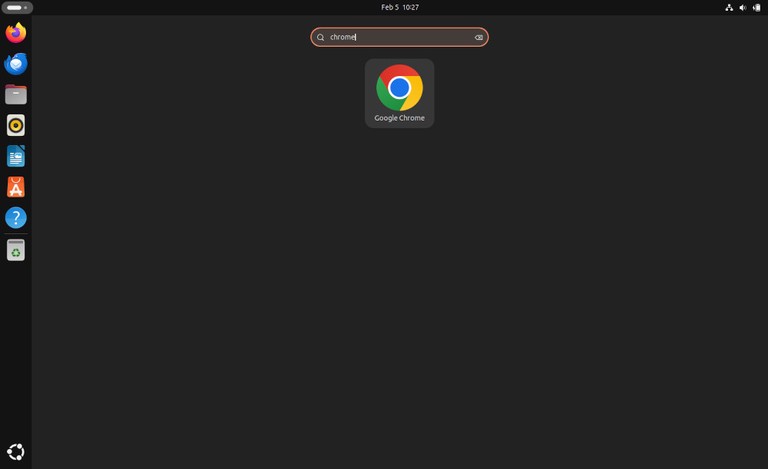
Open the Activities overview by pressing the Super key, search for “Google Chrome”, and launch it:

Open Google Chrome on Ubuntu 24.04

You can also start Chrome from the terminal:

Terminal
google-chrome

When you start Chrome for the first time, you will be asked whether you want to set it as the default browser and enable crash reports:

Google Chrome default browser prompt on Ubuntu 24.04

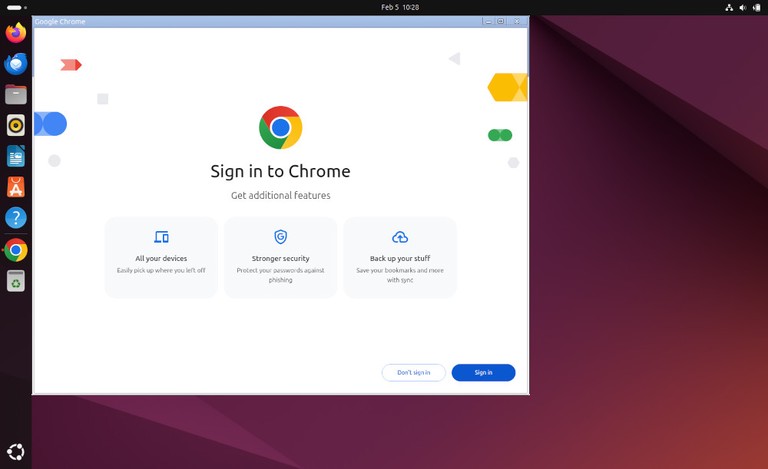
Chrome then opens the welcome page:

Google Chrome welcome page on Ubuntu 24.04

From here, you can sign in with your Google account and sync your settings.

Set Chrome as Default Browser

To set Chrome as the default browser from the command line, run:

Terminal
xdg-settings set default-web-browser google-chrome.desktop

To verify the current default browser:

Terminal
xdg-settings get default-web-browser
output
google-chrome.desktop

Updating Google Chrome

During installation, the official Google repository is added to your system. Verify the repository file with cat :

Terminal
cat /etc/apt/sources.list.d/google-chrome.list

Example output:

output
### THIS FILE IS AUTOMATICALLY CONFIGURED ###
# You may comment out this entry, but any other modifications may be lost.
deb [arch=amd64] https://dl.google.com/linux/chrome/deb/ stable main

Chrome updates are delivered through the standard Ubuntu update process:

Terminal
sudo apt update && sudo apt upgrade

Uninstalling Google Chrome

To remove Google Chrome from your system, run:

Terminal
sudo apt remove google-chrome-stable

Then clean up unused dependencies:

Terminal
sudo apt autoremove

Troubleshooting

The installation fails with dependency errors
Fix broken dependencies and re-run the install:

Terminal
sudo apt --fix-broken install
sudo apt install ./google-chrome-stable_current_amd64.deb

Chrome does not start after installation
Close any running Chrome processes and start it again:

Terminal
pkill -f chrome
google-chrome

Repository file is missing
Reinstall the package to recreate the repository file:

Terminal
sudo apt install ./google-chrome-stable_current_amd64.deb

FAQ

What is the difference between Chrome and Chromium?
Chromium is the open-source project that Chrome is built on. Chrome adds proprietary features such as automatic updates, licensed media codecs (AAC, H.264), and tighter Google account integration.

How do I import bookmarks from another browser?
Open Chrome, go to Settings > Import bookmarks and settings, and select the browser you want to import from.

Can I install Chrome Beta or Dev channels?
Yes. Replace google-chrome-stable with google-chrome-beta or google-chrome-unstable in the download URL and install command.

Conclusion

Google Chrome installs on Ubuntu 24.04 using the official .deb package, which also configures the Google repository for automatic updates.

If you have any questions, feel free to leave a comment below.

Python Switch Case Statement (match-case)

Unlike many other programming languages, Python does not have a traditional switch-case statement. Before Python 3.10, developers used if-elif-else chains or dictionary lookups to achieve similar functionality.

Python 3.10 introduced the match-case statement (also called structural pattern matching), which provides a cleaner way to handle multiple conditions.

This article explains how to implement switch-case behavior in Python using all three approaches with practical examples.

Using if-elif-else

The if-elif-else chain is the most straightforward way to handle multiple conditions. It works in all Python versions and is best suited for a small number of conditions.

Here is an example:

py
def get_day_type(day):
 if day == "Saturday" or day == "Sunday":
 return "Weekend"
 elif day == "Monday":
 return "Start of the work week"
 elif day == "Friday":
 return "End of the work week"
 else:
 return "Midweek"

print(get_day_type("Saturday"))
print(get_day_type("Monday"))
print(get_day_type("Wednesday"))
output
Weekend
Start of the work week
Midweek

The function checks each condition in order. When a match is found, it returns the result and stops. If none of the conditions match, the else block runs.

This approach is easy to read and debug, but it gets verbose when you have many conditions.

Using Dictionary Lookup

A dictionary can map values to results or functions, acting as a lookup table. This approach is more concise than if-elif-else when you have many simple mappings.

In the following example, we are using a dictionary to map HTTP status codes to their descriptions:

py
def http_status(code):
 statuses = {
 200: "OK",
 301: "Moved Permanently",
 404: "Not Found",
 500: "Internal Server Error",
 }
 return statuses.get(code, "Unknown Status")

print(http_status(200))
print(http_status(404))
print(http_status(999))
output
OK
Not Found
Unknown Status

The get() method returns the value for the given key. If the key is not found, it returns the default value ("Unknown Status").

You can also map keys to functions. In the code below, we are creating a simple calculator using a dictionary of functions:

py
def add(a, b):
 return a + b

def subtract(a, b):
 return a - b

def multiply(a, b):
 return a * b

operations = {
 "+": add,
 "-": subtract,
 "*": multiply,
}

func = operations.get("+")
print(func(10, 5))
output
15

Dictionary lookups are fast and scale well, but they cannot handle complex conditions like ranges or pattern matching.

Using match-case (Python 3.10+)

The match-case statement was introduced in Python 3.10 . It compares a value against a series of patterns and executes the matching block.

The match-case statement takes the following form:

py
match expression:
 case pattern1:
 statements
 case pattern2:
 statements
 case _:
 default statements

The match keyword is followed by the expression to evaluate. Each case defines a pattern to match against. The case _ is the wildcard (default) case that matches any value not matched by previous patterns, similar to default in other languages.

Here is a basic example:

py
def http_error(status):
 match status:
 case 400:
 return "Bad Request"
 case 401 | 403:
 return "Not Allowed"
 case 404:
 return "Not Found"
 case _:
 return "Unknown Error"

print(http_error(403))
print(http_error(404))
print(http_error(999))
output
Not Allowed
Not Found
Unknown Error

You can combine multiple values in a single case using the | (or) operator, as shown with 401 | 403.

Let’s look at the different pattern matching capabilities of the match-case statement.

Matching with Variables

You can capture values from the matched expression and use them in the case block. In the following example, we are matching a tuple representing a point on a coordinate plane:

py
point = (3, 7)

match point:
 case (0, 0):
 print("Origin")
 case (x, 0):
 print(f"On x-axis at {x}")
 case (0, y):
 print(f"On y-axis at {y}")
 case (x, y):
 print(f"Point at ({x}, {y})")
output
Point at (3, 7)

The variables x and y are assigned the values from the tuple when the pattern matches.

Matching with Guards

You can add an if condition (called a guard) to a case pattern for more precise matching:

py
def classify_age(age):
 match age:
 case n if n < 0:
 return "Invalid"
 case n if n < 18:
 return "Minor"
 case n if n < 65:
 return "Adult"
 case _:
 return "Senior"

print(classify_age(10))
print(classify_age(30))
print(classify_age(70))
output
Minor
Adult
Senior

The guard (if n < 18) adds an extra condition that must be true for the case to match.

Matching Dictionaries

The match-case statement can match against dictionary structures, which is useful when working with JSON data or API responses:

py
def process_command(command):
 match command:
 case {"action": "create", "name": name}:
 print(f"Creating {name}")
 case {"action": "delete", "name": name}:
 print(f"Deleting {name}")
 case {"action": action}:
 print(f"Unknown action: {action}")

process_command({"action": "create", "name": "users"})
process_command({"action": "delete", "name": "logs"})
process_command({"action": "update"})
output
Creating users
Deleting logs
Unknown action: update

The pattern only needs to match the specified keys. Extra keys in the dictionary are ignored.

Which Approach to Use

Approach Best For Python Version
if-elif-else Few conditions, complex boolean logic All versions
Dictionary lookup Many simple value-to-value mappings All versions
match-case Pattern matching, destructuring, complex data 3.10+

Use if-elif-else when you have a handful of conditions or need complex boolean expressions. Use dictionary lookups when you are mapping values directly. Use match-case when you need to match against data structures, capture variables, or use guard conditions.

Quick Reference

py
# if-elif-else
if x == 1:
 result = "one"
elif x == 2:
 result = "two"
else:
 result = "other"

# Dictionary lookup
result = {1: "one", 2: "two"}.get(x, "other")

# match-case (Python 3.10+)
match x:
 case 1:
 result = "one"
 case 2:
 result = "two"
 case _:
 result = "other"

FAQ

Does Python have a switch statement?
Not a traditional one. Python uses if-elif-else chains, dictionary lookups, or the match-case statement (Python 3.10+) to achieve similar functionality.

What Python version do I need for match-case?
Python 3.10 or later. If you need to support older versions, use if-elif-else or dictionary lookups instead.

Is match-case faster than if-elif-else?
For most use cases the performance difference is negligible. Choose based on readability and the complexity of your conditions, not speed. Dictionary lookups are often the fastest for simple value mappings.

What happens if no case matches and there is no wildcard?
Nothing. If no pattern matches and there is no case _, the match statement completes without executing any block. No error is raised.

Can I use match-case with classes?
Yes. You can match against class instances using the case ClassName(attr=value) syntax. This is useful for handling different object types in a clean way.

Conclusion

Python does not have a built-in switch statement, but offers three alternatives. Use if-elif-else for simple conditions, dictionary lookups for direct value mappings, and match-case for pattern matching on complex data structures.

For more Python tutorials, see our guides on for loops , while loops , and dictionaries .

If you have any questions, feel free to leave a comment below.

Sed Cheatsheet

Syntax

General command forms.

Command Description
sed 'script' file Run sed script on a file
sed -n 'script' file Suppress auto-print, print only with p
printf '%s\n' "text" | sed 'script' Read from stdin
sed -e 'cmd1' -e 'cmd2' file Multiple commands
sed -f script.sed file Read commands from file

Options

Common CLI flags.

Command Description
sed -n 'script' file Suppress auto-print
sed -E 'script' file Extended regex (GNU and BSD)
sed -r 'script' file Extended regex (GNU only)
sed -i 'script' file Edit in place (GNU sed)
sed -i.bak 'script' file Edit in place with backup

Substitution

Replace text with s/old/new/.

Command Description
sed 's/old/new/' file Replace first match on each line
sed 's/old/new/g' file Replace all matches
sed 's/old/new/2' file Replace second match
sed 's/old/new/Ig' file Case-insensitive replace (GNU sed)
`sed ’s /usr
sed -n 's/old/new/p' file Print only lines with replacements
sed 's/old/new/w out.txt' file Write changed lines to file

Addresses

Apply commands to specific lines.

Command Description
sed '3s/a/b/' file Substitute on line 3 only
sed '1,5s/a/b/' file Lines 1 through 5
sed '/pattern/s/a/b/' file Lines matching pattern
sed '3,/pattern/s/a/b/' file Line 3 through first match
sed '/start/,/end/d' file Delete range between patterns

Print And Delete

Control output and remove lines.

Command Description
sed -n 'p' file Print all lines (same as cat)
sed -n '3p' file Print line 3 only
sed -n '/pattern/p' file Print matching lines
sed -n '1,5p' file Print range of lines
sed 'd' file Delete all lines (prints nothing)
sed '3d' file Delete line 3
sed '/pattern/d' file Delete matching lines

Insert, Append, Change

Add or replace whole lines.

Command Description
sed '2i\\new line' file Insert before line 2
sed '2a\\new line' file Append after line 2
sed '2c\\new line' file Replace line 2
sed '/pattern/i\\new line' file Insert before matches
sed '/pattern/a\\new line' file Append after matches

Other Commands

Useful non-substitution commands.

Command Description
sed 'y/abc/xyz/' file Translate characters
sed '=' file Print line numbers
sed 'q' file Quit after first line
sed '3q' file Quit after line 3
sed 'n' file Read next line, skip current output
sed 'N' file Append next line to pattern space
sed '/pattern/r other.txt' file Read file after matches
sed '/pattern/w out.txt' file Write matching lines to file

In-Place Editing

Write changes back to files.

Command Description
sed -i 's/old/new/g' file Edit in place (GNU sed)
sed -i.bak 's/old/new/g' file Edit in place with backup
sed -i '' 's/old/new/g' file Edit in place on macOS/BSD
sed -i -e 's/a/b/' -e 's/c/d/' file Multiple edits in place

Regular Expressions

Use regex and capture groups.

Command Description
sed 's/[0-9]\{4\}/YEAR/' file Replace 4-digit numbers
sed -E 's/[0-9]{4}/YEAR/g' file Extended regex (GNU and BSD)
sed 's/\(foo\)bar/\1baz/' file Capture group (basic)
sed -E 's/(foo)bar/\1baz/' file Capture group (extended)
sed -E 's#(https?)://#\1://#' file Use groups and alternate delimiter

Line Selection

Select by position or pattern.

Command Description
sed -n '1p' file First line
sed -n '$p' file Last line
sed -n '1~2p' file Every 2nd line (GNU sed)
sed -n '/error/,+2p' file Match plus next 2 lines
sed -n '/start/,/end/p' file Print between patterns

Common Patterns

Useful one-liners.

Command Description
sed 's/[[:space:]]\+$//' file Trim trailing whitespace
sed 's/^[[:space:]]\+//' file Trim leading whitespace
sed 's/[[:space:]]\+/ /g' file Collapse whitespace
sed '/^#/d;/^$/d' file Remove comments and blank lines
sed -n 'n;p' file Print even lines
❌